
Create a New Reconciliation Report
Prerequisites
- Roles: Owner, Admin, Reconciliation Officer, Treasury Officer, or Chargeback Officer (any role with “Reporting:Create”).
- Data Availability: At least one completed Run (for reconciliation outcomes) or active data sources (Transactions, Balances).
Reports are generated from normalized, reconciled, and versioned datasets to ensure auditability.
Steps
Creating a custom reconciliation report is a straight forward, self-service process.Start a New Report
Start a New Report
Navigate to Reporting using the left menu on the Recital platform. Then click on the “New Report” button.
Add Report Configuration
Add Report Configuration
Under the “Configure” section, enter the report name and description
Add Filter
Add Filter
Use the “Filter” section to precisely specify the dataset you need to power your custom report.Data Point:
Most finance ops, start with Reconciliation. Other available data point may include balances, transaction, etc.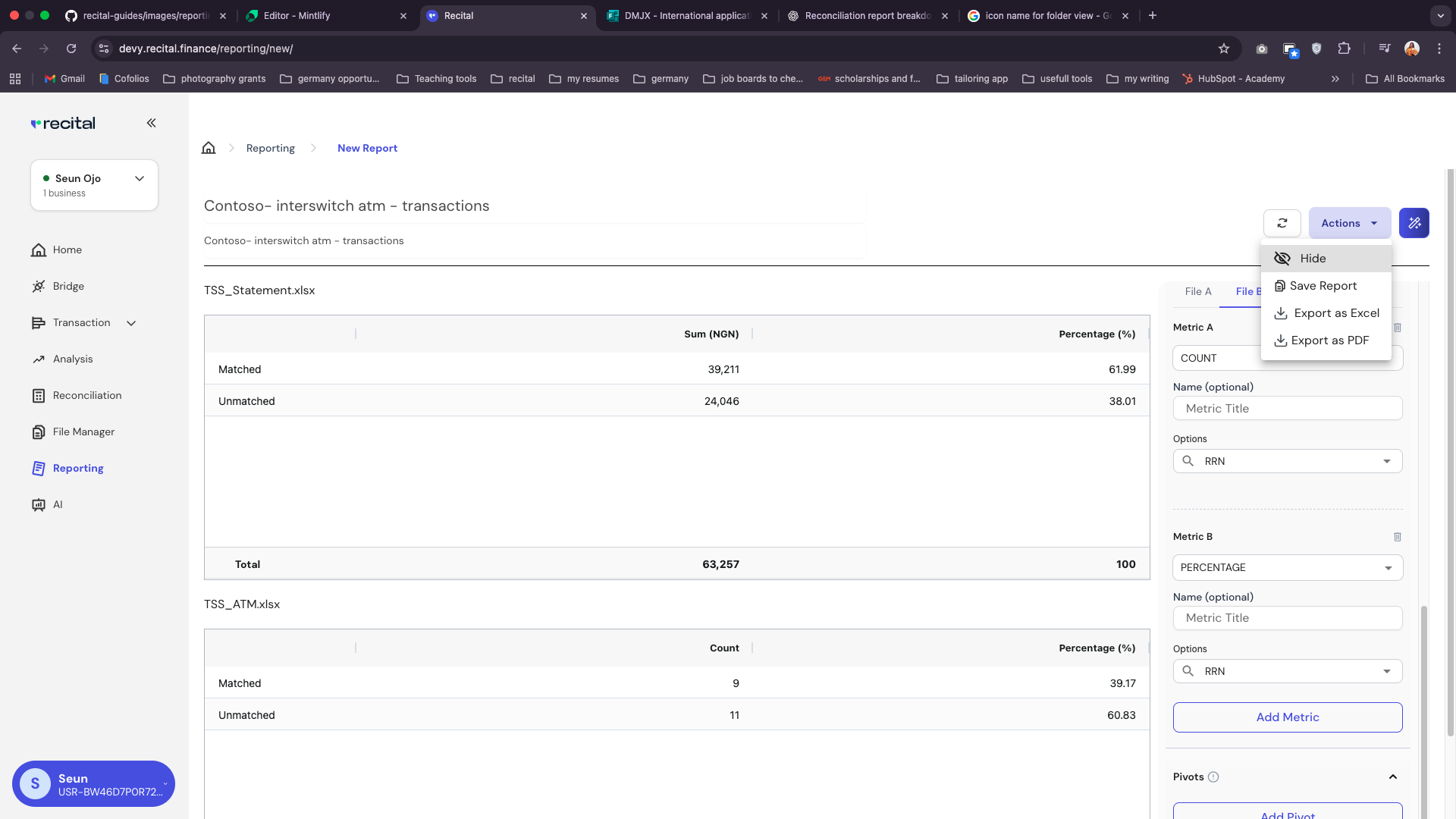
Type:
The available type depends on the selected Data Point. For Reconciliation data point, the available types are User Recon, Manual Recon, Automated ReconAvailable Types
Date:
For Reconciliation data point, this should be the date(s) of the reconciliation run. Select the same date for start and end date, if you want to only want reconciliation run outcome data within the same day. Select a date range for the start and end date, if you use the run outcome data for more than one day.Source:
For Source, select the reconciliation name for the reconciliation you want to generate a custom report for.Runs:
Choose the reconciliation run structured output data for your reportAnalysis Type
Use Analysis type to select one or more files/data source in the selected reconciliation runs for your report
Pick Metrics
Pick Metrics
Use the Metrics section to configure the specific values you want to see in your report.To add a Metric, simply the following: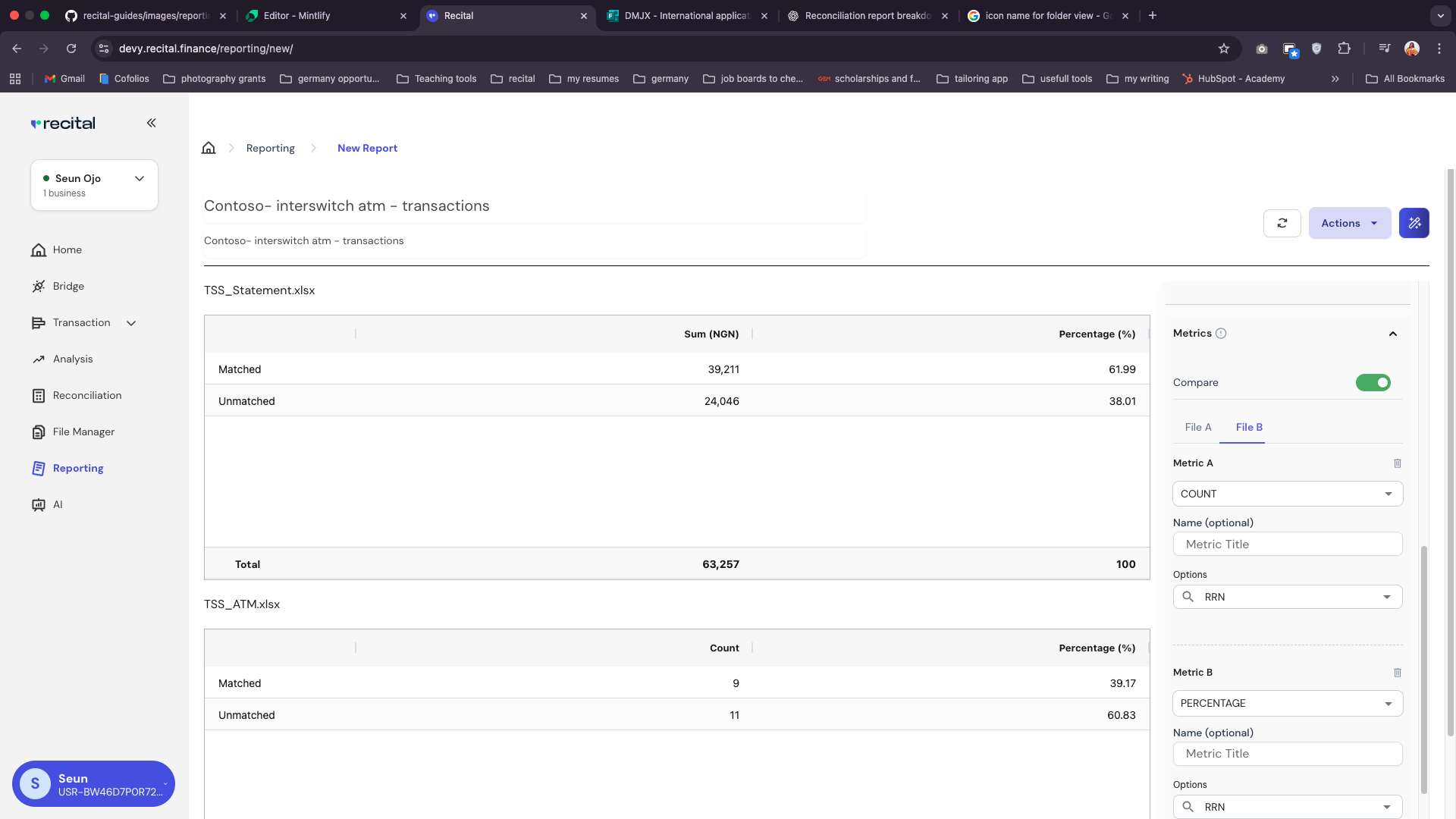
- Ensure you have filled the configure and filter sections of the report
- Within the Metric section, click the “Add Metric” button
- Use the first drop down field to choose a metric logic, e.g., SUM, COUNT, Percentage or Expression
- Optionally, select a name for the metric to override the defaults
- Use the options field to select a data column to apply the select metric logic on
- Keep clicking on “Add Metric” to add more metrics
- Enter the metric logic, optional metric name and data column to apply the metric logic on
- Ensure you have filled the configure, filter and metric sections of the report
- Check the “Compare” option, under the Metrics section,
- Use the File tab to specify the exact metrics you want to generate for each file for better comparison.
Common Data Columns for Reconciliation
Add Pivot (optional)
Add Pivot (optional)
Use the Pivot section to configure rows for crosstab/grouping views.To add a pivot,simply do the following: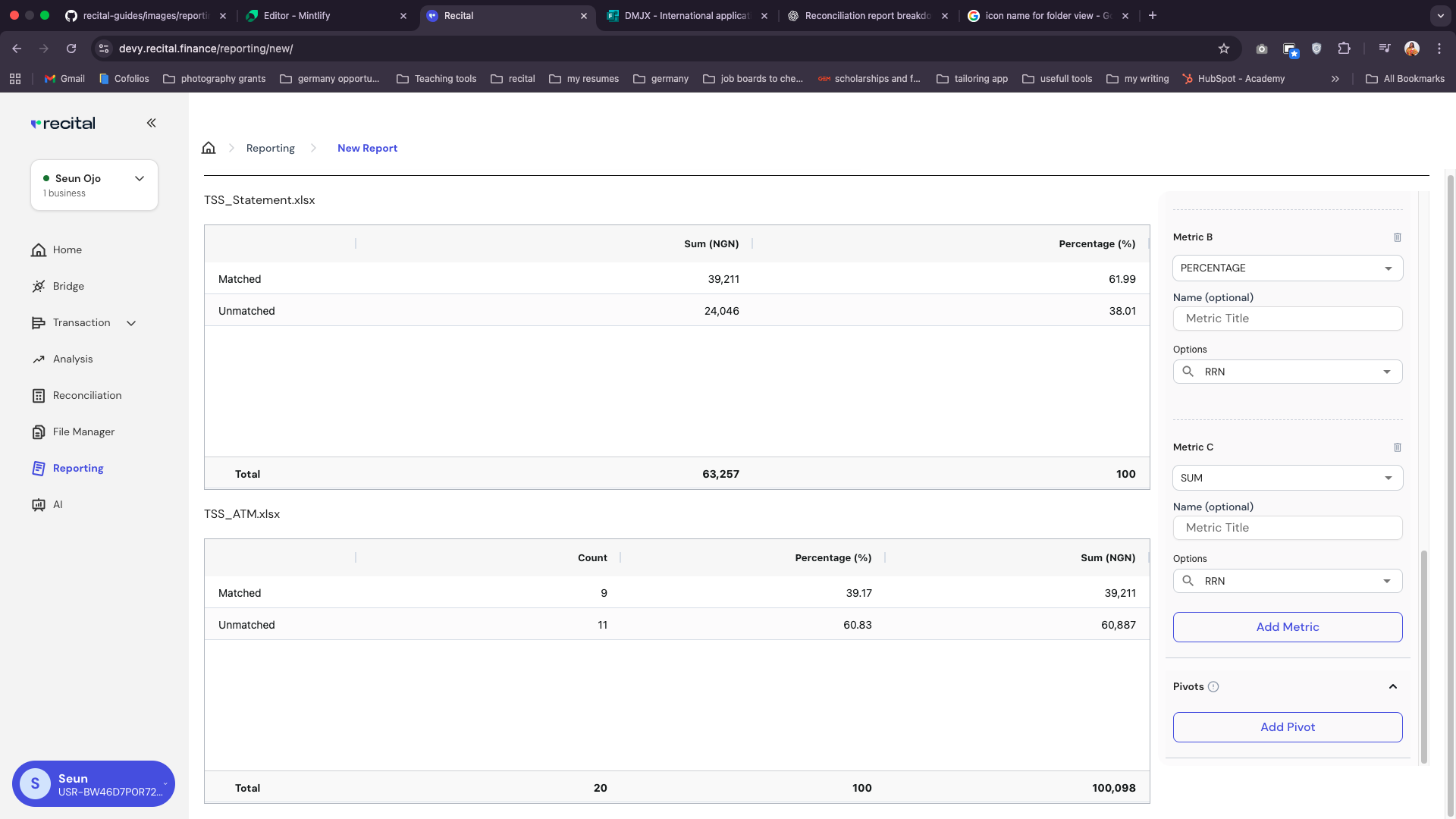
- Under the Pivot section, click the “Add Pivot” button
- Specify the the column/field you want to use to slice/group the report
Preview & Validate Report
Preview & Validate Report
Reports render automatically on view section as you add in the metrics and pivots.Validate totals against known checkpoints (e.g., daily GL totals, prior day balance). Fix filters or metrics or pivots if results look unexpected.
Export Report
Export Report
To export the data, simply click on the Download button, and choose the export format: Excel, PDF.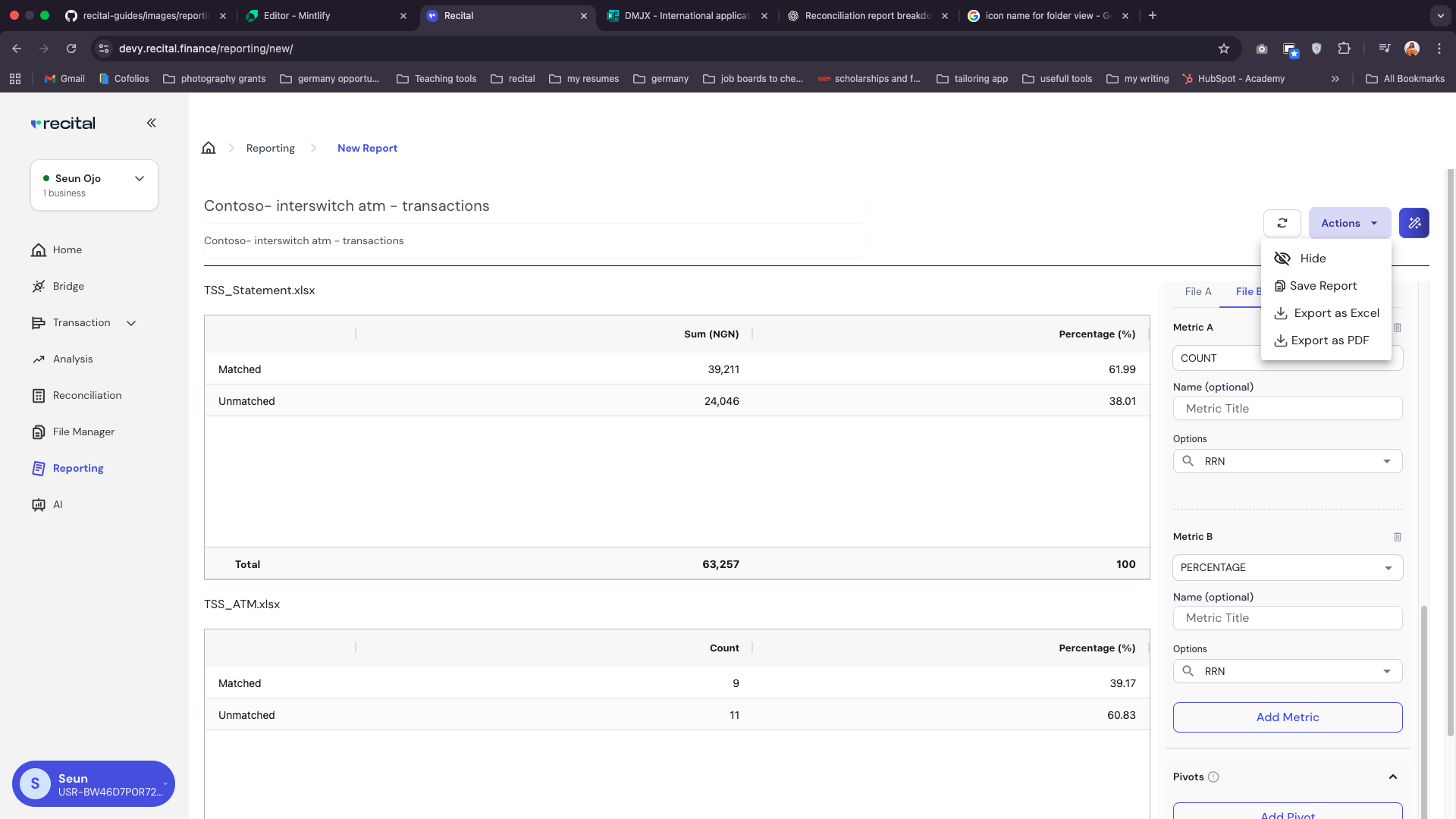
Save Report
Save Report
Save Reports for later use.Saved reports appear on the Reporting home page, where they can be assessed and spooled again or edited.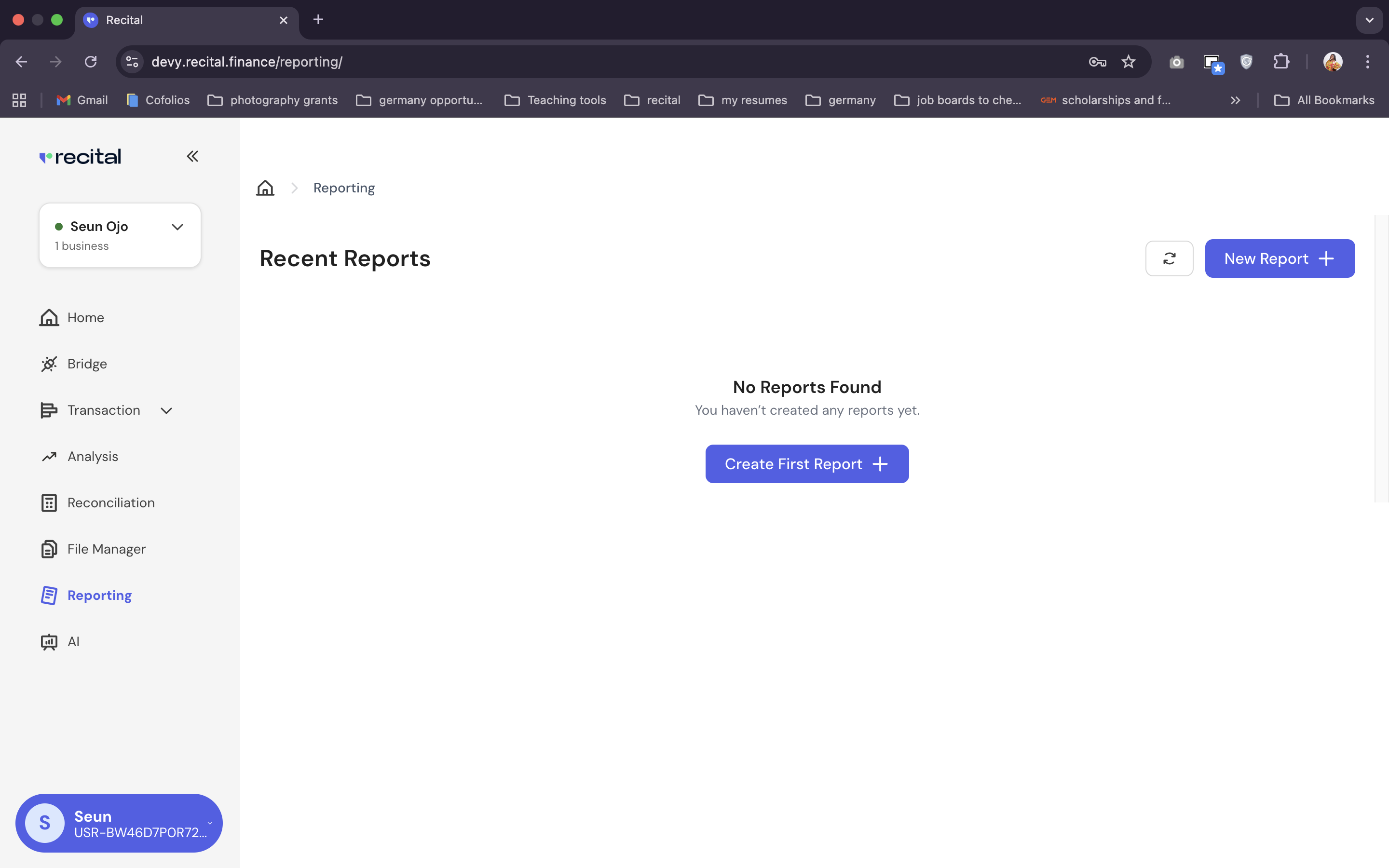
Sample Custom Reconciliation Report Output
File A
File B
Best Practices
- Name Reports clearly: Make reports easy to search and classify.
- Lock Filters: Avoid accidental scope drift for recurring reports.
- Version Awareness: Tie each report to a Runs Version when using reconciliation outcomes.
- Validate Totals: Reconcile totals with GL or prior-day check figures.
- Limit recipients: Reduce noise—send only to people who need it.
Use the same filters, metrics and pivots across scheduled reports to maintain comparability over time.