
Bridge Connnection Flow
Connecting to a new data provider on Recital typicall follows this flow:- Click Add Provider on the Bridge Home Page
- Select or find the provider on supported Providers list. To find your Provider, you can
- Scroll down so that list reveals more Providers
- You can search for the Provider with the search input field on the right
- You can filter the Provider category using the category selector on the top left of the provider
- Enter the authentication credentials or other connection configuration to connect to the data provider
- Accept Recital’s terms and conditions
Provider Connection
Connecting to your financial data sources is a straight forward, self-service process:Connect to a Payment Service Provider - e.g., Paystack
Connect to a Payment Service Provider - e.g., Paystack
1
Navigate to the Bridge
Use the left menu on Recital to navigate to the Bridge page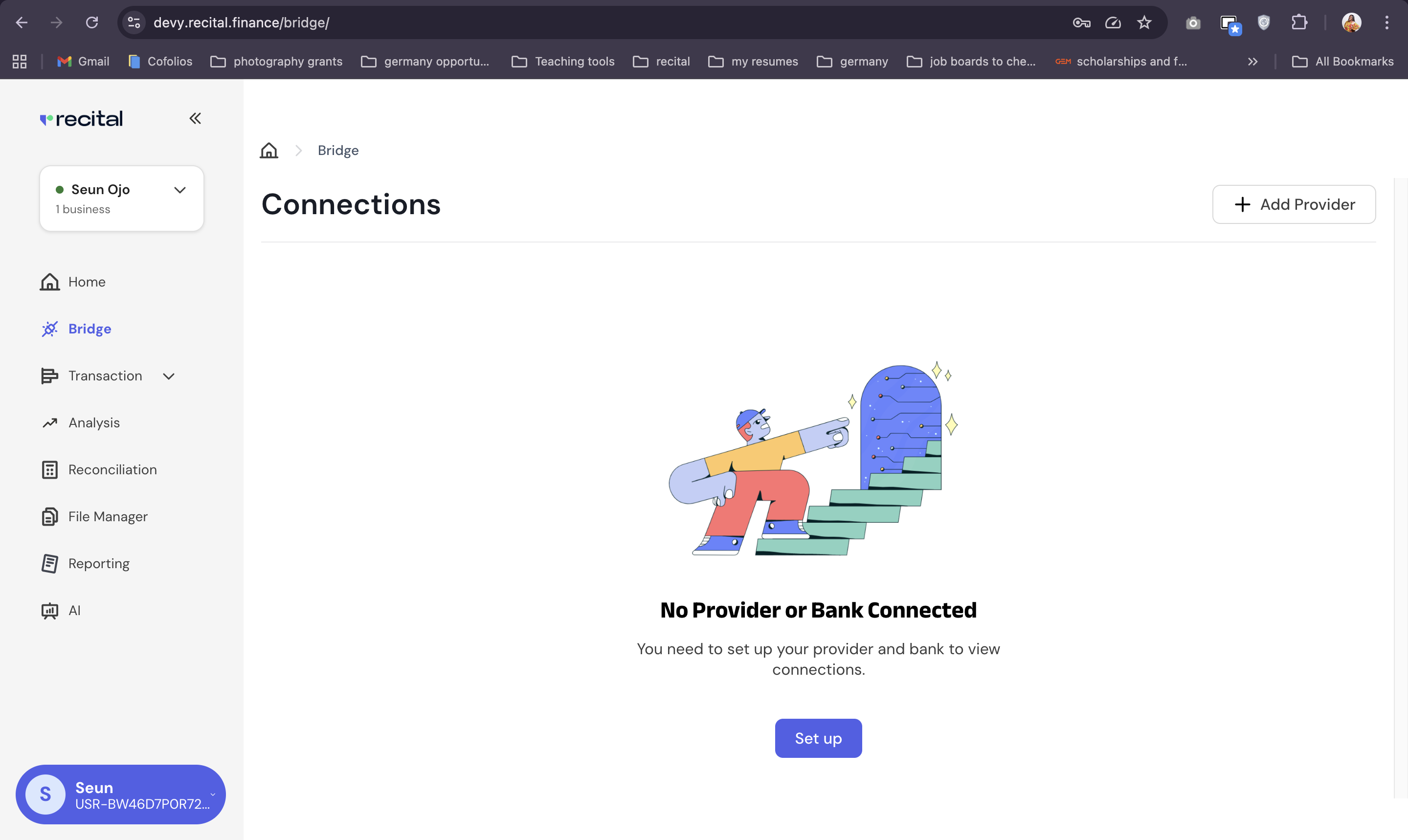
2
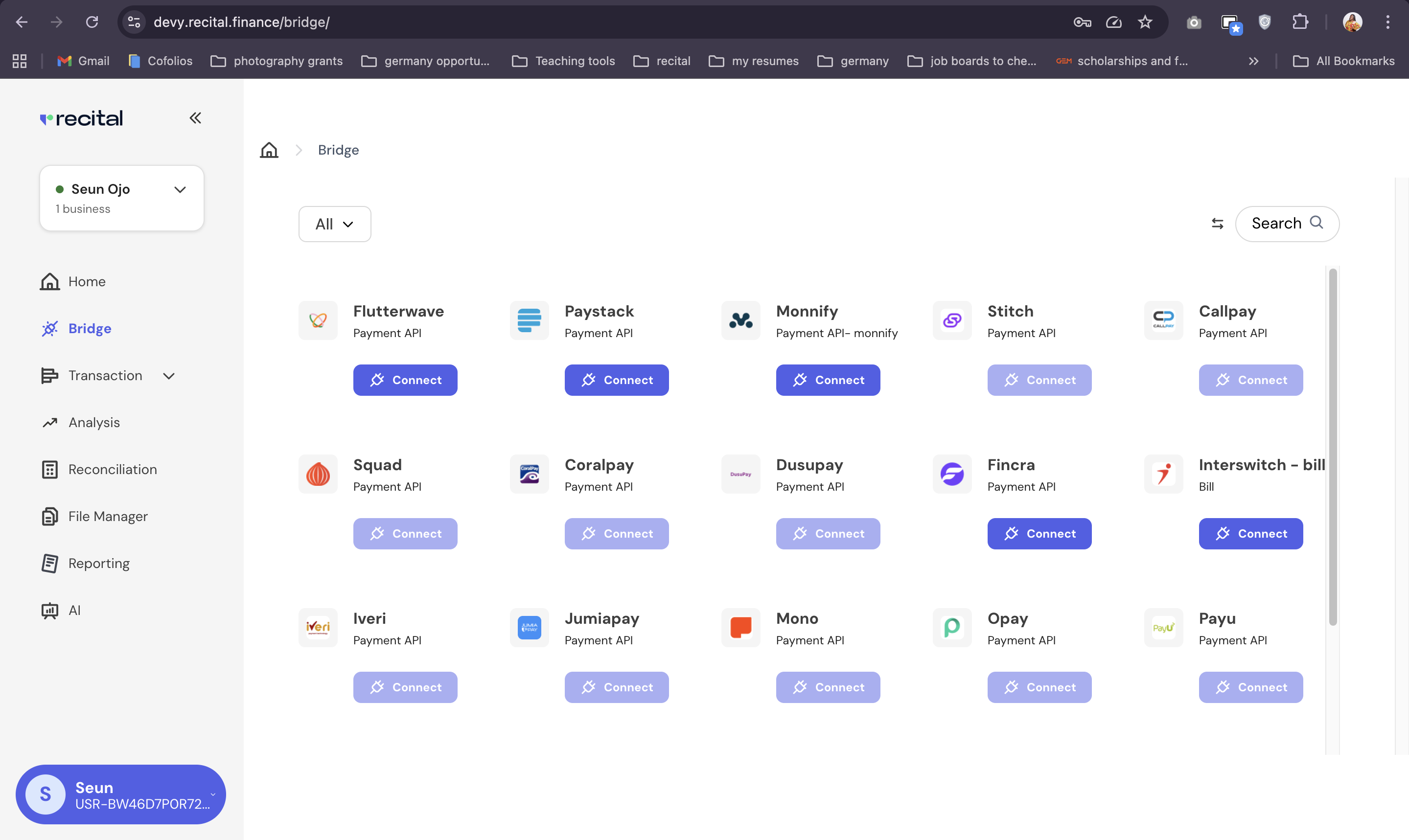
Add a Provider
- On the Bridge page, click on “Add Provider” button.
-
Select the PSP you want to connect to from the provider list.
3
Authentication
A pop-up modal will appear, prompting you to provide the necessary authentication credentials (e.g., API keys, account numbers, or login details) for the provider.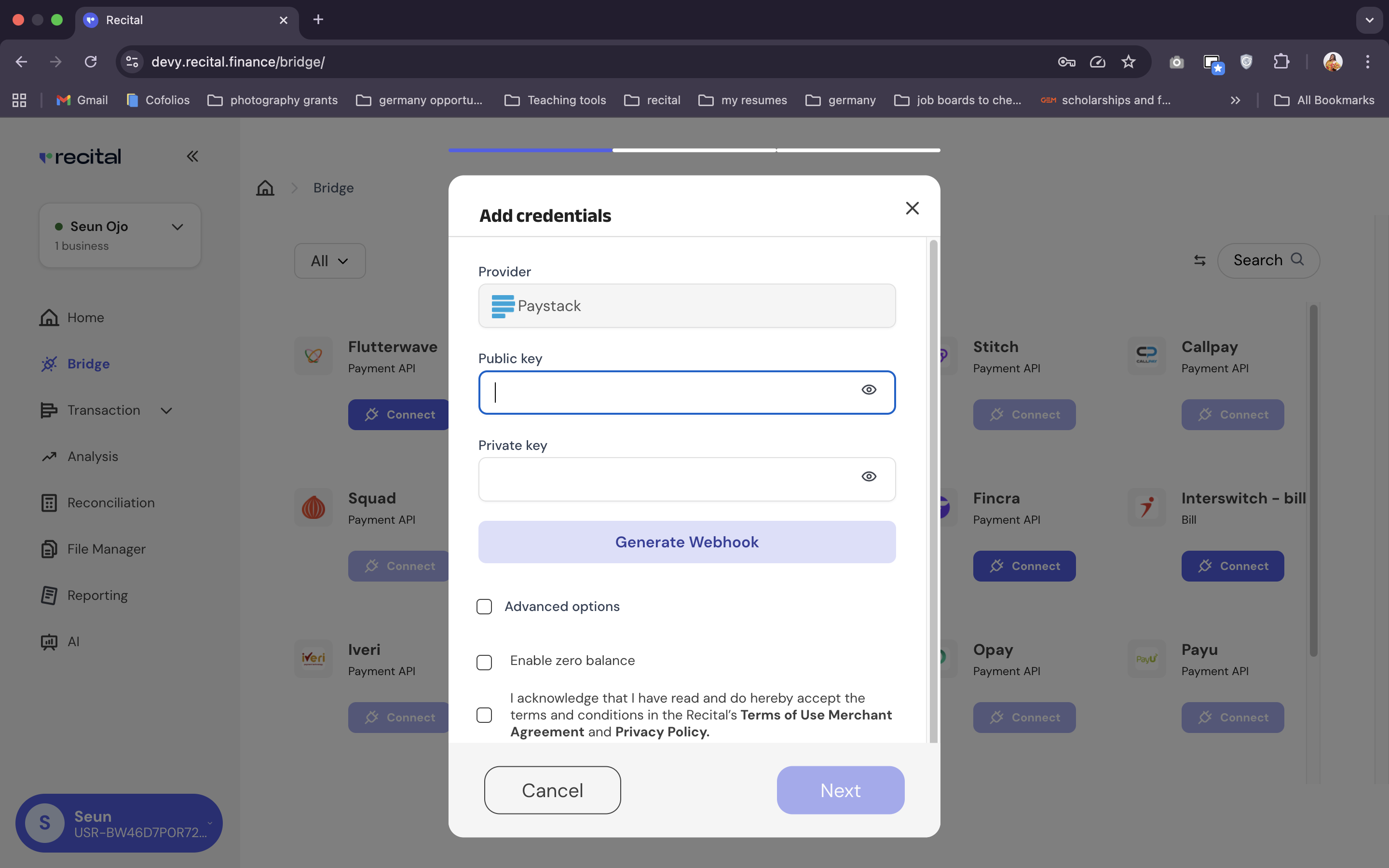
- Add your provider issued private and public authentication credientails
- Accept Recital’s terms and condition for usage
- Click “Next” to connect the provider
If you are unsure about your provider’s authentication credentials, contact your IT/ Engineering/Business teams for assistance.
4
Add more Providers
You can multiple PSPs to your account. Just repeat the last three steps to add other PSP providers
5
Use your data
Financial data flows seamlessly in and becomes immediately available across Balances, Transaction, Reports and Reconciliation on your account.
Connect to a Bank, via Open Banking API providers - e.g., Mono
Connect to a Bank, via Open Banking API providers - e.g., Mono
1
Navigate to the Bridge
Use the left menu on Recital to navigate to the Bridge page
2
Add a Bank as Provider
- On the Bridge page, click on “Add Provider” button.
- Use the category filter to select Bank or the Search input field to enter the name of your bank
-
Select the Bank you want to connect to from the list of supported providers by click on “Connect”.
3
Authentication
A pop-up modal from one of our Open Banking partners will appear, prompting you to provide the necessary authentication credentials to connect to your bank account.
- Enter your bank’s authentication credientials on the pop-up
- Follow other instructions to complete the bank provider connection
If you are unsure about your provider’s authentication credentials, contact your IT/ Engineering/Business teams for assistance.
4
Add more Providers
You can multiple banks to your account. Just repeat the last three steps to add other banks.
5
Use your data
Financial data from bank flows in seamlessly becomes immediately available across Balances, Transaction, Reports and Reconciliation on your account.
Connect to a Bank, via email fowarding
Connect to a Bank, via email fowarding
Recital Forwarding Email
Recital forwarding emails are smart, auto-generated email addresses assigned to businesses on Recital. These emails allow Recital to automatically capture and process transaction alerts sent by your bank, enabling seamless, real-time transaction recording within the Recital Automated Transactions module.Why Use a Recital Forwarding Email?
Recital forwarding emails offer a powerful alternative to traditional bank integrations. Here’s why it’s a better choice for many businesses:- High Success Rate: Enjoy up to 99% transaction capture success.
- No Bank Login Required: Unlike auto-bank connections, there’s no need to log in to your bank account or grant data access.
- Greater Bank Coverage: Works even with banks not supported by direct integrations.
- AI-Powered Parsing: Our system uses AI to analyze transactional emails (debits/credits) and structure the data cleanly within Recital.
Bank Connection via email forwarding Setup
Do the following:1
Navigate to the Bridge
Use the left menu on Recital dashboard to navigate to the Bridge page.
2
Add a Bank via Email Forwarder
- Use the Arrow beside the search input field on the top right to change your connector to Email Forwarder,
- Then search for the bank you wish to connect
3
Provide your Account Info
Provide the following information, for accurate account data parsing:
- Alias (friendly name for the account)
- Account Name
- Account Number
- Business Email
- Subject Markers (used to help filter relevant emails)
4
Generate A Recital Forwarding Email
- Click Next to generate your unique Recital forwarding email (e.g.,
xyz@connect.recital.finance). - Copy & Save the Email
5
Link your Recital Forwarding Email to your Bank
You have two options for enabling transaction capture with your recital forwarding email:
Method 1: Submit to Your Bank
- Add your Recital forwarding email (e.g.,
xyz@connect.recital.finance) as a notification email on your bank platform or submit it to your account manager. - Ensure your bank adds it as an authorized recipient for transaction alerts.
- This setup ensures your bank sends transaction alerts directly to Recital in real-time.
✅ Method 2: Set Up Email Forwarding From Your Email Inbox
If your bank sends alerts to your personal/business email, you can configure a forwarding rule so those alerts are automatically forwarded to your Recital email. Supported providers include:- Gmail
- Outlook
- Zoho Mail
- Yahoo
- Amazon WorkMail
Helpful Guides
Use the links below to set up email forwarding for your email provider:- Automatically forward bank alerts in Google Gmail to Recital accounting system transactions.
- Automatically forward bank alerts in Microsoft Outlook to Recital accounting system transactions.
- Automatically forward bank alerts in ZohoMail to Recital accounting system transactions.
- Automatically forward bank alerts in YahooMail to Recital accounting system transactions.
- Automatically forward bank alerts in Amazon Workmail to Recital accounting system transactions.
Example Use Case
Imagine a Fintech operating across multiple African markets. With Bridge:- Bank balances from Bank A (Nigeria) sync daily.
- Settlement files from PSP B (Kenya) import automatically.
- ERP entries in SAP are updated after reconciliation runs.
Outcome: All systems stay synchronized without manual effort, ensuring a reliable single source of truth.