
User Reconciliation Flow
- Ingestion of data via file upload (CSV/XLSX)
- Entry of tailored matching and transformation rules, using a business-user friendly UI
- Saving of these rules for later system/user re-use
- Run Matching
- Dashboard View and Reports on reconciliation outcome data
Create a New User Reconciliation
Sample Scenario 1: Transaction Reconciliation
Let’s assume we want to use Recital to perform transaction reconciliation on transaction data from different sources.Data
Data
Transaction Data 1: TSS_Statement.xlsx - Internal Ledger Transaction FileTransaction Data 2: TSS_ATM.xlsx - External Transaction File
Source: Internal; Format: XLSX; Frequency: Daily
Source:External; Format: XLSX; Frequency: Daily
Matching Rule Specification
Matching Rule Specification
Assume for the transaction reconciliation, matching between the two data sources involves the following fields and definition.
Reconciliation rules leverage unique identifiers (RRN) and transaction amount to ensure high‑confidence match across the
TSS_StatementandTSS_ATMfiles.Transformation Rule Specification
Transformation Rule Specification
Assume for the transaction reconciliation the following normalization/transformation on the transaction files.
Rule 1: Normalization in tss_statement generates a unique concatenated key for full traceability down the line.
Rule 2: Normalization in
Rule 2: Normalization in
tss_atm ensures that settlement impact considered are relevant, absolute values are considered, and unique concatenated keys are generated for easier traceability down the line.Transaction Reconciliation using Recital
Transaction Reconciliation using Recital
Handling Sample Scenario 1
Creating a new user reconciliation to handle the transaction reconciliation is easy and straight forward.1
Navigate to the Reconciliation Page
Use the left menu on Recital to navigate to the Reconciliation page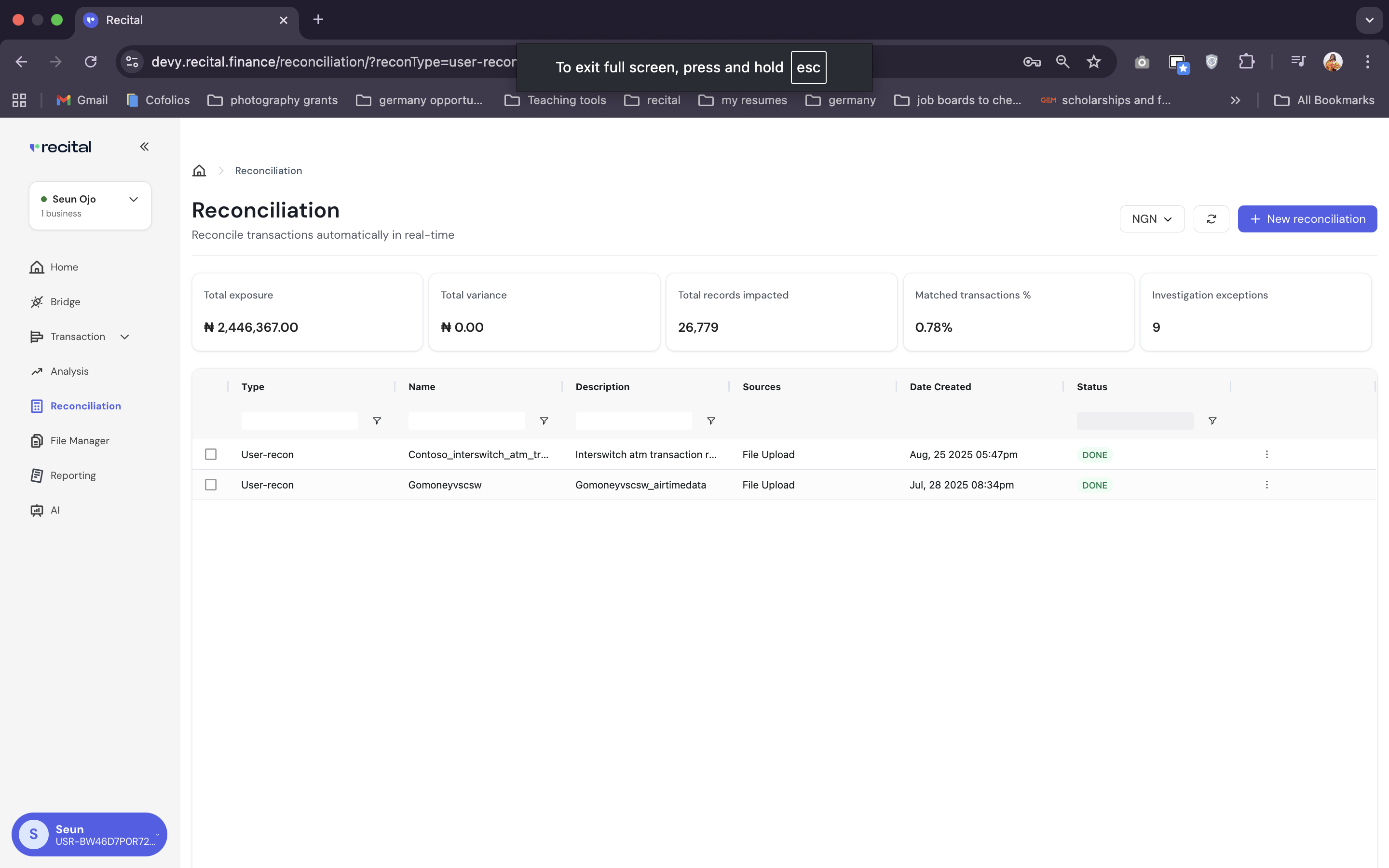
2
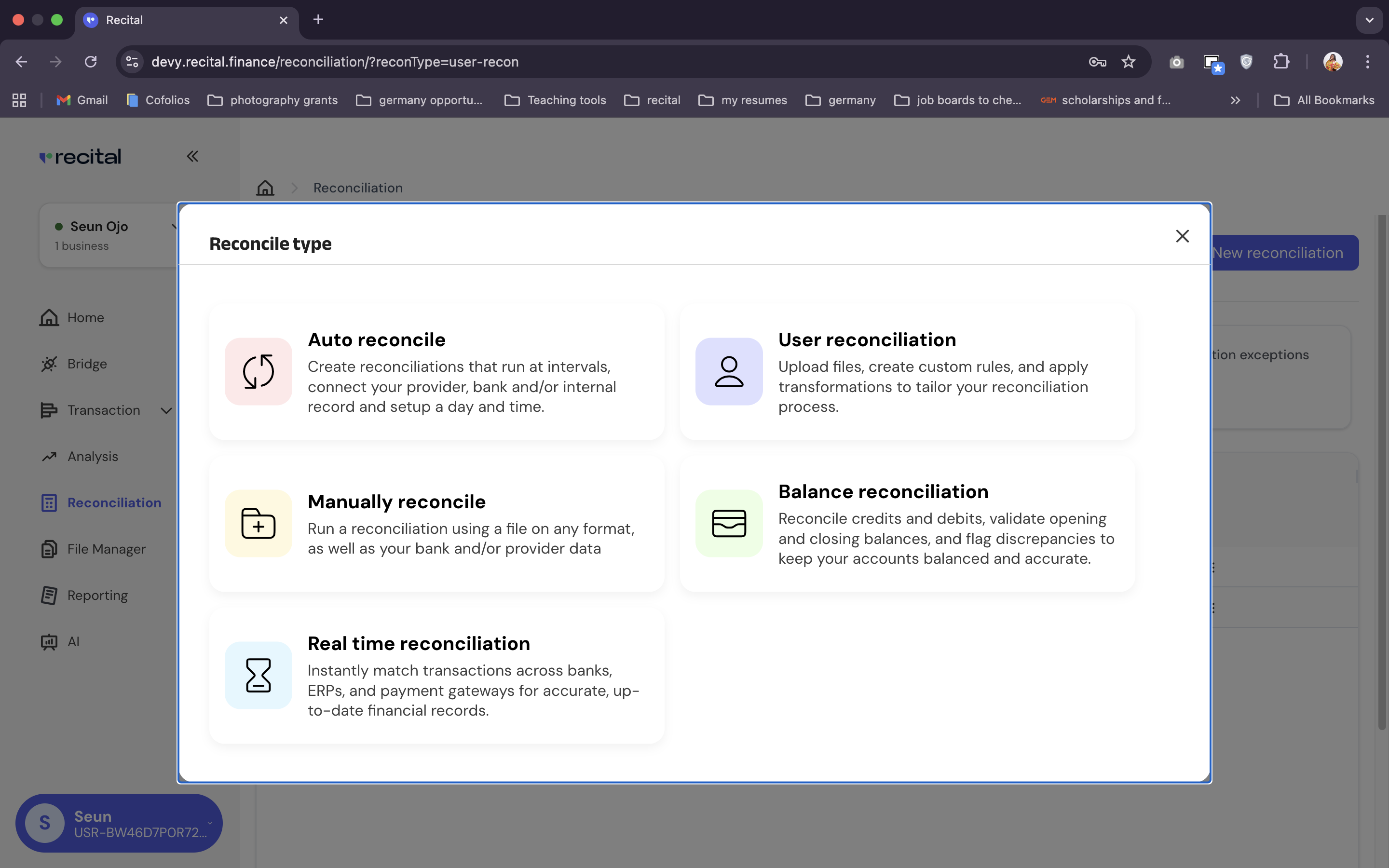
Start New Reconcliation Flow
- On the Reconcilation page, click on “New Reconciliation” button.
-
Select the “User Reconciliation” from the pop-up menu.
3
Complete the Flow Set Up
Set up the new flow by filling User Recon Diablog.Do the following: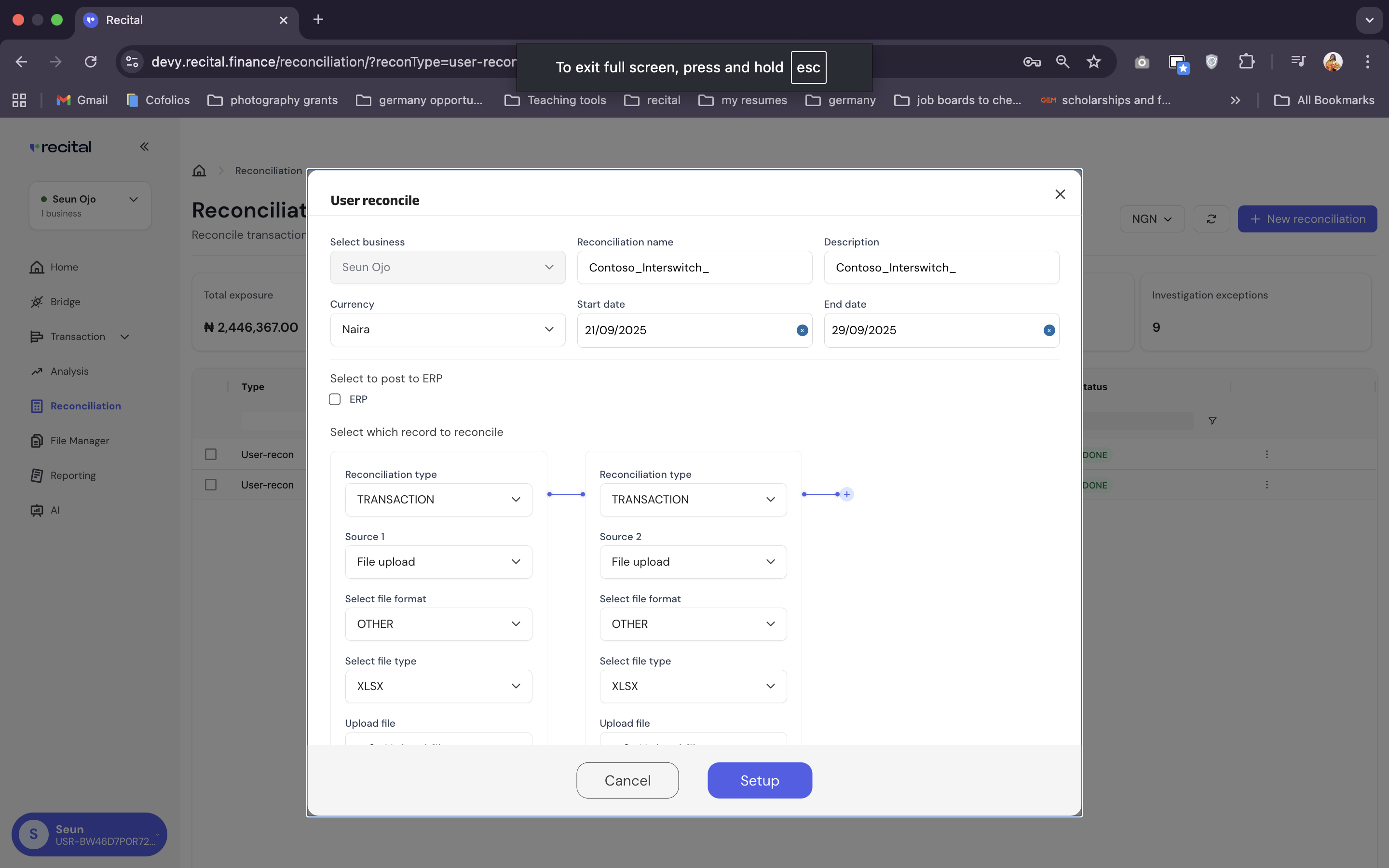
- Enter a representative name and description for the description
-
Specify currency and transaction start and end date in your source files as the currency, start data and end date
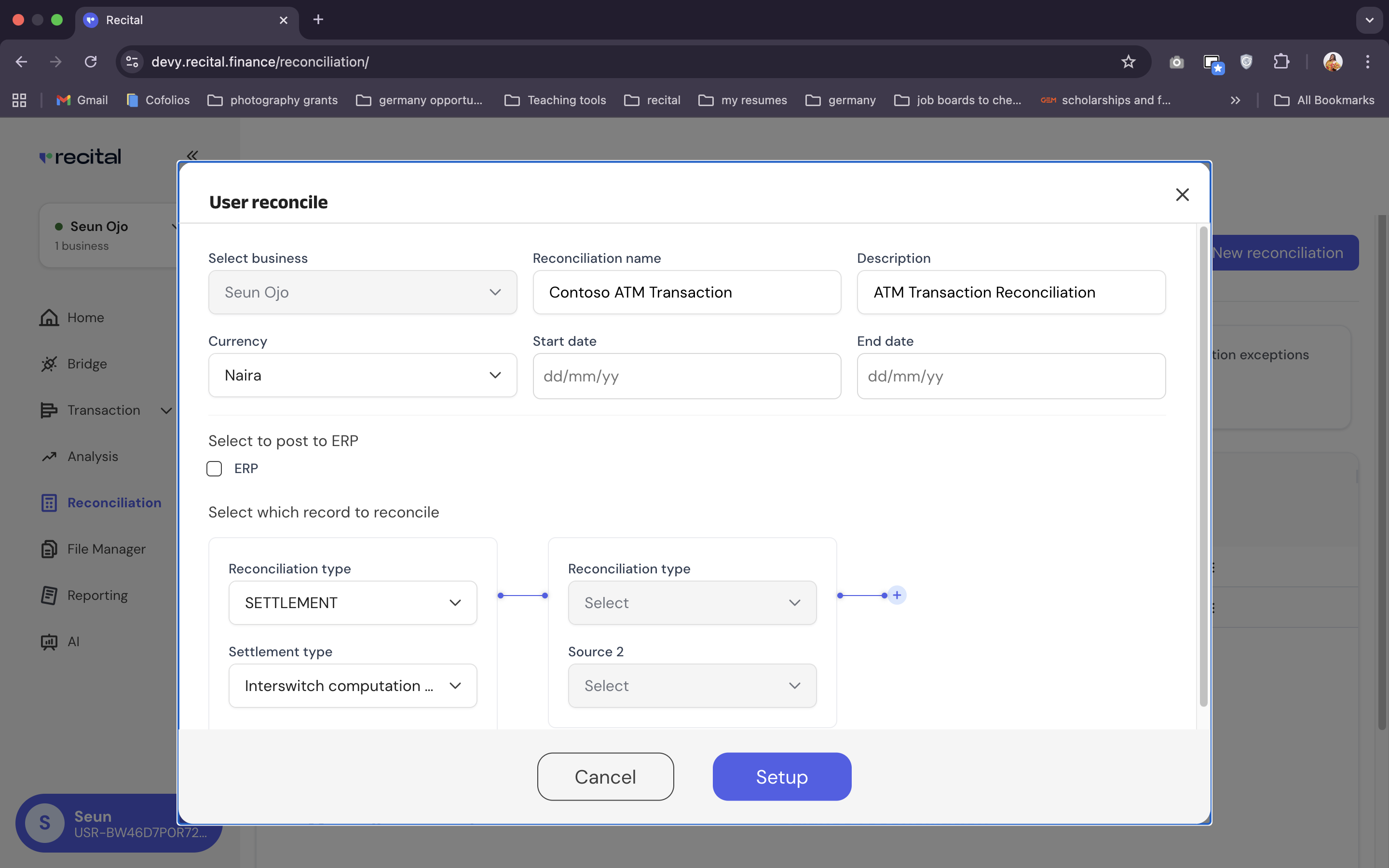
- For each source column,
- Specify the Reconciliation type as “Transaction” in this case,
- Specify Source as “File upload” in this case),
- Specify File Format as “Others” in this case),
- Specify File Type as “XLSX” in this case
- Upload the TSS_Statement.xlsx for Source 1 and TSS_ATM.xlsx for Source 2
- Click on “Set up”
4
Matching Rules
On the “User Recons” Page, switch to the “Matching Tab”, and set up the matching rules for the transaction reconciliation using the sample matching rules specified above.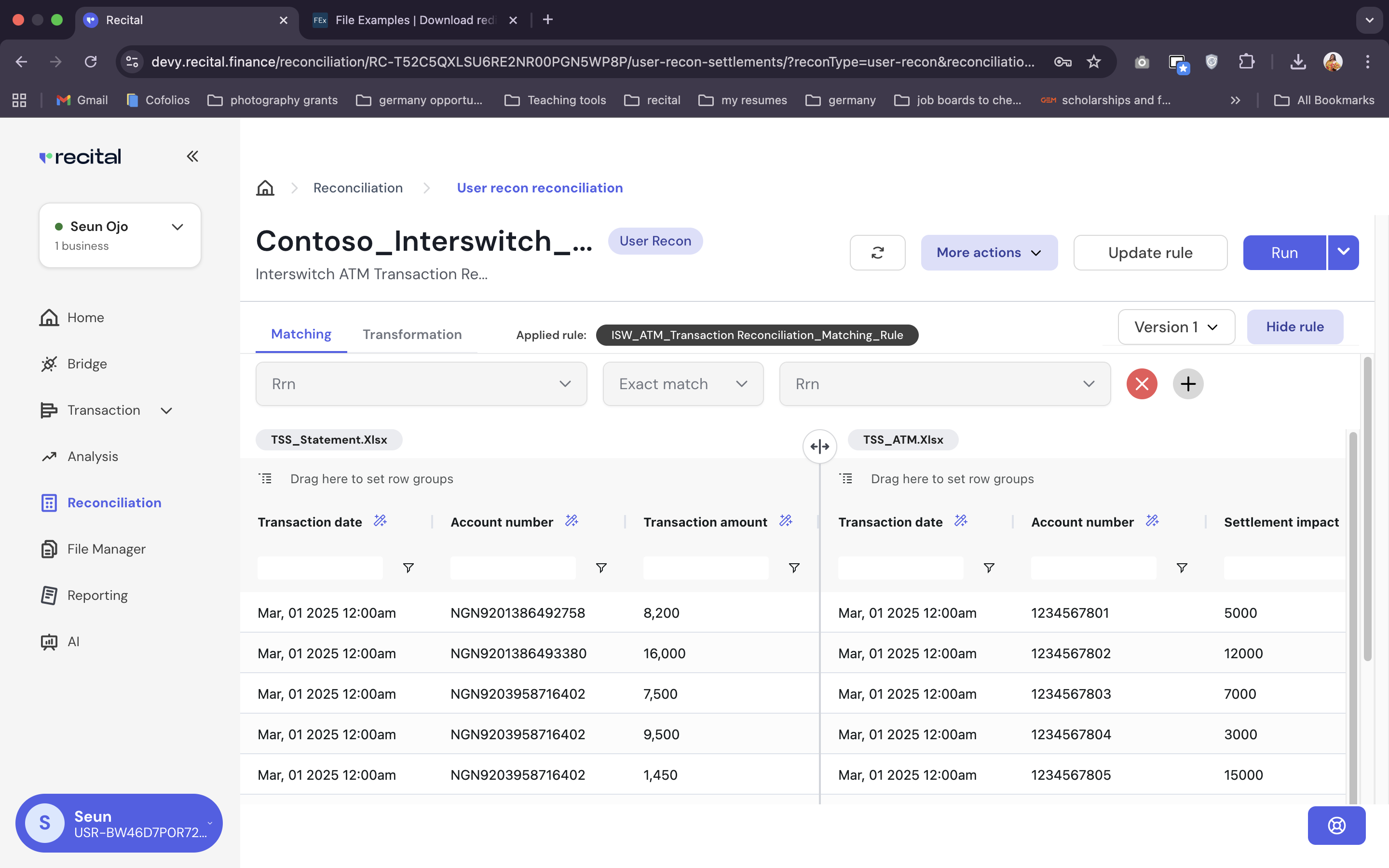
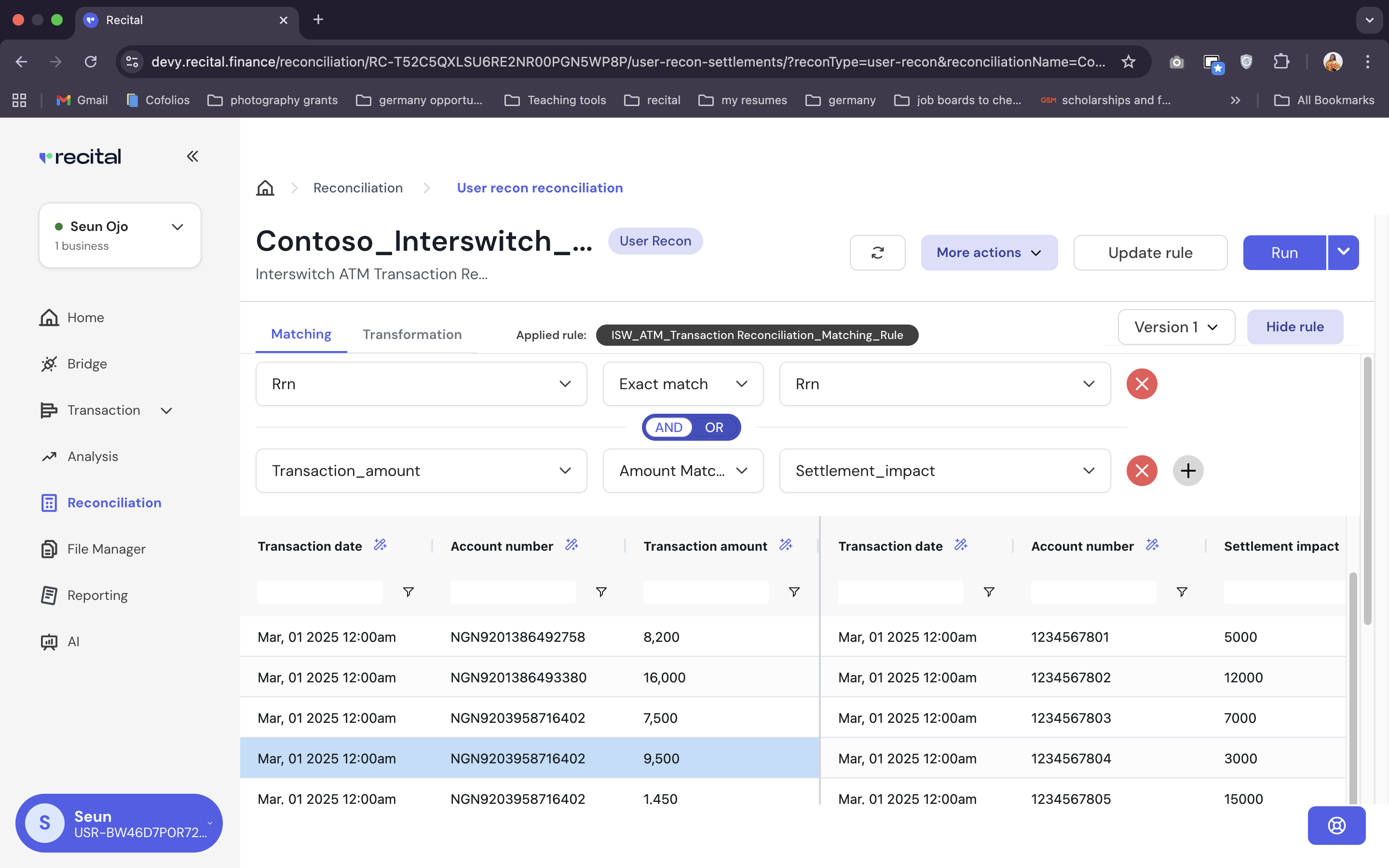
- Select Exact Match matching loic, and the “RRN” field in both source files for Rule 1
- Select “Amount Match Absolute” logic, then “Transaction Amount” field for the TSS_Statement file, and “to “Settlement_Impact” for the TSS_ATM file for Rule 2.
-
Leave “And” as the default logic gate between the two rules entry fields. This implies a match will considered if and only if the RRN-to-RRN AND Transaction Amount-to-Settlement_Impact match in both transaction files.
-
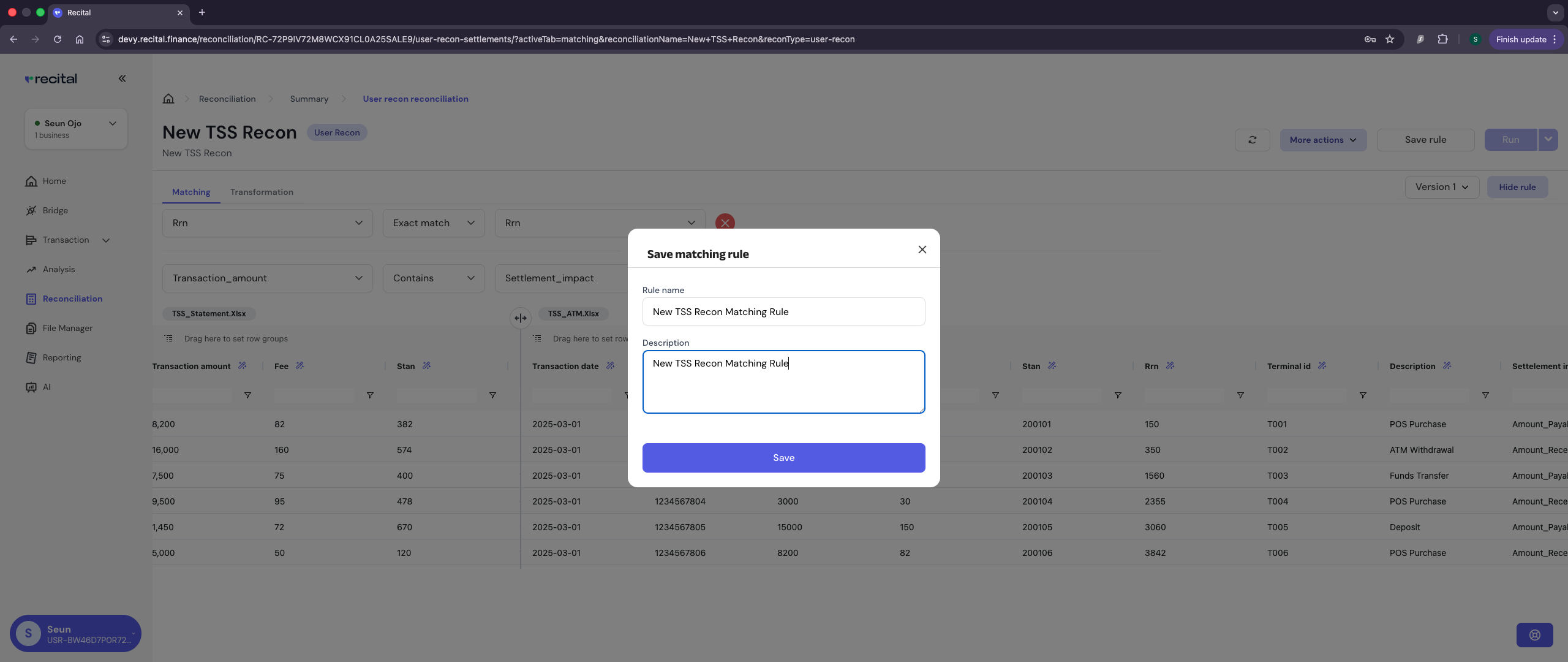
Save the rule for later re-use
5
Transformation Rules
On the “User Recons” Page, switch to the “Transformation” tab to set up the transformation rules.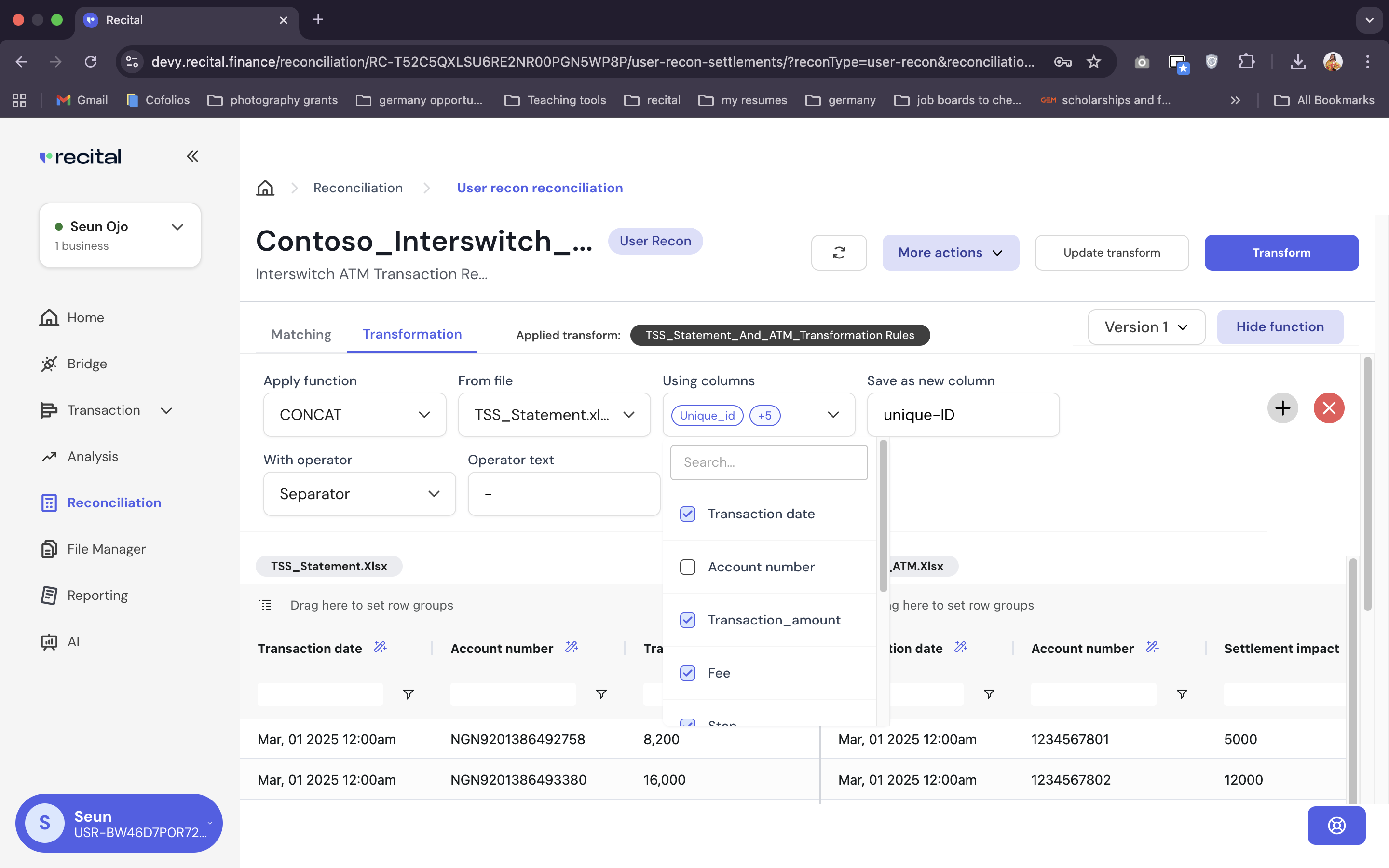
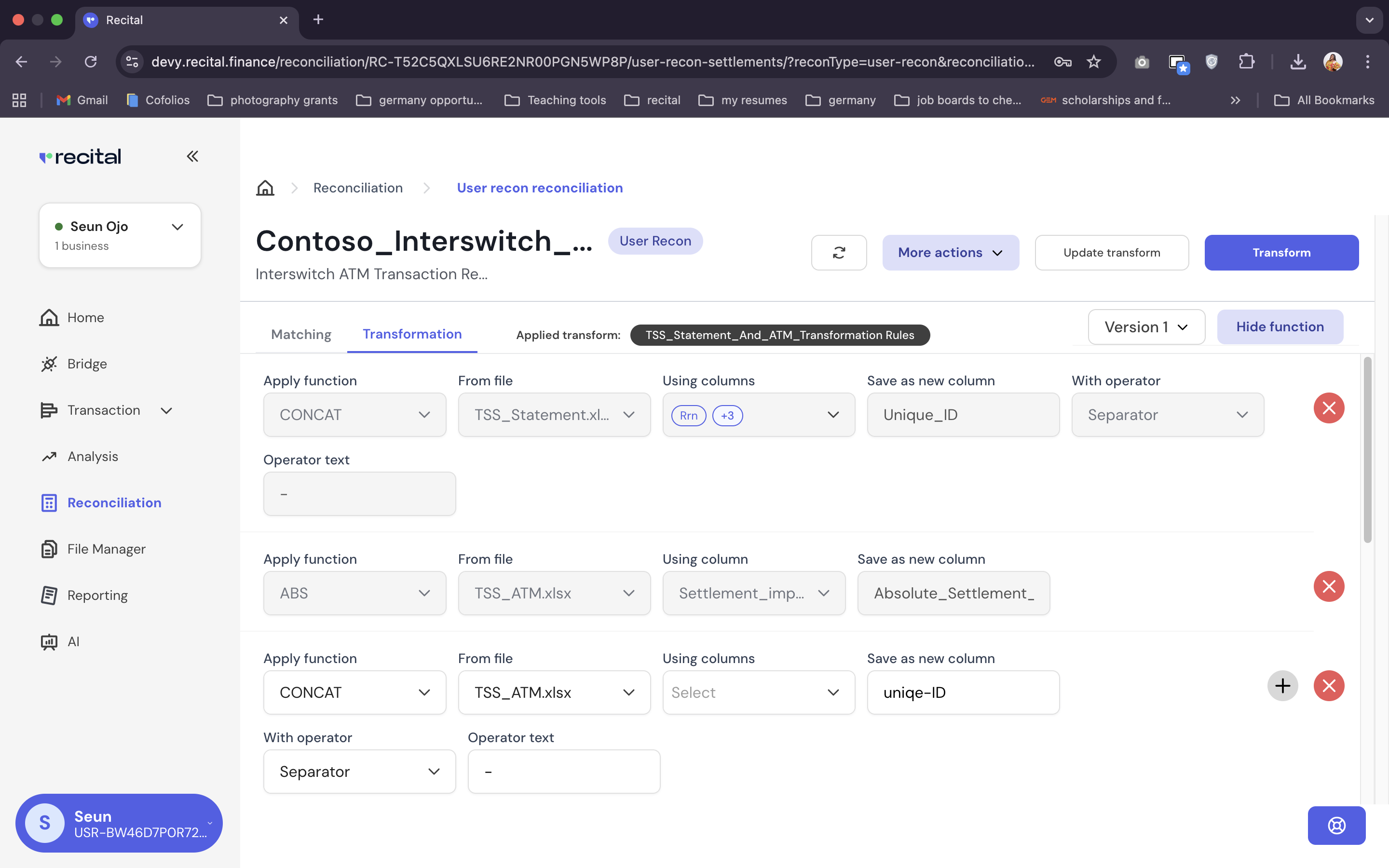
- Select CONCAT on the “Apply Function” field. The Apply functions work similarly to excel functions that business users are already familiar with.
- Next select the TSS_Statement.xlsx on the “From file” field
- Then select the columns you want to concatenate in the order you want to them, e.g., for CONCAT(RRN, STAN, TerminalID+Transaction_Amount) normalization on the TSS_Statement file, select the RRN first, STAN second, TerminalID third, etc.
- Specify a name for the new column to place the transformed value
- And use the “with separator” and “operator text” to add a separator/prefix/suffix and the corresponding separator/prefix/suffix character
- Click on the plus button besides the first transformation rule to add a new transformation rule.
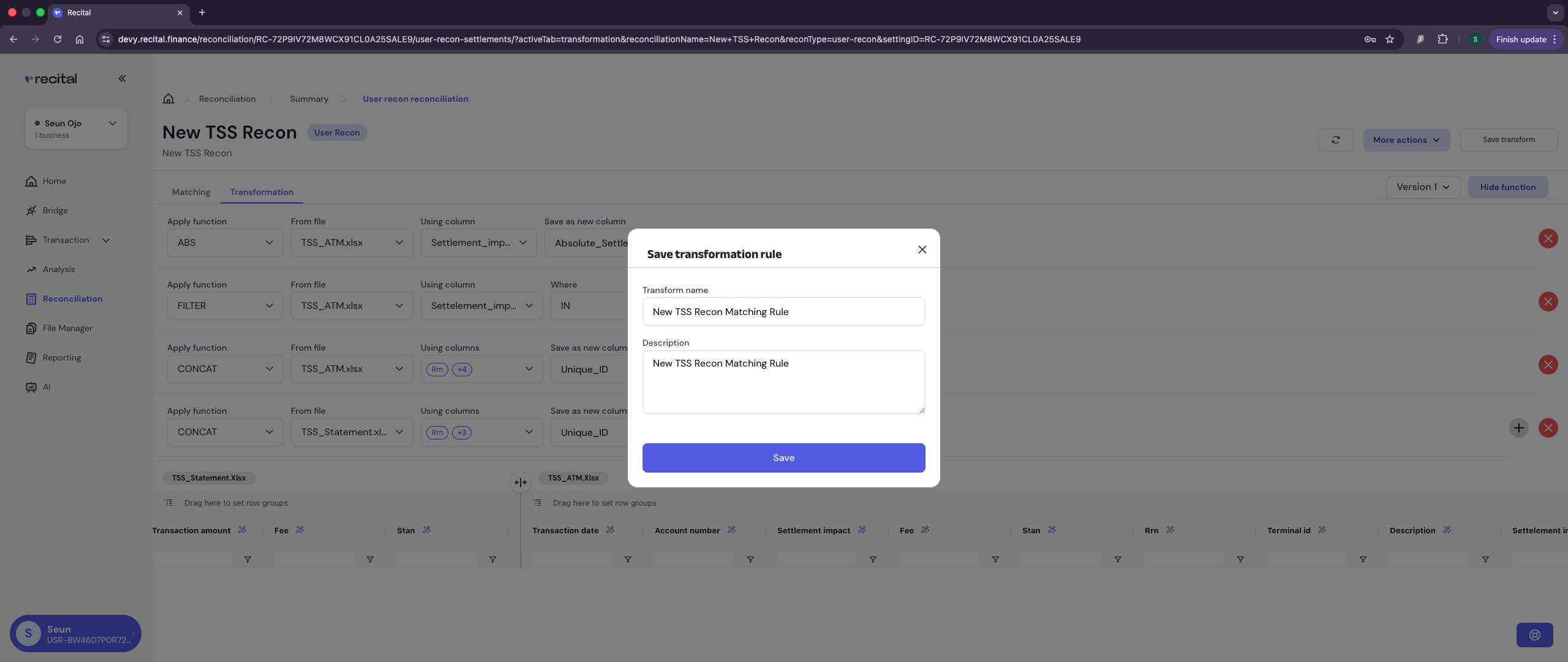
- Add the CONCAT, ABS and FILTER transformations on the TSS_ATM files.
-
Save the transformation rule for later re-use
6
Run Reconcilation
7
Reconciliation Outcome Data Review
After running a reconciliation, users are re-directed to the reconciliation flow list page.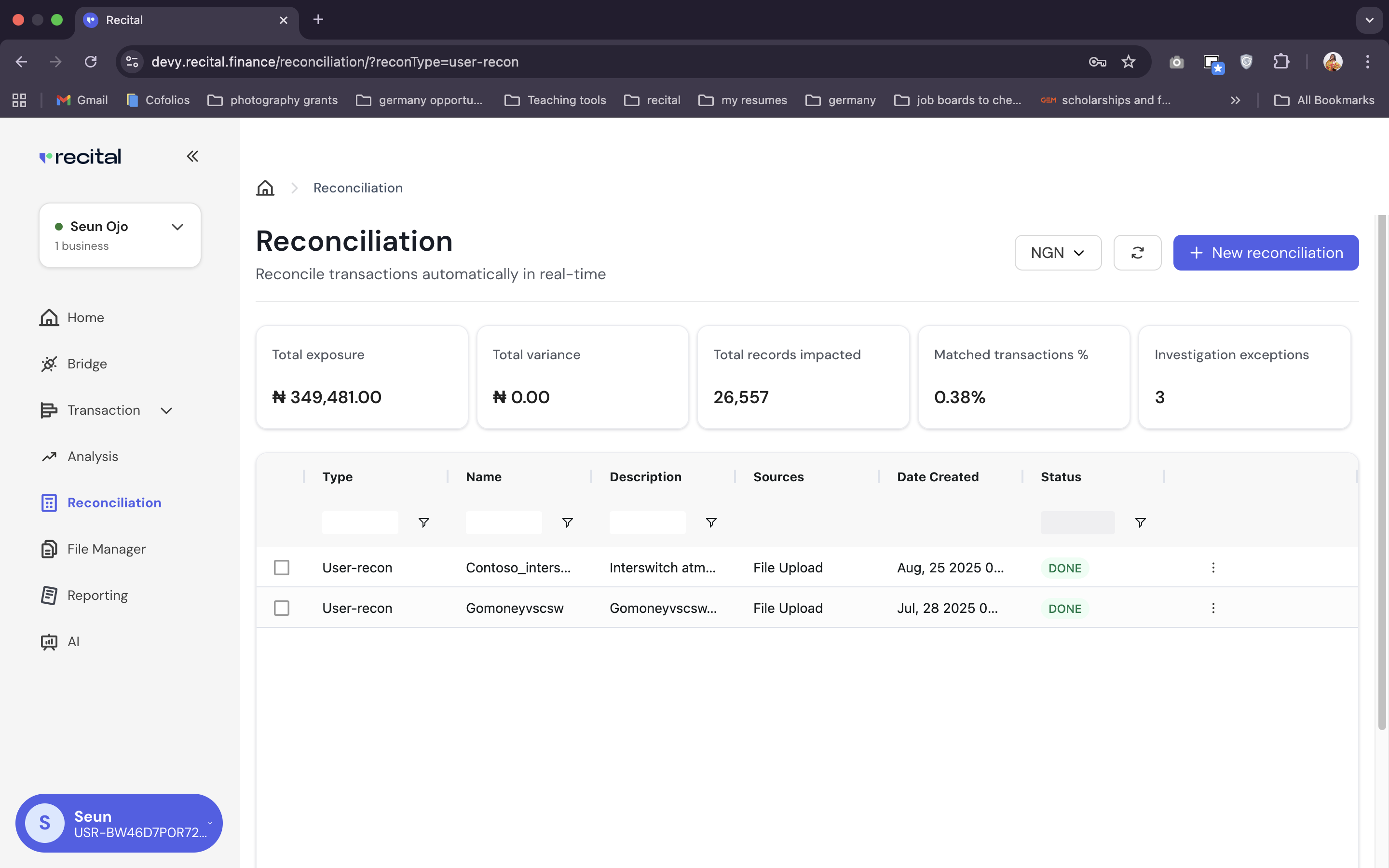
-
Select your reconciliation flow name on the list.
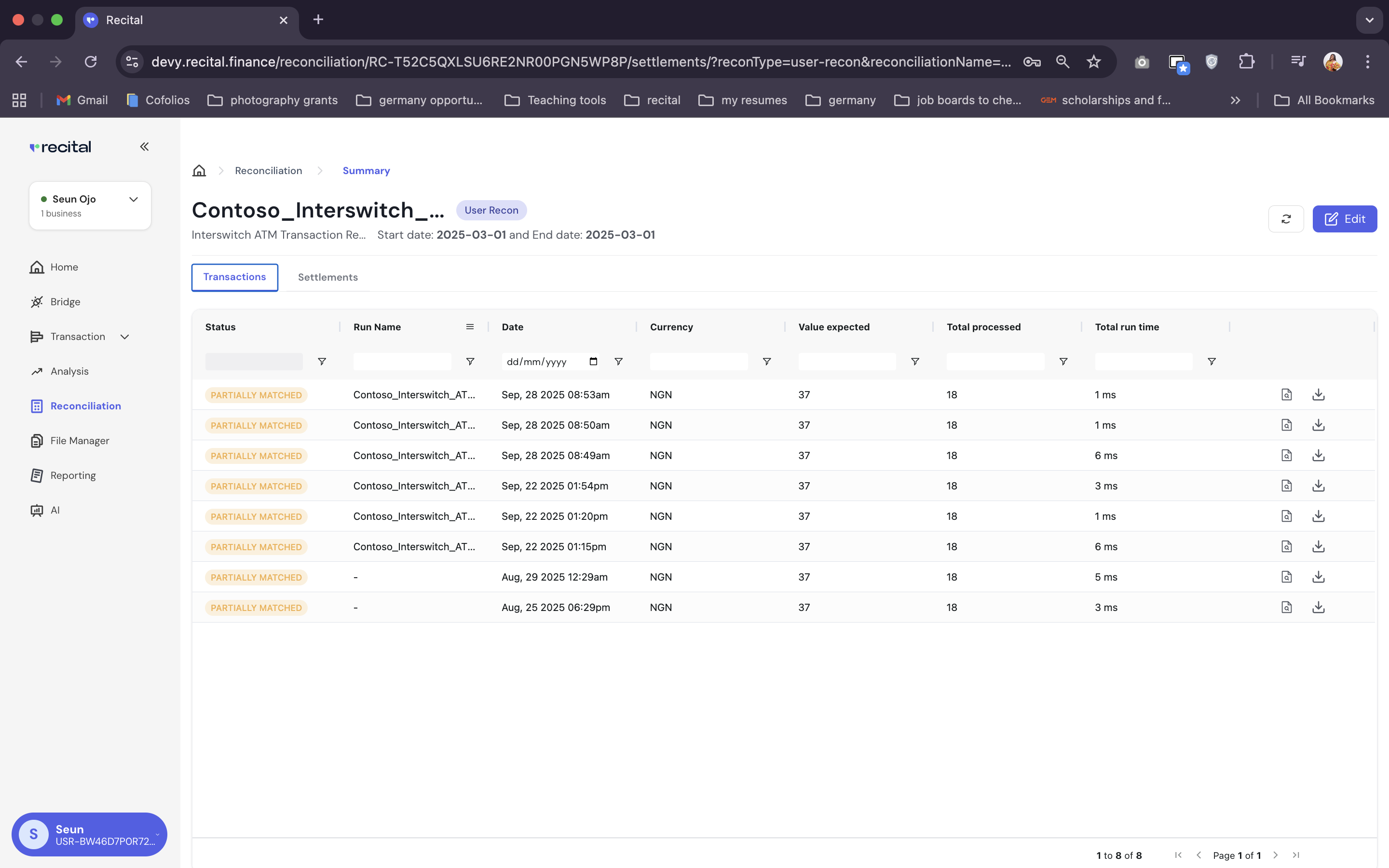
- On the reconciliation run list page, select the corresponding run or last run to see the associate reconcilation outcome data
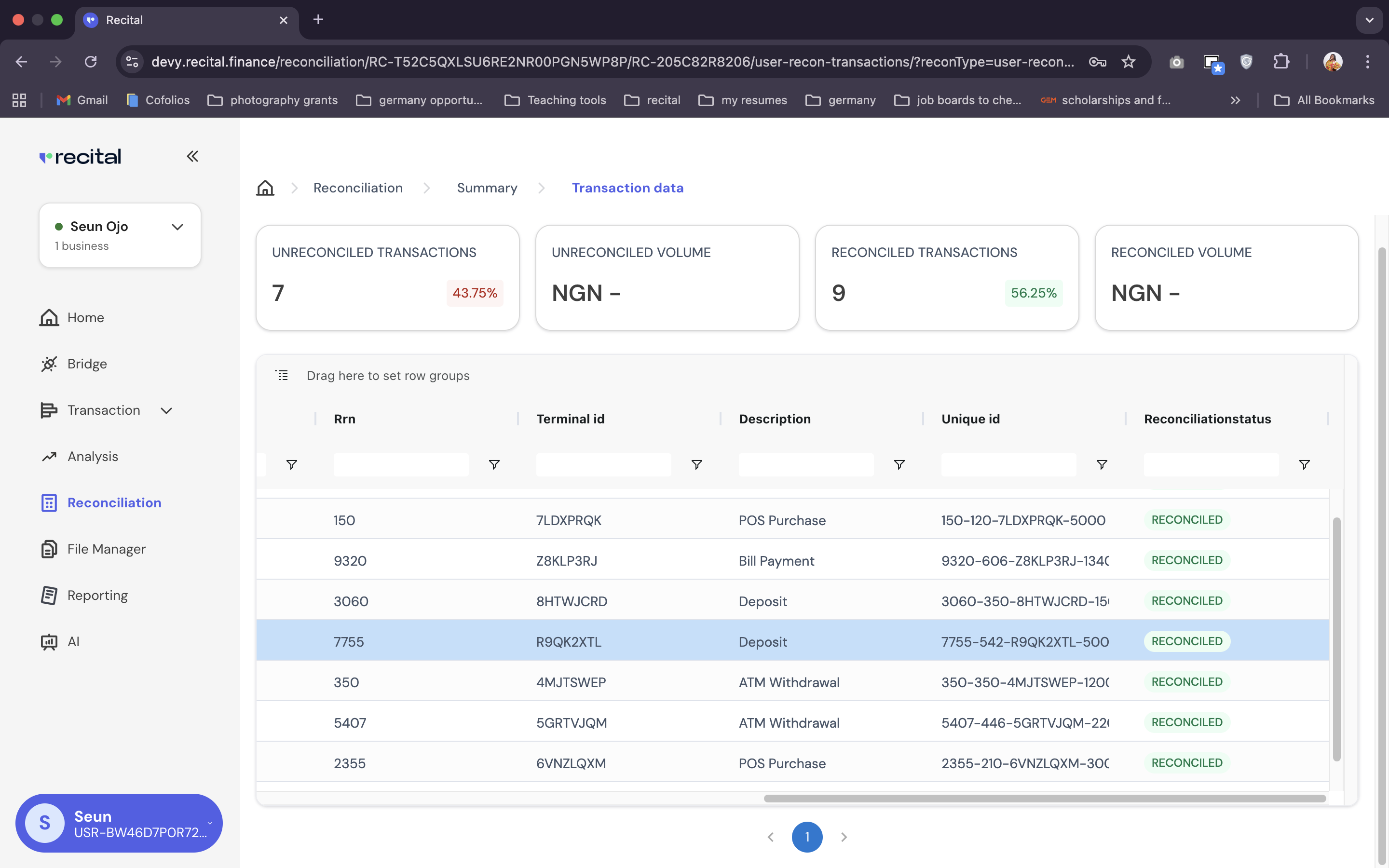
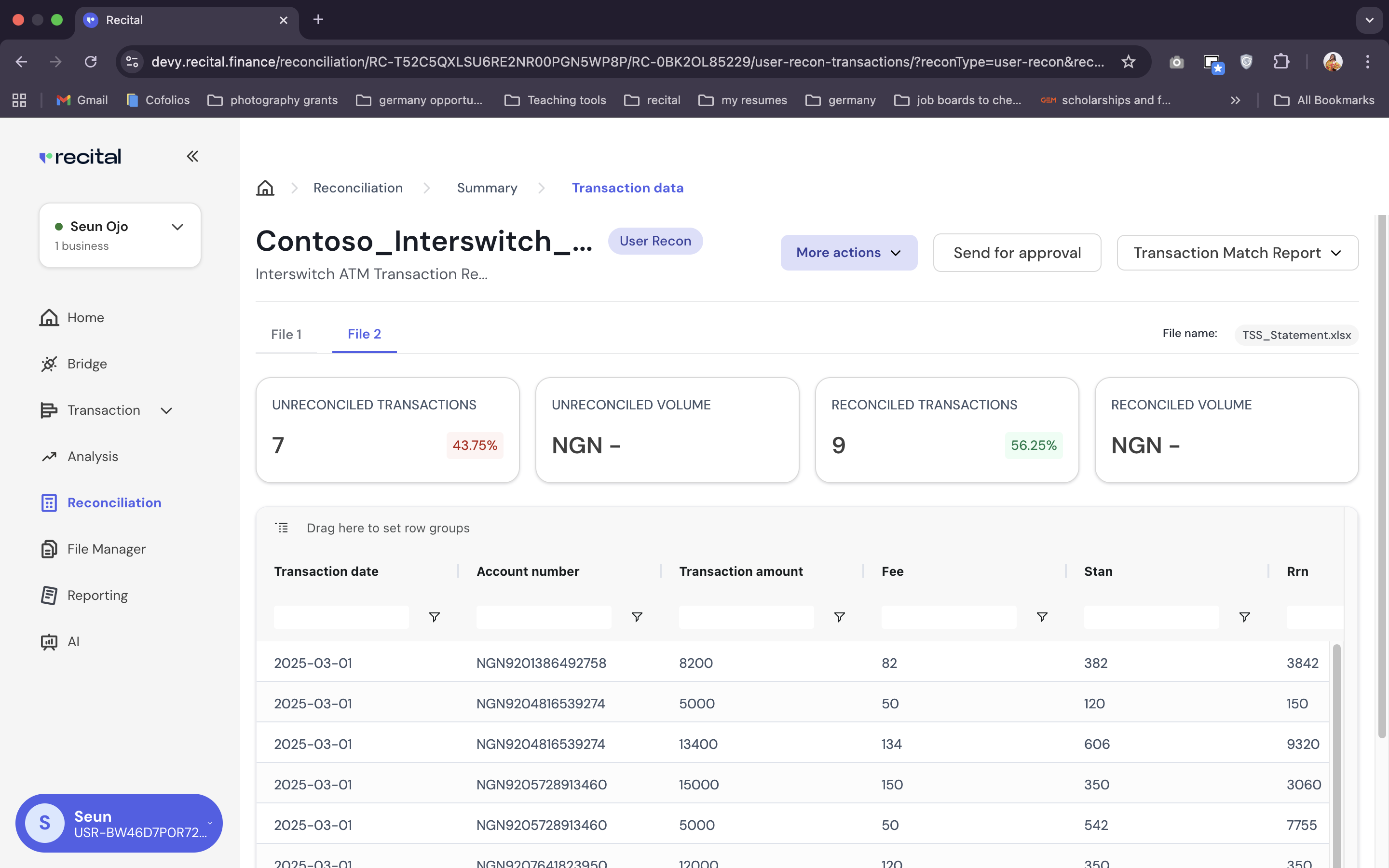
- On the Reconciliation Outcome summary page, you can view indepth data about the outcome of the reconciliation run.
-
You can switch between File tabs,
-
View the match/un-matched status of each record in a file
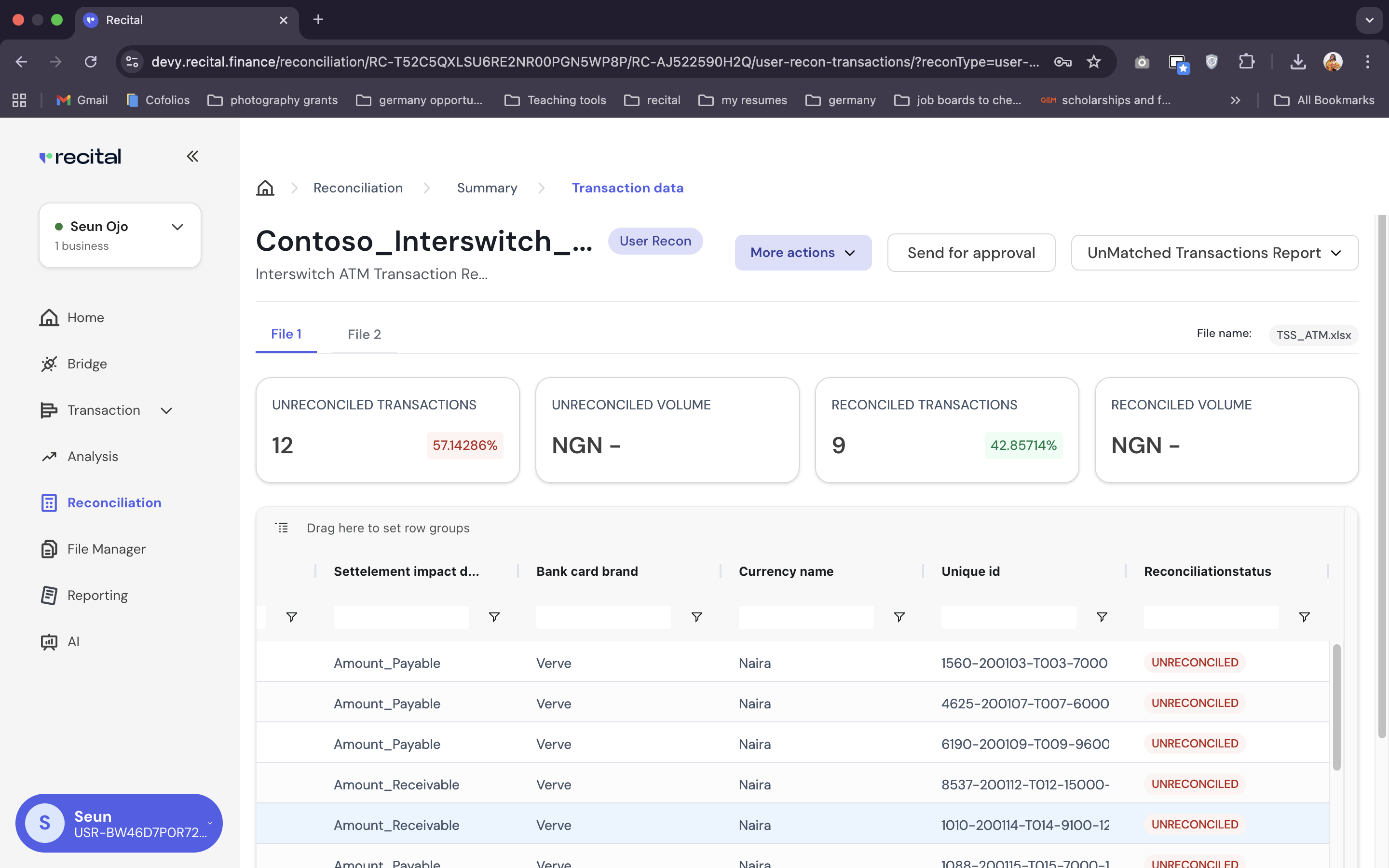
- While on a particular file, you can switch between Transaction Match and Un-Matched report with the top right drop down button.
8
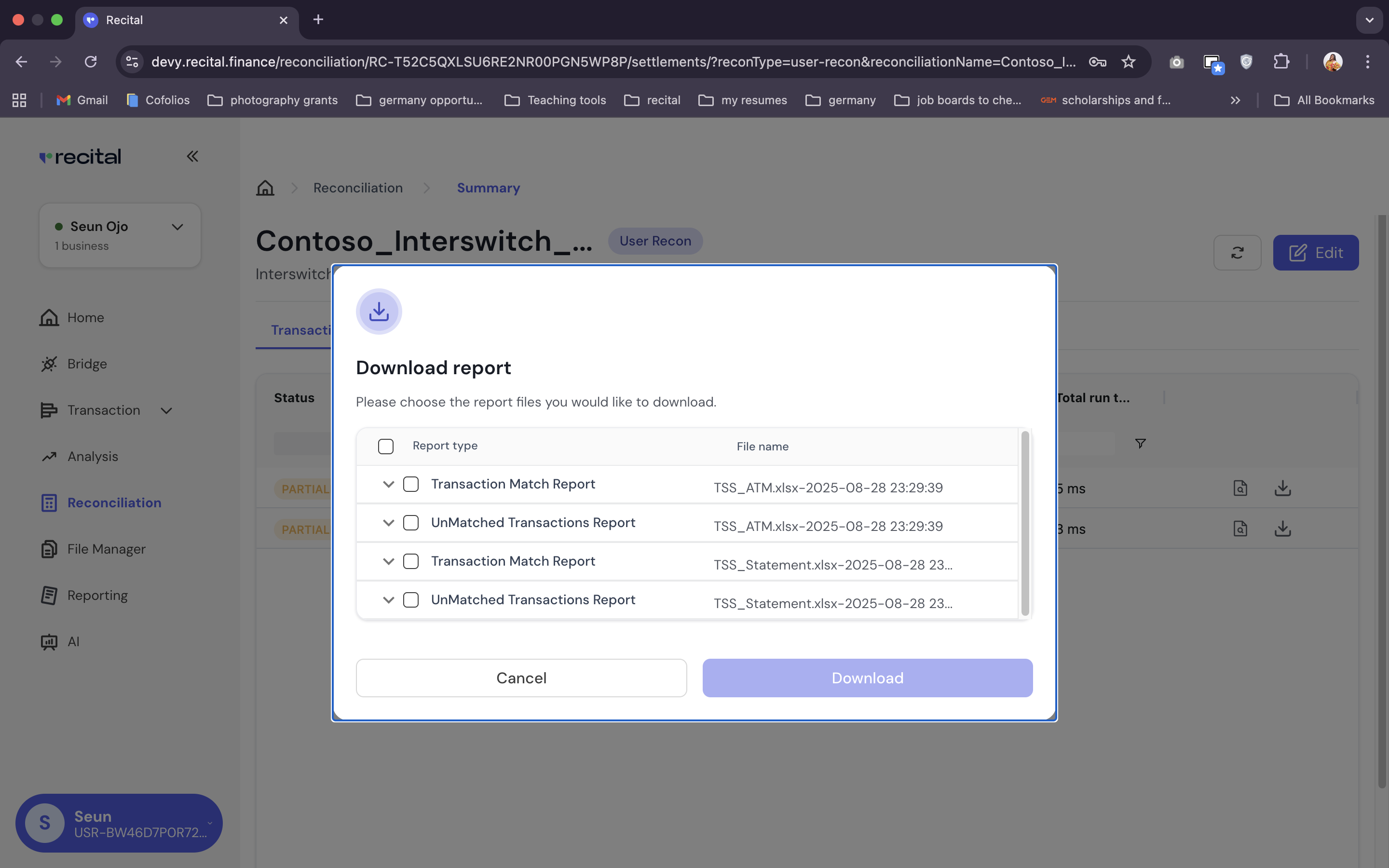
Export Report
To download reconciliation reports, do the following:
-
Navigate to the Reconciliation Run List : Reconcilation Page > Select Reonciliation Flow > Reconciliation Runs List Page
-
Click download button beside the corresponding run
Sample Scenario 2: Settlement Reconciliation
Let’s assume we want to use Recital to perform settlement reconciliation between reconcilled transaction data from the Sample scenario 1 above and a settlement file.Data
Data
Reconcilled TSS_Statement.xlsx - Output Data from Sample Scenario 1
Settlement Data from an External Source
Settlement Reconciliation using Recital
Settlement Reconciliation using Recital
Handling Sample Scenario 2
Creating a new user reconciliation to handle the settlement reconciliation is easy and straight forward.1
Navigate to the Reconciliation Flow Page
- Use the left menu on Recital to navigate to the Reconciliation page
-
Select the reconcliation name you want to work on from the flow list
2
Start New Settlement Reconciliation Run
To set up a Settlement Reconciiliation run,
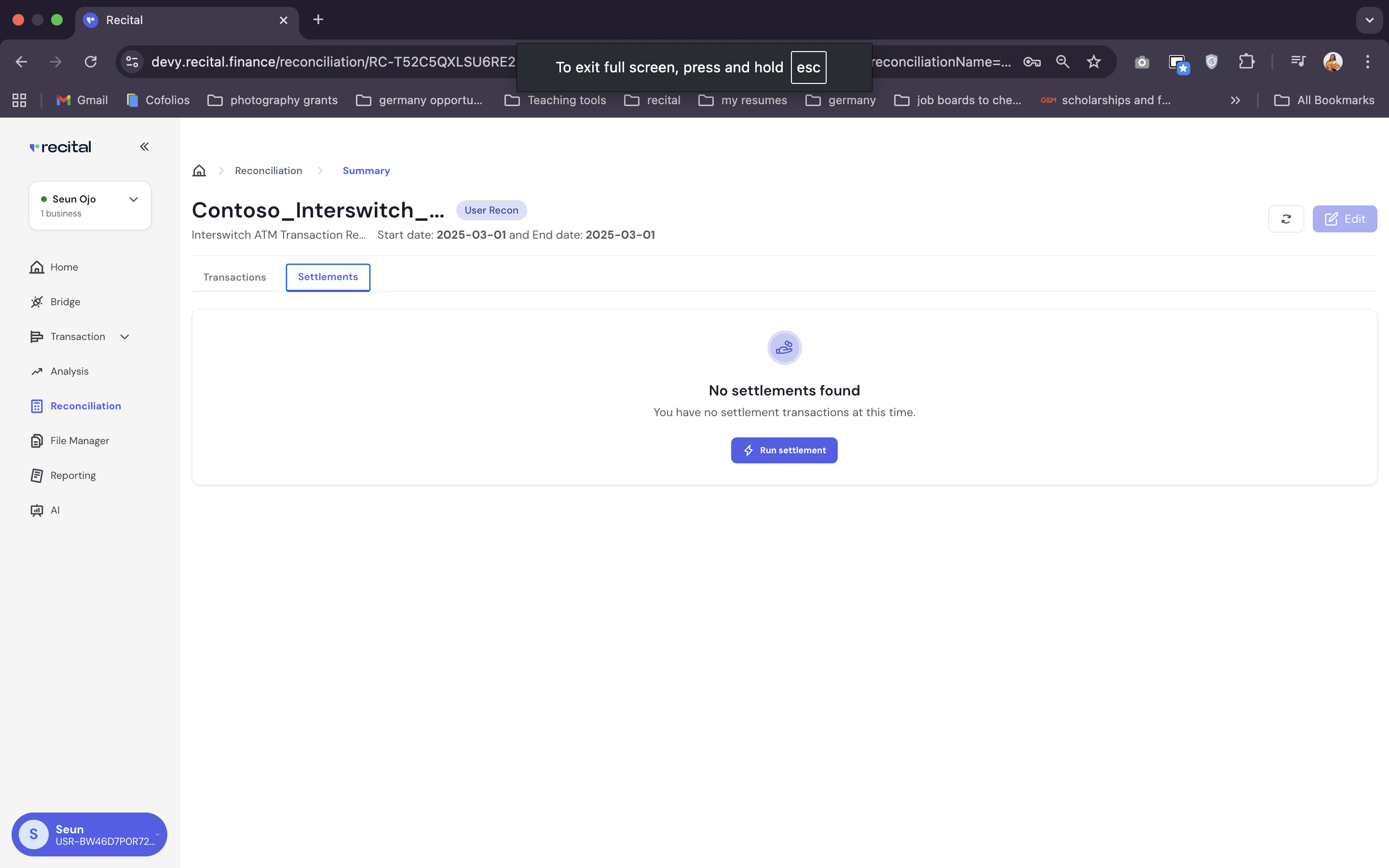
- Switch to the Settlement Tab on the Reconciliation runs list
-
Select “Run Settelement”
3
Settlement Reconciliation Run Set up
On the run settlement pop-up menu,
- Select the reconcileed transaction run that you want to run the settlement reconciliation against
- Select the transaction file that has all the transactions: TSS_Statement.xlsx in this case
- Specify the type of settlement file you are uploading – “Interswitch Computation Report” in this case. Recital recognizes the format of different types of settlement files from various providers/switches.
- Specify the file format - xlsx, and select the settelemnt file to be uploaded
- Click on “Upload Files”
4
Grouping
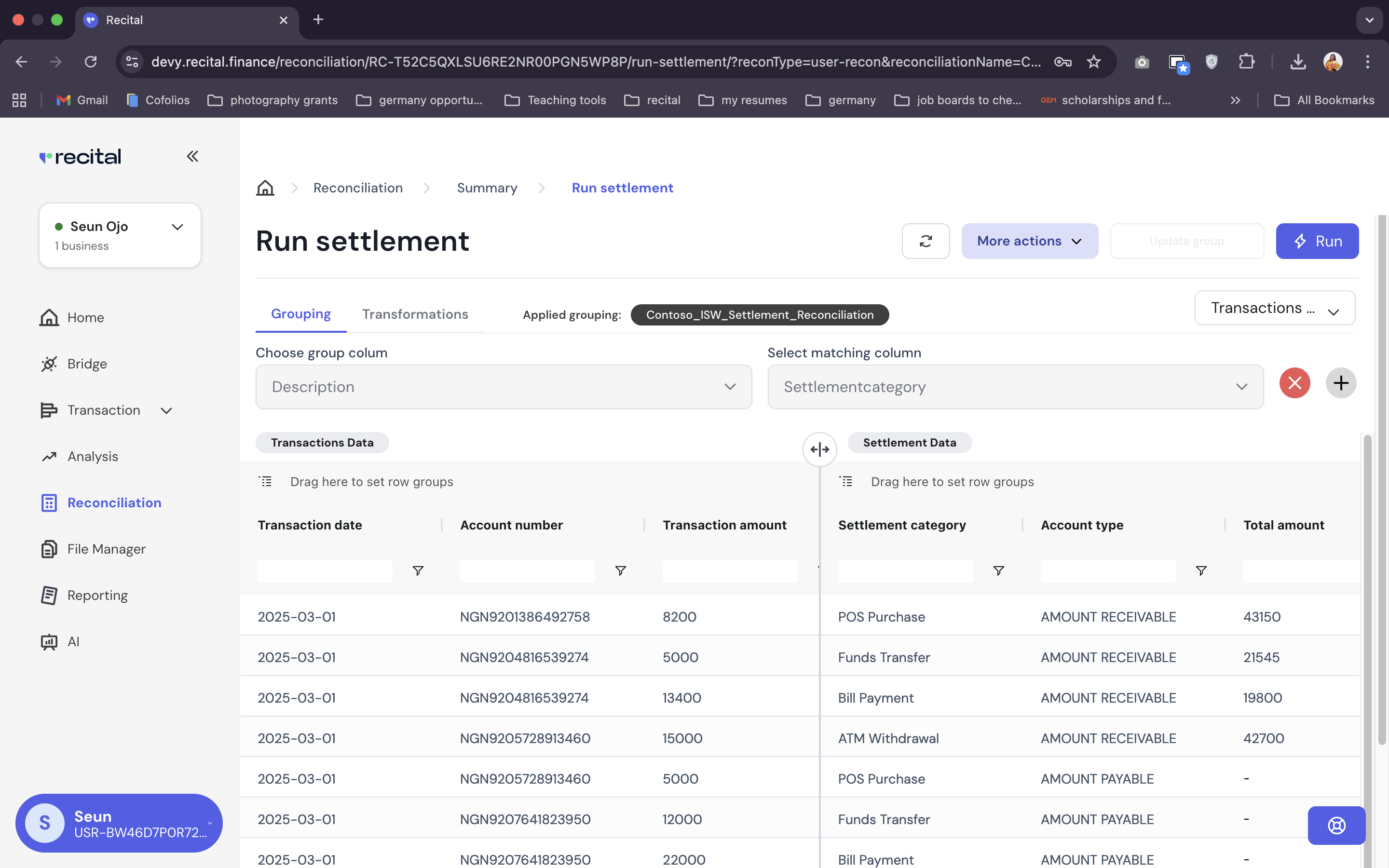
To match the transaction file to the settlement file, we need to select the correct column to use for grouping.
On the Settlement Reconciliation page,
- Switch to the Grouping tab
-
Select the “description” column on TSS_Statement since it contains the different types of transaction, and “settlement category” on the Settlement file.
3.Click on “Save Group”, so that you can re-use the group logic later.
5
Transformation
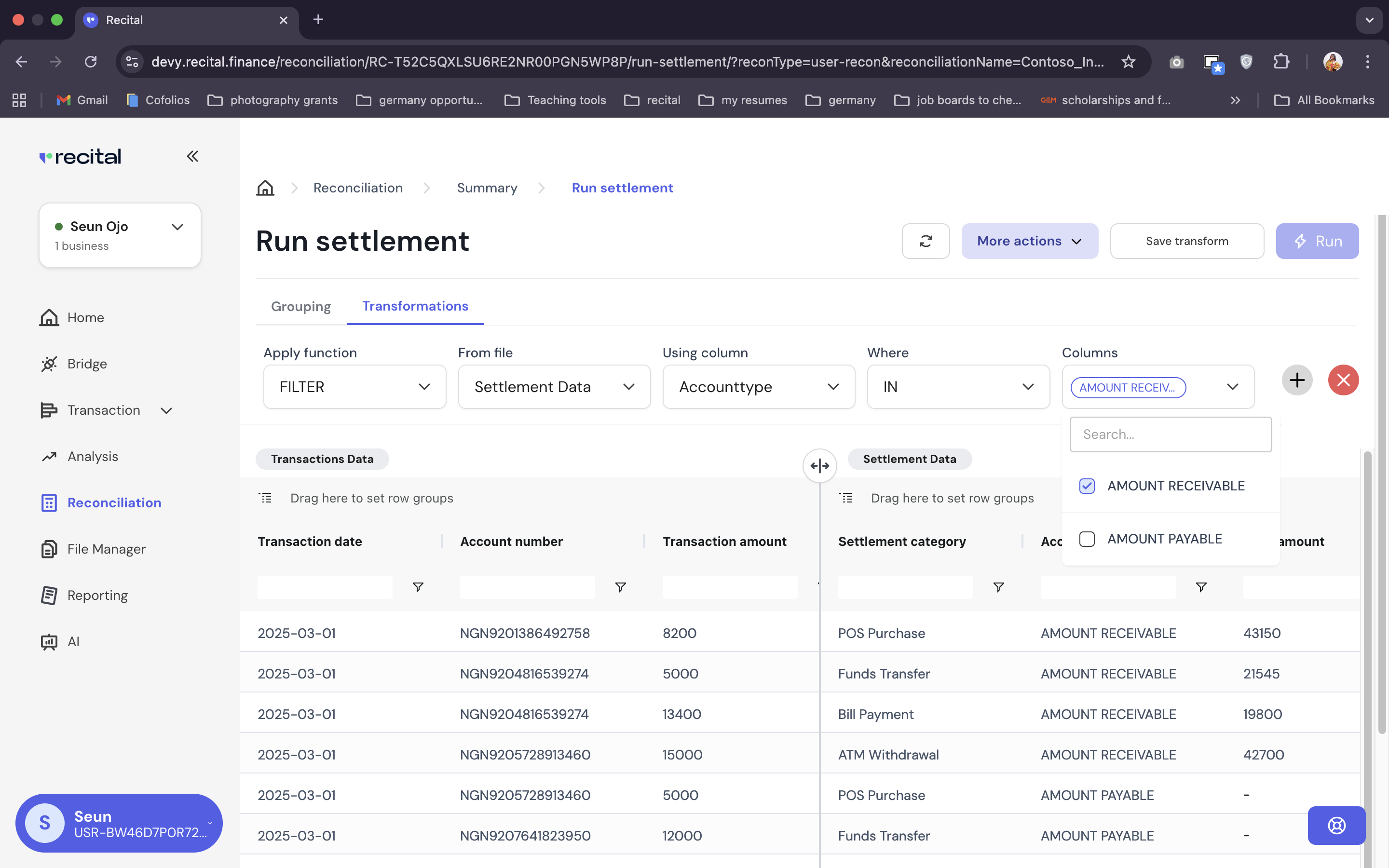
To accurately parse and group transactions in the transaction file, we need to specify the amount and date columns.
On the Settlement Reconciliation page,
- Switch to the Transformation tab
- Click on More Actions Drop Down on the top menu and select transform columns
- Select the date column in the transaction file, select “Date” as the Data Type, and select a date format. You can use “MDY”
- Select the amount column in the transaction file – Transaction Amount for TSS_Statement. Check the Expected box
- Save the transformation rule
-
Click on Transform.
6
Run Settlement Reconciliation
Click on Run Settlement.After running a settlement, users are redirected to the Settlement Reconciliation runs list page
7
Reconciliation Outcome Data Review
Select the last settlement run you just completed to see the outcome data once you see “completed” on the grid.The run outcome data page shows how each of transaction categories was reconcilled between the transaction and settlement files. E.g. We can see the POS transaction was partially reconcilled, and that of the 43,150 total amount in the settlement file, 16,200 was matched and 26,950 was un-matched to the transaction file.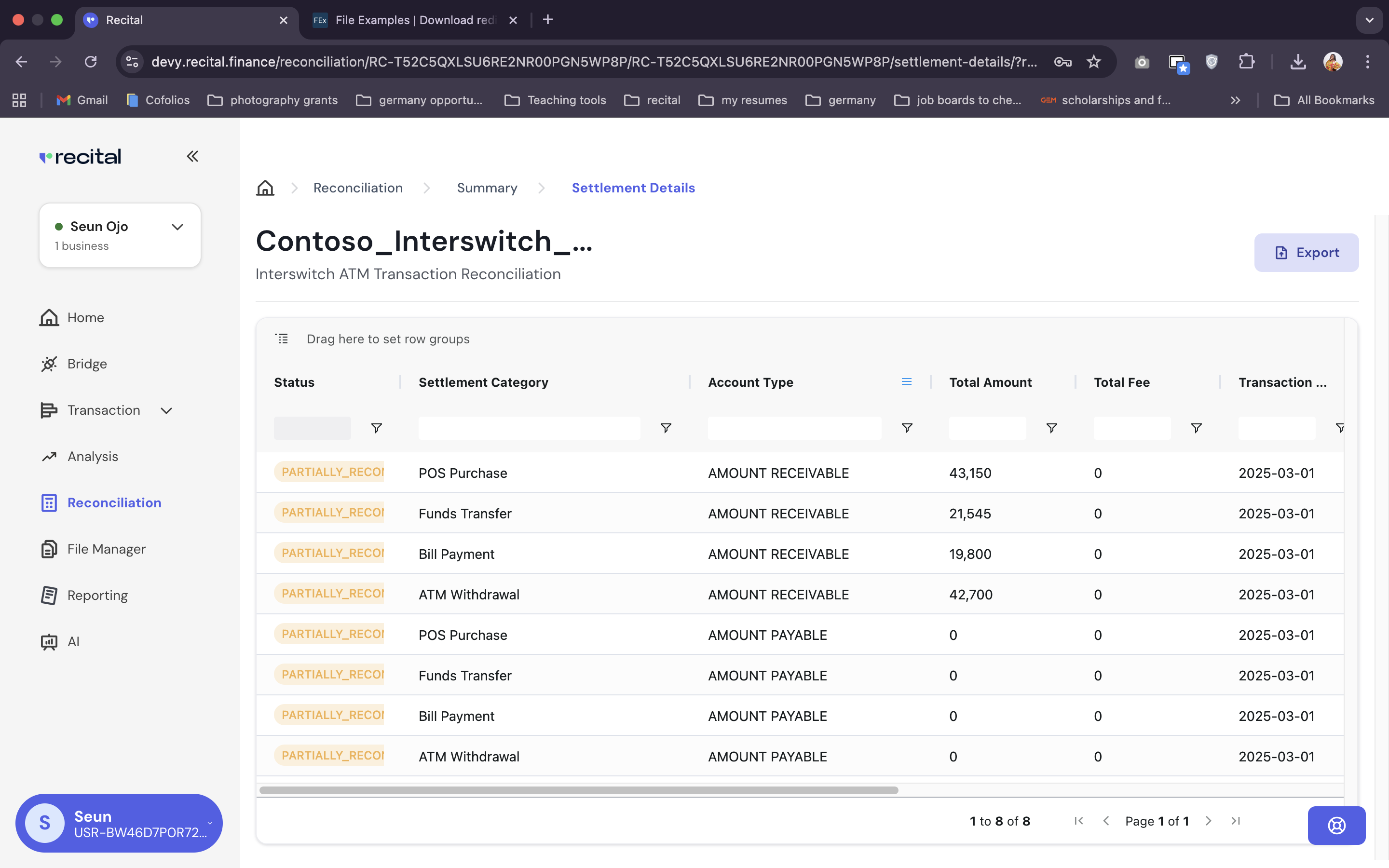
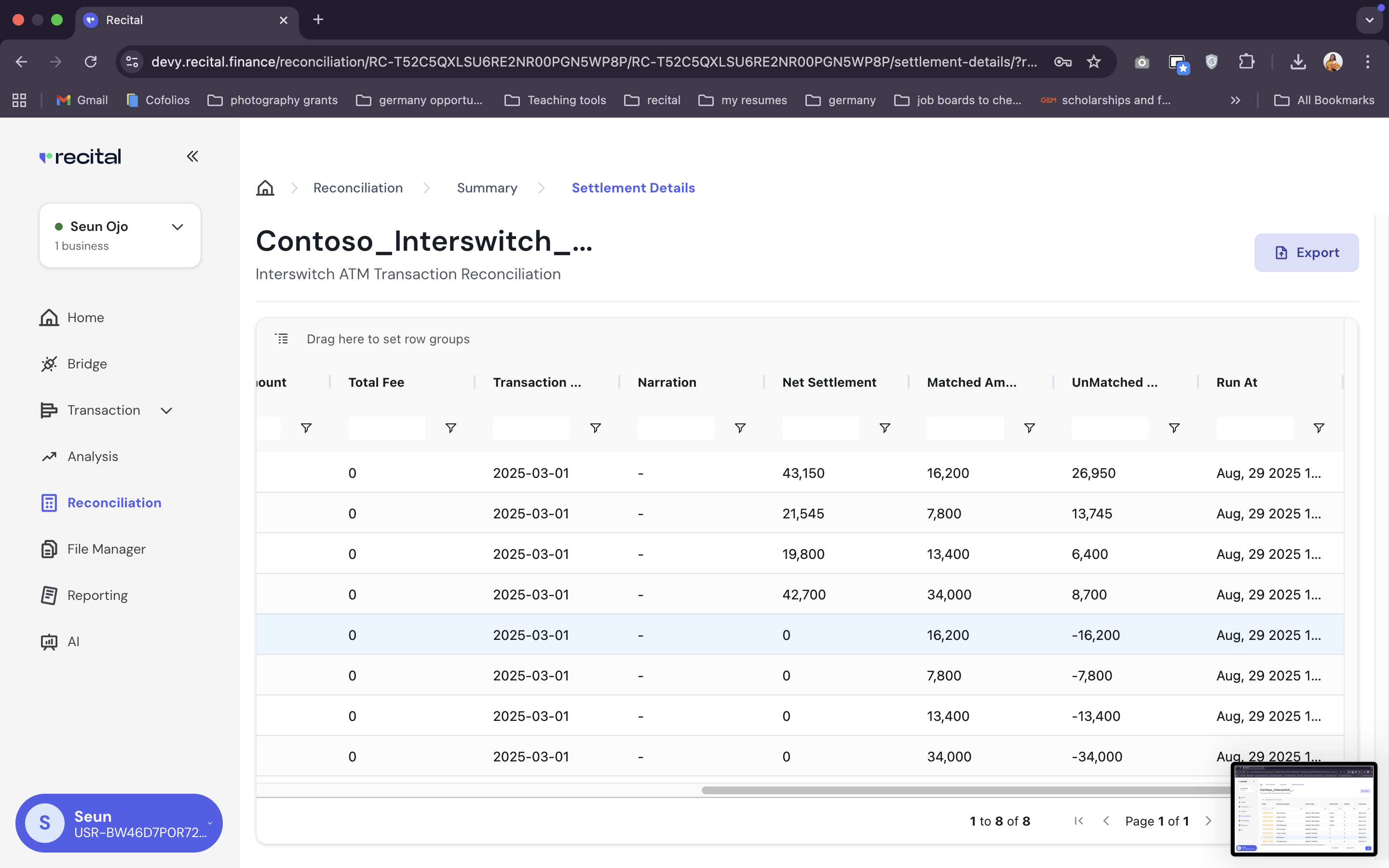
8
Export Data
Click on the Export button on the run uutcome data page to export the result of your settlement reconciliation