> ## Documentation Index
> Fetch the complete documentation index at: https://guide.recital.finance/llms.txt
> Use this file to discover all available pages before exploring further.
# User Reconciliation
> User-driven Reconciliation Flow
User Reconcilation is the most sophisticated reconcilation type on Recital, supporting even the most demanding worklow and giving you full control over the process.
### User Reconciliation Flow
* Ingestion of data via file upload (CSV/XLSX)
* Entry of tailored matching and transformation rules, using a business-user friendly UI
* Saving of these rules for later system/user re-use
* Run Matching
* Dashboard View and Reports on reconciliation outcome data
### Create a New User Reconciliation
####
#### Sample Scenario 1: Transaction Reconciliation
Let's assume we want to use Recital to perform **transaction reconciliation** on **transaction data** from different sources.
**Transaction Data 1: TSS\_Statement.xlsx - Internal Ledger Transaction File**
| Transaction Date | Account Number | Transaction\_Amount | Fee | STAN | RRN | Terminal ID | Description |
| ---------------- | ---------------- | ------------------: | --: | ---- | ---- | ----------- | -------------- |
| 2025-03-01 | NGN9201386492758 | 8,200 | 82 | 382 | 3842 | 3PSYQLFK | POS Purchase |
| 2025-03-01 | NGN9201386493380 | 16,000 | 160 | 574 | 8537 | W5MHTVZQ | POS Purchase |
| 2025-03-01 | NGN9203958716402 | 7,500 | 75 | 400 | 1560 | 9KQBRYHT | Funds Transfer |
| 2025-03-01 | NGN9203958716402 | 9,500 | 95 | 478 | 6190 | 0ZMLKQDP | POS Purchase |
| 2025-03-01 | NGN9203958716402 | 1,450 | 72 | 670 | 900 | V4JS9WPK | POS Purchase |
| 2025-03-01 | NGN9204816539274 | 5,000 | 50 | 120 | 150 | 7LDXPRQK | POS Purchase |
| 2025-03-01 | NGN9204816539274 | 6,400 | 64 | 414 | 4625 | 1BNXHTZP | Bill Payment |
| 2025-03-01 | NGN9204816539274 | 13,400 | 134 | 606 | 9320 | Z8KLP3RJ | Bill Payment |
| 2025-03-01 | NGN9205728913460 | 15,000 | 150 | 350 | 3060 | 8HTWJCRD | Deposit |
| 2025-03-01 | NGN9205728913460 | 5,000 | 50 | 542 | 7755 | R9QK2XTL | Deposit |
| 2025-03-01 | NGN9207641823950 | 12,000 | 120 | 350 | 350 | 4MJTSWEP | ATM Withdrawal |
| 2025-03-01 | NGN9207641823950 | 22,000 | 220 | 446 | 5407 | 5GRTVJQM | ATM Withdrawal |
| 2025-03-01 | NGN9207641823950 | 8,700 | 89 | 638 | 1000 | H2QTXNMF | ATM Withdrawal |
| 2025-03-01 | NGN9208162345791 | 3,000 | 30 | 210 | 2355 | 6VNZLQXM | POS Purchase |
| 2025-03-01 | NGN9208162345791 | 7,800 | 78 | 510 | 6972 | 2XJFWNHT | Funds Transfer |
| 2025-03-01 | NGN9208162345799 | 6,245 | 43 | 222 | 1234 | 2XJZZZHT | Funds Transfer |
Source: Internal; Format: XLSX; Frequency: Daily
**Transaction Data 2: TSS\_ATM.xlsx - External Transaction File**
| Transaction Date | Account Number | Settlement\_Impact | Fee | STAN | RRN | Terminal ID | Description | Settlement\_Impact\_Desc | Bank\_Card\_Brand | Currency\_Name |
| ---------------- | -------------- | -----------------: | --: | ------ | ---- | ----------- | -------------- | ------------------------ | ----------------- | -------------- |
| 2025-03-01 | 1234567801 | 5,000 | 50 | 200101 | 150 | T001 | POS Purchase | Amount\_Payable | Verve | Naira |
| 2025-03-01 | 1234567802 | 12,000 | 120 | 200102 | 350 | T002 | ATM Withdrawal | Amount\_Receivable | Verve | Naira |
| 2025-03-01 | 1234567803 | 7,000 | 70 | 200103 | 1560 | T003 | Funds Transfer | Amount\_Payable | Verve | Naira |
| 2025-03-01 | 1234567804 | 3,000 | 30 | 200104 | 2355 | T004 | POS Purchase | Amount\_Receivable | Verve | Naira |
| 2025-03-01 | 1234567805 | 15,000 | 150 | 200105 | 3060 | T005 | Deposit | Amount\_Payable | Verve | Naira |
| 2025-03-01 | 1234567806 | 8,200 | 82 | 200106 | 3842 | T006 | POS Purchase | Amount\_Receivable | Verve | Naira |
| 2025-03-01 | 1234567807 | 6,000 | 60 | 200107 | 4625 | T007 | Bill Payment | Amount\_Payable | Verve | Naira |
| 2025-03-01 | 1234567807 | 22,000 | 220 | 200867 | 5407 | T008 | ATM Withdrawal | Amount\_Receivable | Verve | Naira |
| 2025-03-01 | 1234567808 | 9,600 | 96 | 200109 | 6190 | T009 | POS Purchase | Amount\_Payable | Verve | Naira |
| 2025-03-01 | 1234567809 | 7,800 | 78 | 200110 | 6972 | T010 | Funds Transfer | Amount\_Receivable | Verve | Naira |
| 2025-03-01 | 1234567810 | 5,000 | 50 | 200111 | 7755 | T011 | Deposit | Amount\_Payable | Verve | Naira |
| 2025-03-01 | 1234567811 | 15,000 | 150 | 200112 | 8537 | T012 | POS Purchase | Amount\_Receivable | Verve | Naira |
| 2025-03-01 | 1234567812 | 13,400 | 134 | 200113 | 9320 | T013 | Bill Payment | Amount\_Payable | Verve | Naira |
| 2025-03-01 | 1234567813 | 9,100 | 91 | 200114 | 1010 | T014 | ATM Withdrawal | Amount\_Receivable | Verve | Naira |
| 2025-03-01 | 1234567814 | 7,000 | 70 | 200115 | 1088 | T015 | POS Purchase | Amount\_Payable | Verve | Naira |
| 2025-03-01 | 1234567815 | 11,084 | 50 | 200116 | 6890 | T016 | Deposit | Amount\_Receivable | Verve | Naira |
| 2025-03-01 | 1234567816 | 11,261 | 150 | 200117 | 7233 | T017 | POS Purchase | Amount\_Payable | Verve | Naira |
| 2025-03-01 | 1234567817 | 11,437 | 134 | 200118 | 7575 | T018 | Bill Payment | Amount\_Receivable | Verve | Naira |
| 2025-03-01 | 1234567818 | 11,614 | 91 | 200119 | 7918 | T019 | ATM Withdrawal | Amount\_Payable | Verve | Naira |
| 2025-03-01 | 1234567819 | 11,790 | 70 | 200120 | 8261 | T020 | POS Purchase | Amount\_Receivable | Verve | Naira |
Source:External; Format: XLSX; Frequency: Daily
Assume for the transaction reconciliation, matching between the two data sources involves the following fields and definition.
| File 1 | File 2 | Fields Used | Rule Definition |
| :------------- | :------- | :-------------------------------------- | :---------------------------------------------------- |
| TSS\_Statement | TSS\_ATM | RRN,RRN | `RRN RRN` |
| TSS\_Statement | TSS\_ATM | Transaction\_amount, Settlement\_impact | `Transaction_amount Settlement_impact` |
Reconciliation rules leverage **unique identifiers (RRN)** and **transaction amount** to ensure high‑confidence match across the`TSS_Statement`and`TSS_ATM`files.
Assume for the transaction reconciliation the following normalization/transformation on the transaction files.
| File Name | Column Name | Description | Required | Normalize |
| :------------- | :------------------------------------------- | ---------------------------- | -------- | :------------------------------------------------------------------------------------------------------------------------------------------------------------------------------------------------------------- |
| TSS\_Statement | RRN, Transaction\_amount | Internal Ledger transactions | YES | `CONCAT(RRN, STAN, TerminalID + Transaction_amount)` |
| TSS\_ATM | Retrieval\_reference\_nr, Settlement\_impact | External ATM Transaction | YES | `FILTER(Settlement_Impact_Desc IN Amount_Payable and Amount_Receivable)`
`ABS(Settlement_impact)`
`CONCAT(Retrieval_reference_nr, STAN, TerminalID + Settlement_Impact, Account_Number)` |
Rule 1: Normalization in tss\_statement generates a unique concatenated key for full traceability down the line. \
Rule 2: Normalization in `tss_atm` ensures that settlement impact considered are relevant, absolute values are considered, and unique concatenated keys are generated for easier traceability down the line.
#### Handling Sample Scenario 1
Creating a new user reconciliation to handle the transaction reconciliation is easy and straight forward.
Use the left menu on Recital to navigate to the Reconciliation page
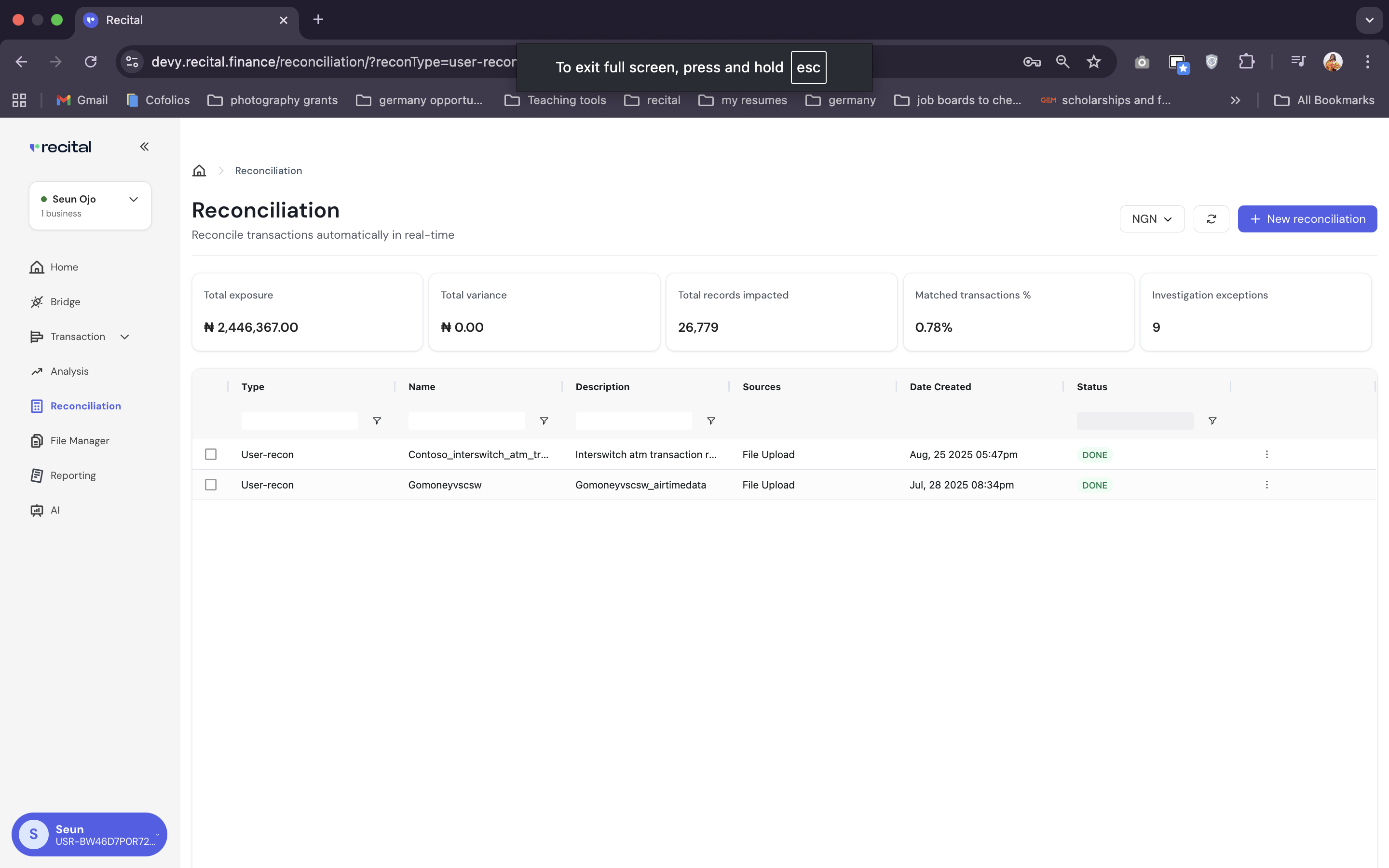 1. On the Reconcilation page, click on "New Reconciliation" button.
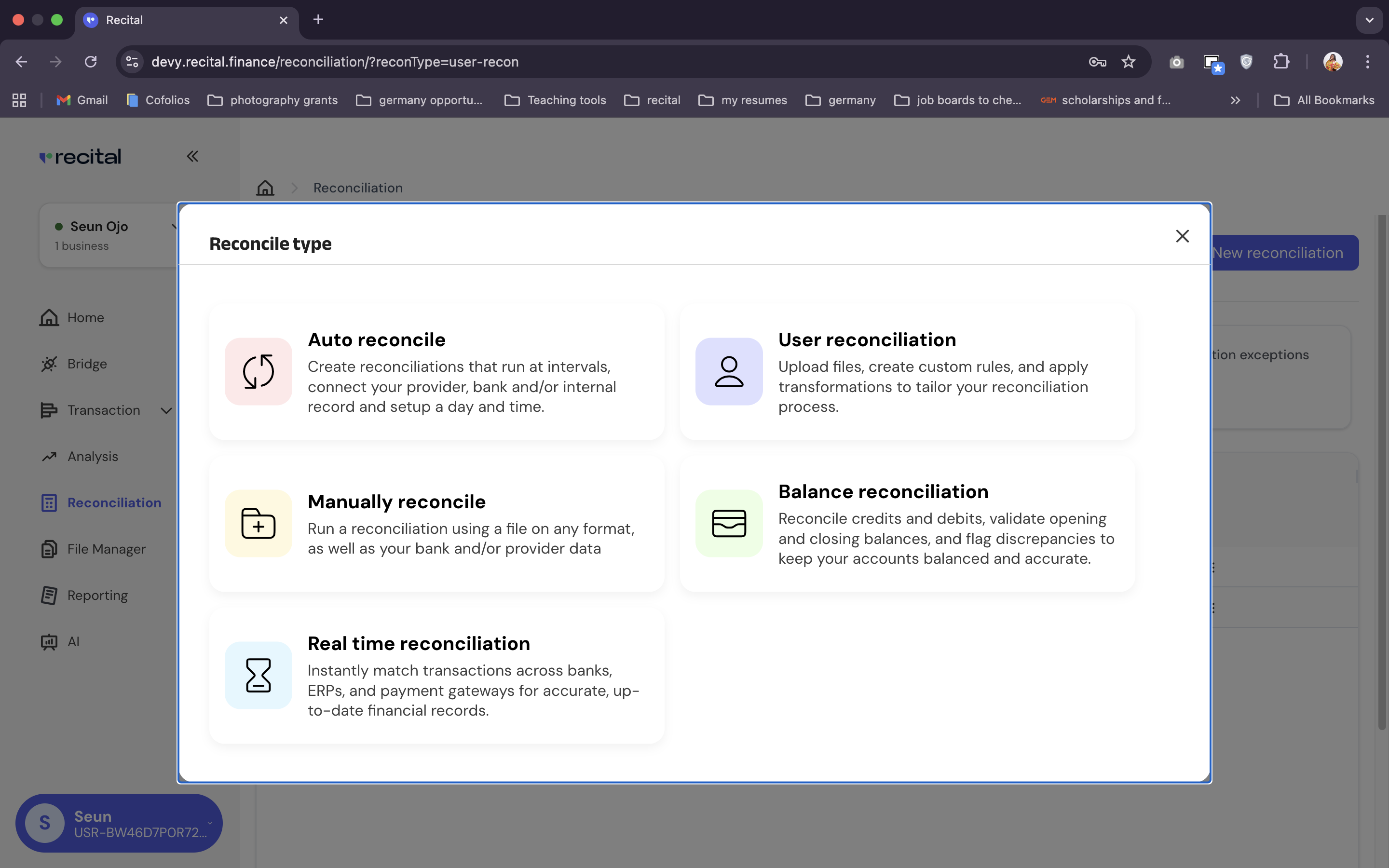
2. Select the "User Reconciliation" from the pop-up menu.
1. On the Reconcilation page, click on "New Reconciliation" button.
2. Select the "User Reconciliation" from the pop-up menu.
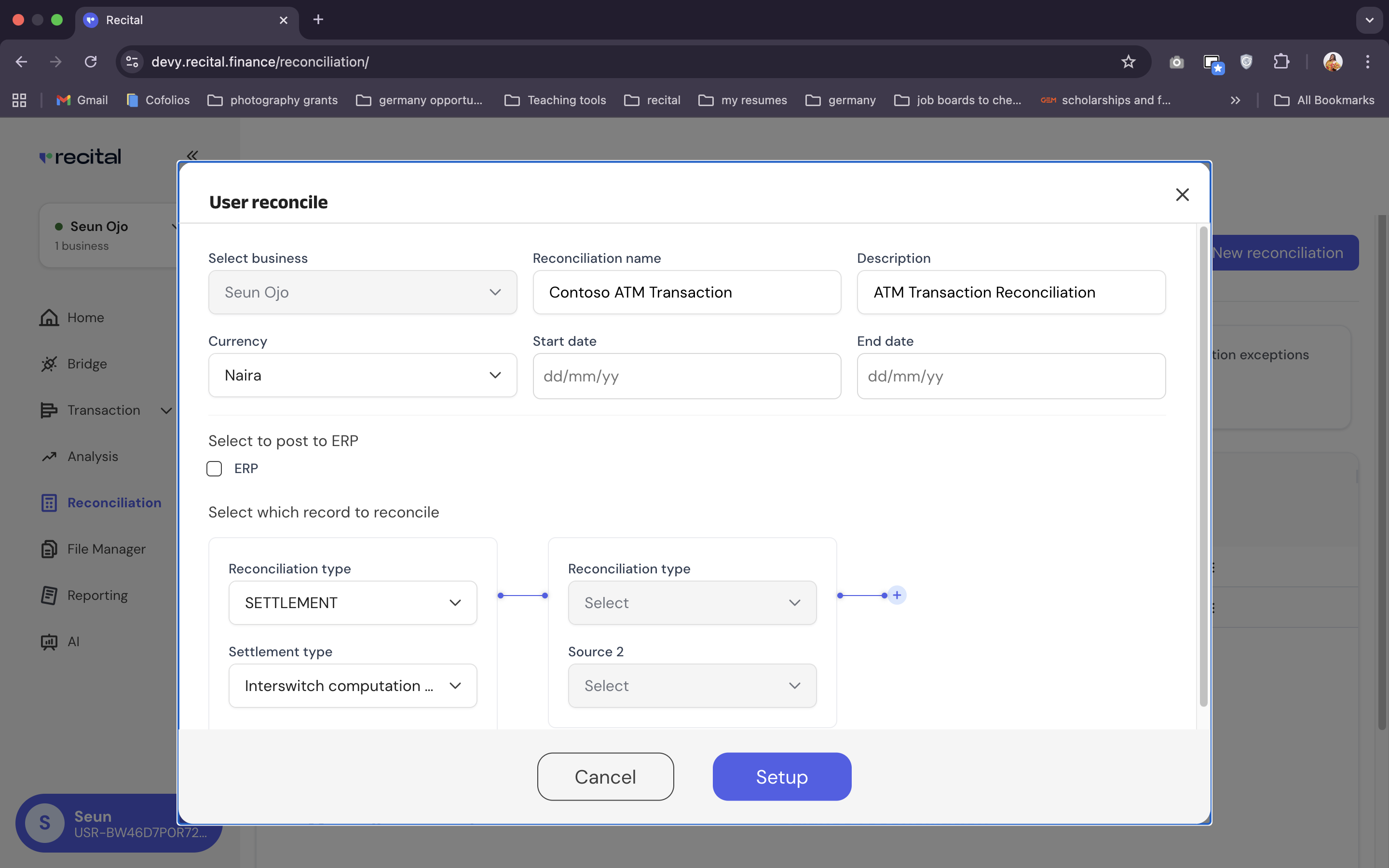
 Set up the new flow by filling User Recon Diablog.
Do the following:
1. Enter a representative name and description for the description
2. Specify currency and transaction start and end date in your source files as the currency, start data and end date
Set up the new flow by filling User Recon Diablog.
Do the following:
1. Enter a representative name and description for the description
2. Specify currency and transaction start and end date in your source files as the currency, start data and end date
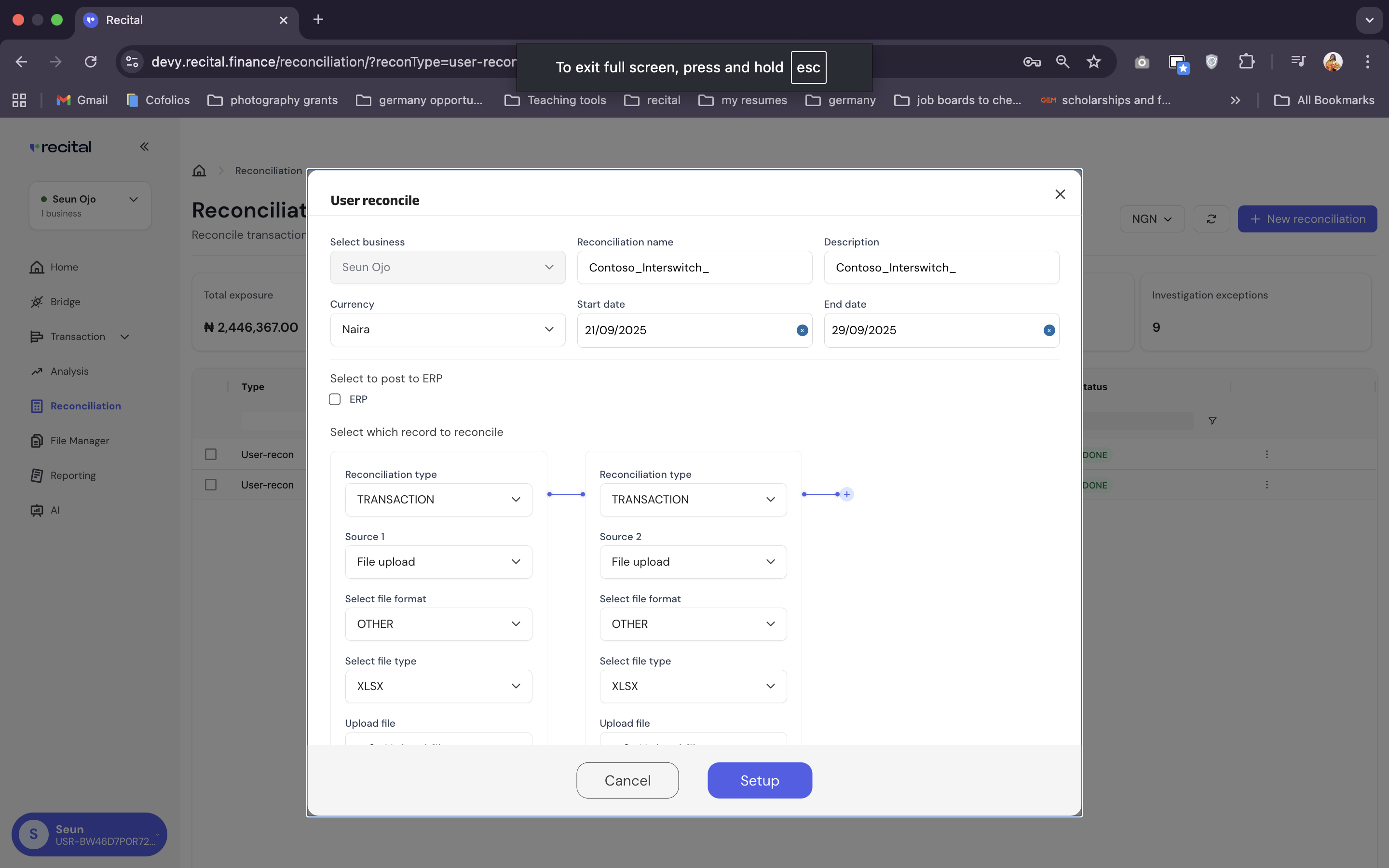
 3. For each source column,
* Specify the Reconciliation type as "Transaction" in this case,
* Specify Source as “File upload” in this case),
* Specify File Format as “Others” in this case),
* Specify File Type as “XLSX” in this case
* Upload the TSS\_Statement.xlsx for Source 1 and TSS\_ATM.xlsx for Source 2
4. Click on "Set up"
The filled User Recon Set up should look like the following:
3. For each source column,
* Specify the Reconciliation type as "Transaction" in this case,
* Specify Source as “File upload” in this case),
* Specify File Format as “Others” in this case),
* Specify File Type as “XLSX” in this case
* Upload the TSS\_Statement.xlsx for Source 1 and TSS\_ATM.xlsx for Source 2
4. Click on "Set up"
The filled User Recon Set up should look like the following:
 Set up time could vary depending on the size of the records in the source files, from a few seconds to minutes.
On the "User Recons" Page, switch to the "Matching Tab", and set up the matching rules for the transaction reconciliation using the sample matching rules specified above.
Set up time could vary depending on the size of the records in the source files, from a few seconds to minutes.
On the "User Recons" Page, switch to the "Matching Tab", and set up the matching rules for the transaction reconciliation using the sample matching rules specified above.
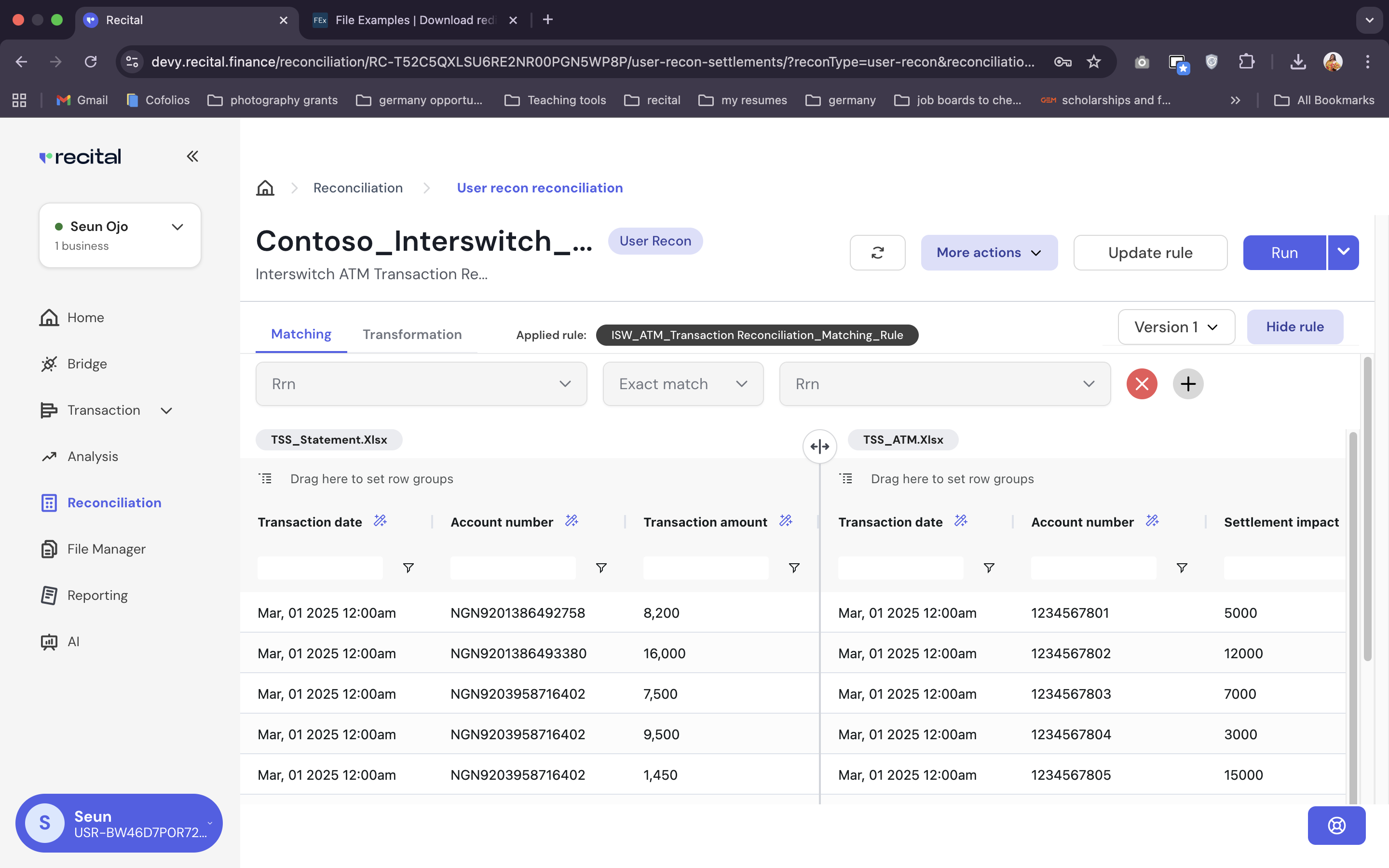 To add matching rules to the user reconciliation flow, do the following:
* Select Exact Match matching loic, and the "RRN" field in both source files for Rule 1
* Select "Amount Match Absolute" logic, then "Transaction Amount" field for the TSS\_Statement file, and "to "Settlement\_Impact" for the TSS\_ATM file for Rule 2.
* Leave “And” as the default logic gate between the two rules entry fields. This implies a match will considered if and only if the RRN-to-RRN AND Transaction Amount-to-Settlement\_Impact match in both transaction files.
To add matching rules to the user reconciliation flow, do the following:
* Select Exact Match matching loic, and the "RRN" field in both source files for Rule 1
* Select "Amount Match Absolute" logic, then "Transaction Amount" field for the TSS\_Statement file, and "to "Settlement\_Impact" for the TSS\_ATM file for Rule 2.
* Leave “And” as the default logic gate between the two rules entry fields. This implies a match will considered if and only if the RRN-to-RRN AND Transaction Amount-to-Settlement\_Impact match in both transaction files.
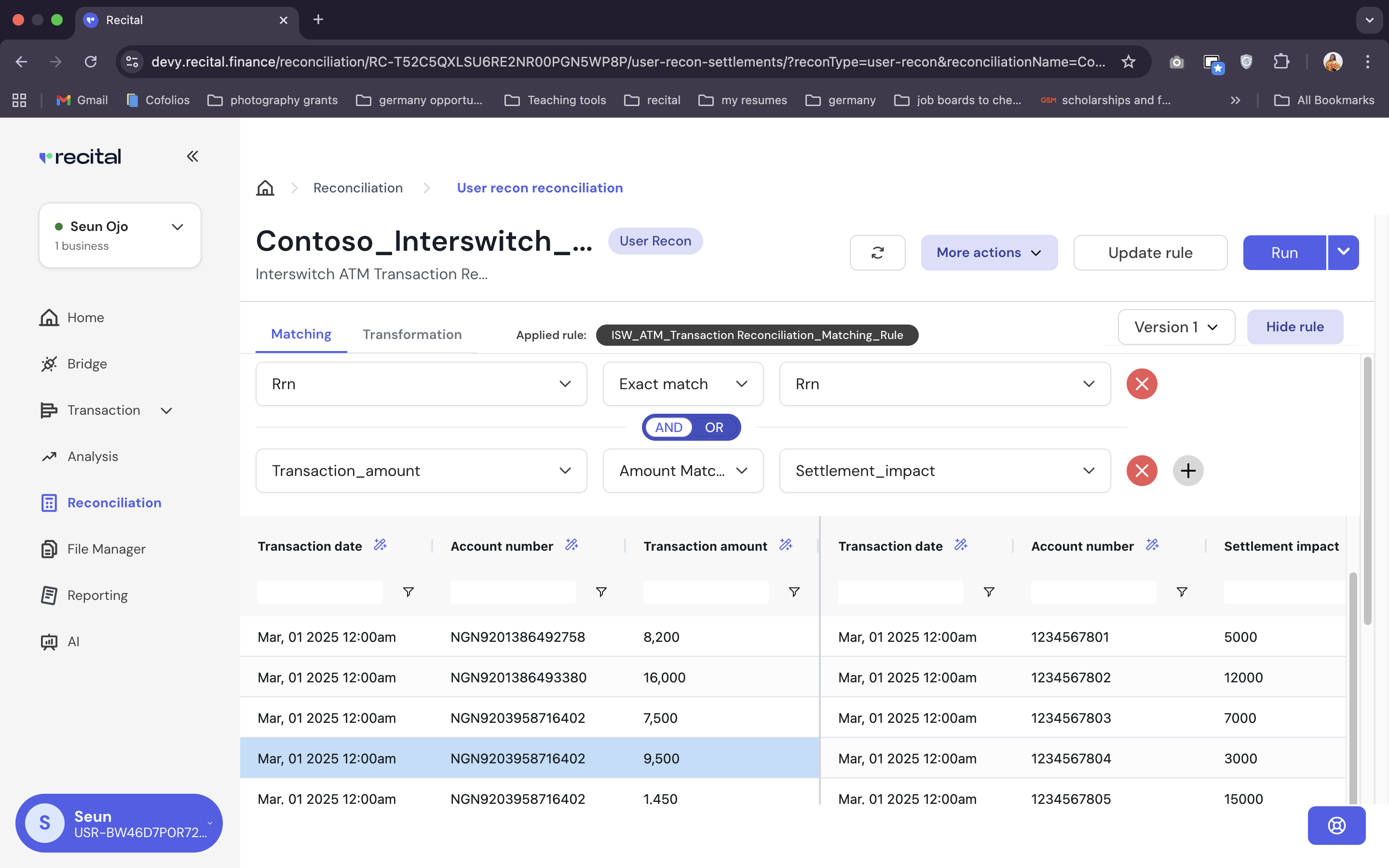 * Save the rule for later re-use
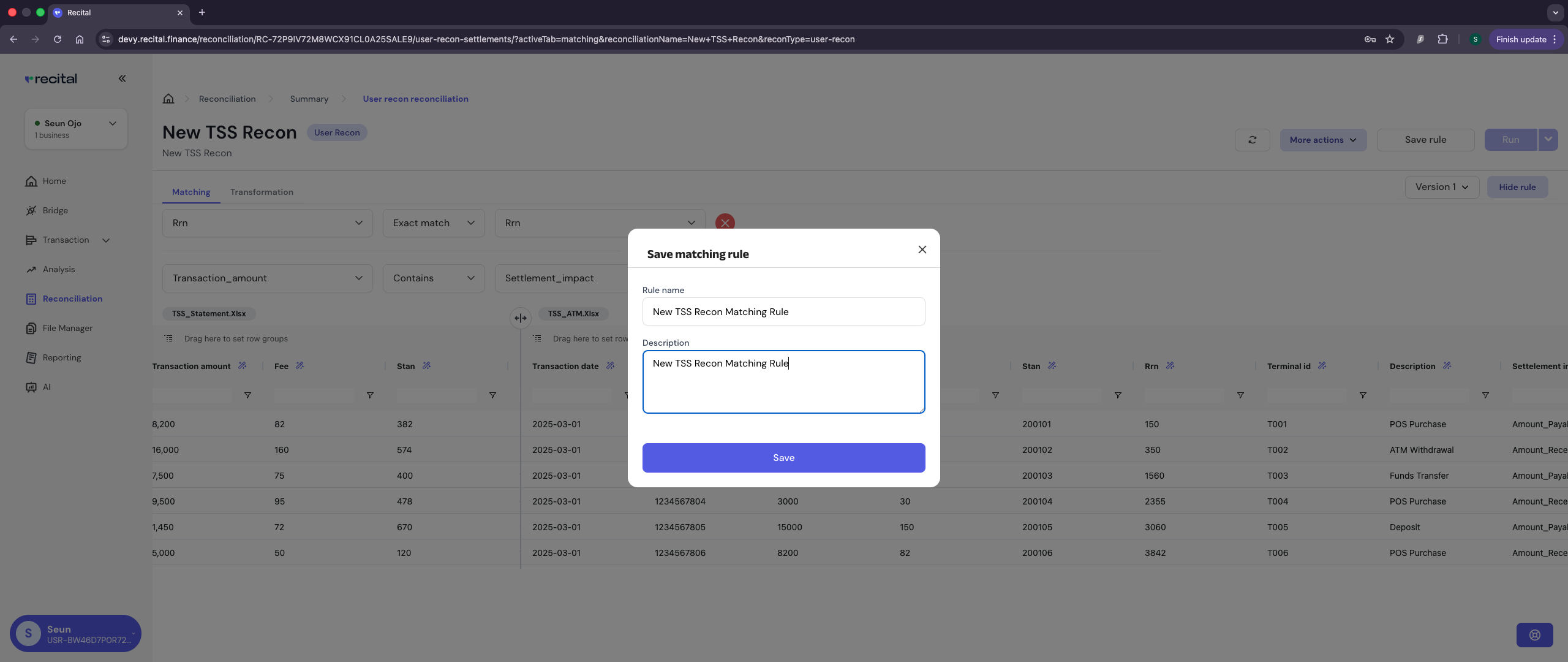 On the "User Recons" Page, switch to the "Transformation" tab to set up the transformation rules.
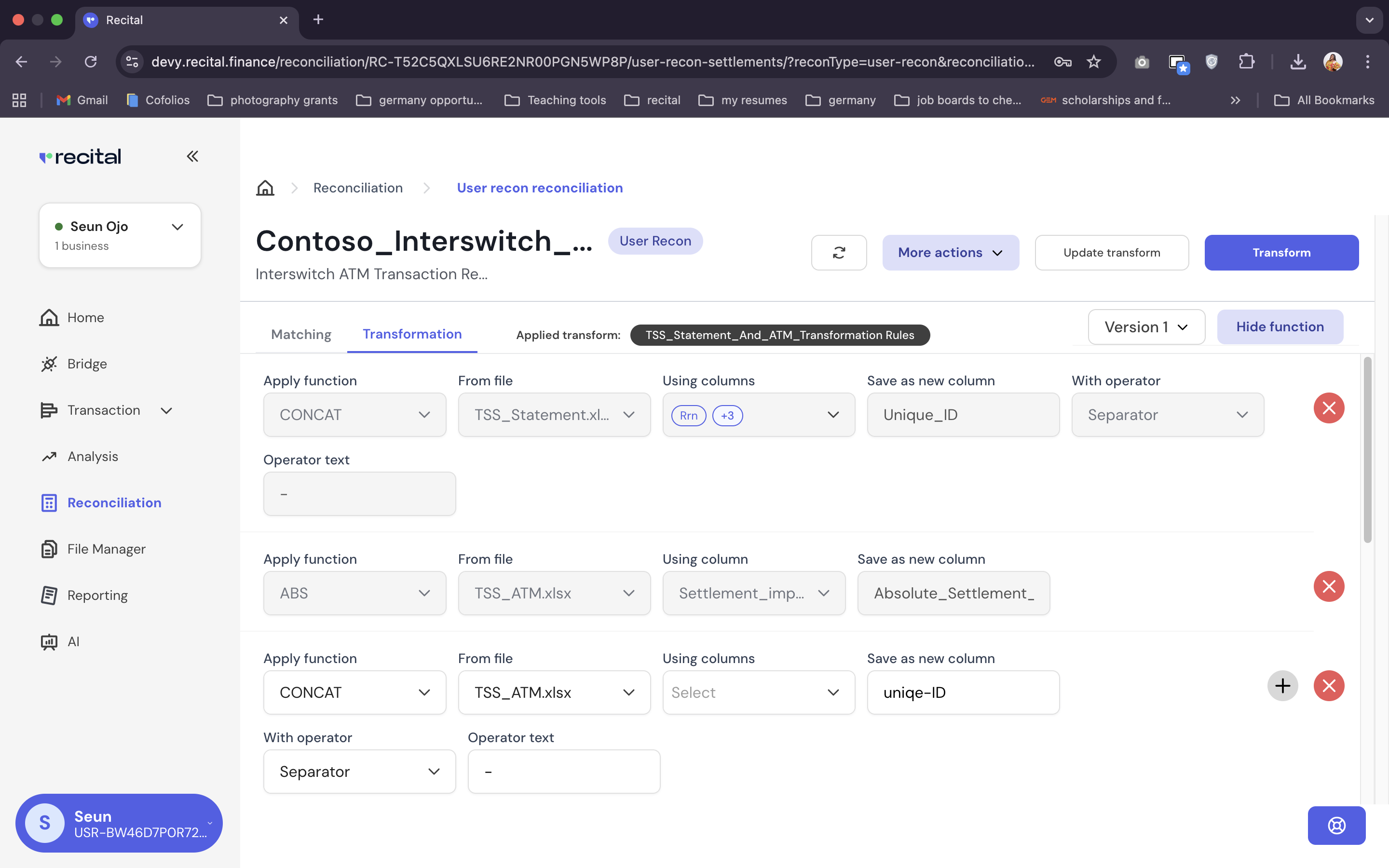
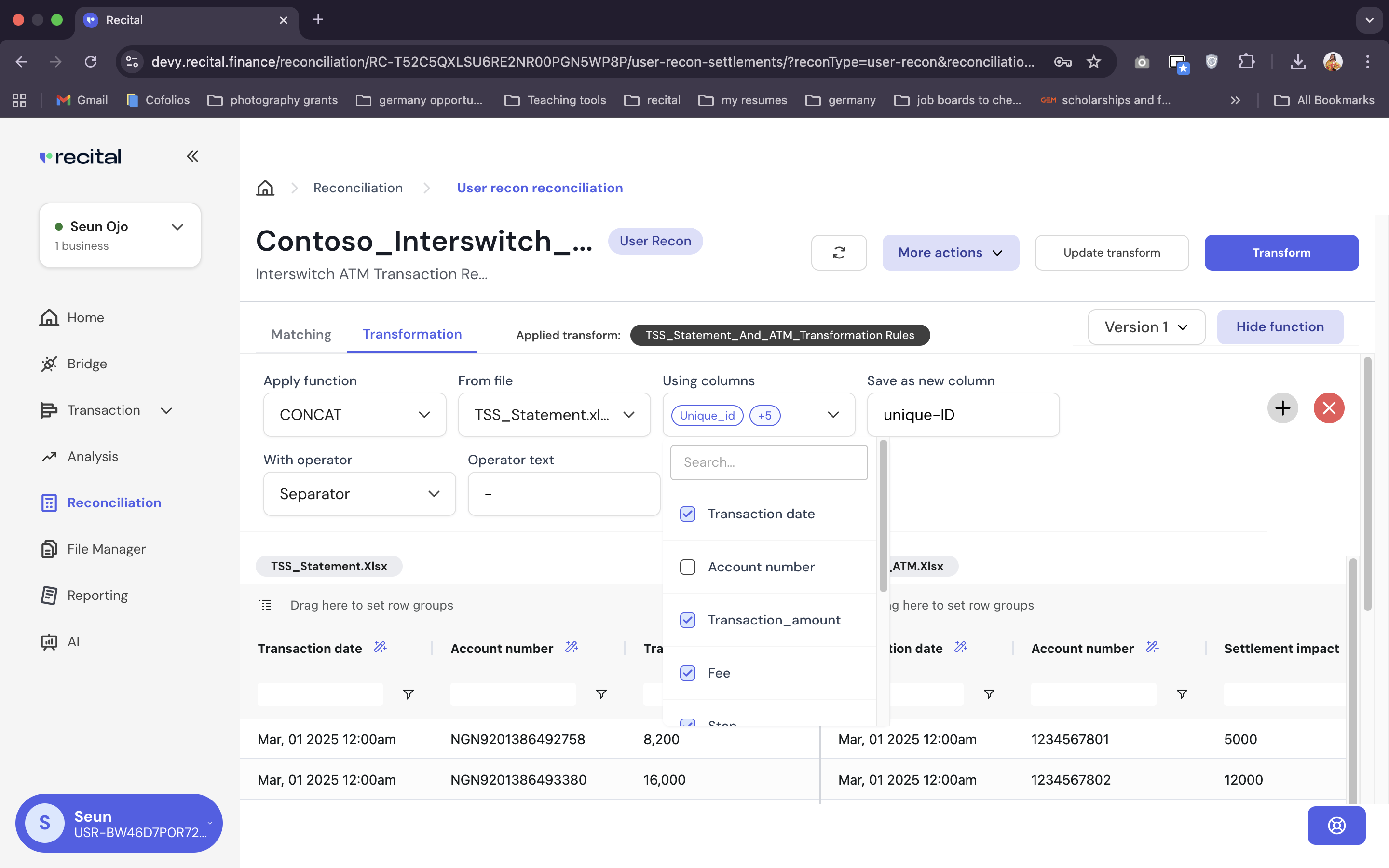 Let’s start with the TSS\_Statement file transformation. Do the following:
* Select CONCAT on the “Apply Function” field. The Apply functions work similarly to excel functions that business users are already familiar with.
* Next select the TSS\_Statement.xlsx on the “From file” field
* Then select the columns you want to concatenate in the order you want to them, e.g., for CONCAT(RRN, STAN, TerminalID+Transaction\_Amount) normalization on the TSS\_Statement file, select the RRN first, STAN second, TerminalID third, etc.
* Specify a name for the new column to place the transformed value
* And use the “with separator” and “operator text” to add a separator/prefix/suffix and the corresponding separator/prefix/suffix character
Next, let's apply tjhe transformations rule on the TSS\_ATM source data. Do the following:
* Click on the plus button besides the first transformation rule to add a new transformation rule.
* Add the CONCAT, ABS and FILTER transformations on the TSS\_ATM files.
The completed transformation rule should look like this:
Let’s start with the TSS\_Statement file transformation. Do the following:
* Select CONCAT on the “Apply Function” field. The Apply functions work similarly to excel functions that business users are already familiar with.
* Next select the TSS\_Statement.xlsx on the “From file” field
* Then select the columns you want to concatenate in the order you want to them, e.g., for CONCAT(RRN, STAN, TerminalID+Transaction\_Amount) normalization on the TSS\_Statement file, select the RRN first, STAN second, TerminalID third, etc.
* Specify a name for the new column to place the transformed value
* And use the “with separator” and “operator text” to add a separator/prefix/suffix and the corresponding separator/prefix/suffix character
Next, let's apply tjhe transformations rule on the TSS\_ATM source data. Do the following:
* Click on the plus button besides the first transformation rule to add a new transformation rule.
* Add the CONCAT, ABS and FILTER transformations on the TSS\_ATM files.
The completed transformation rule should look like this:
 * Save the transformation rule for later re-use
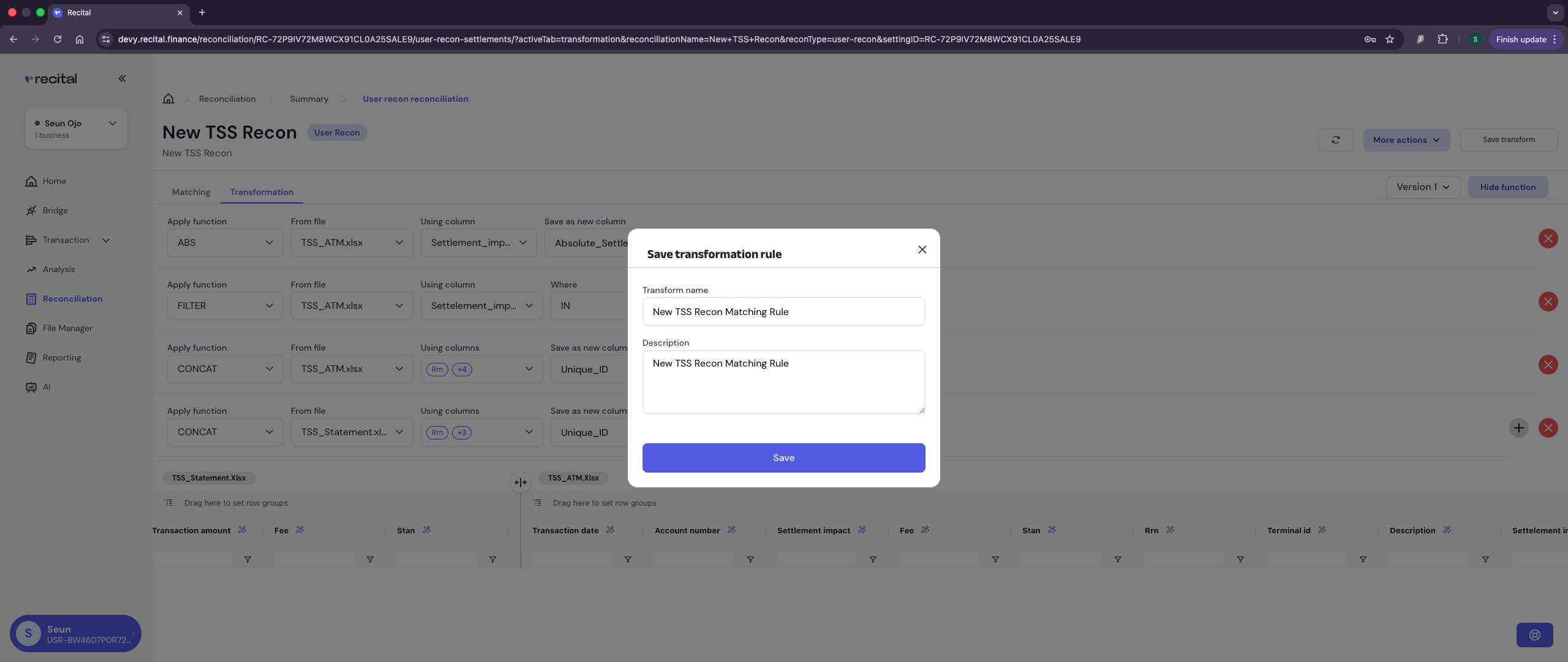 Click the Run button on the User Recon Flow Page to Run the reconciliation after entering the matching and transformation rules.
After running a reconciliation, users are re-directed to the reconciliation flow list page.
Click the Run button on the User Recon Flow Page to Run the reconciliation after entering the matching and transformation rules.
After running a reconciliation, users are re-directed to the reconciliation flow list page.
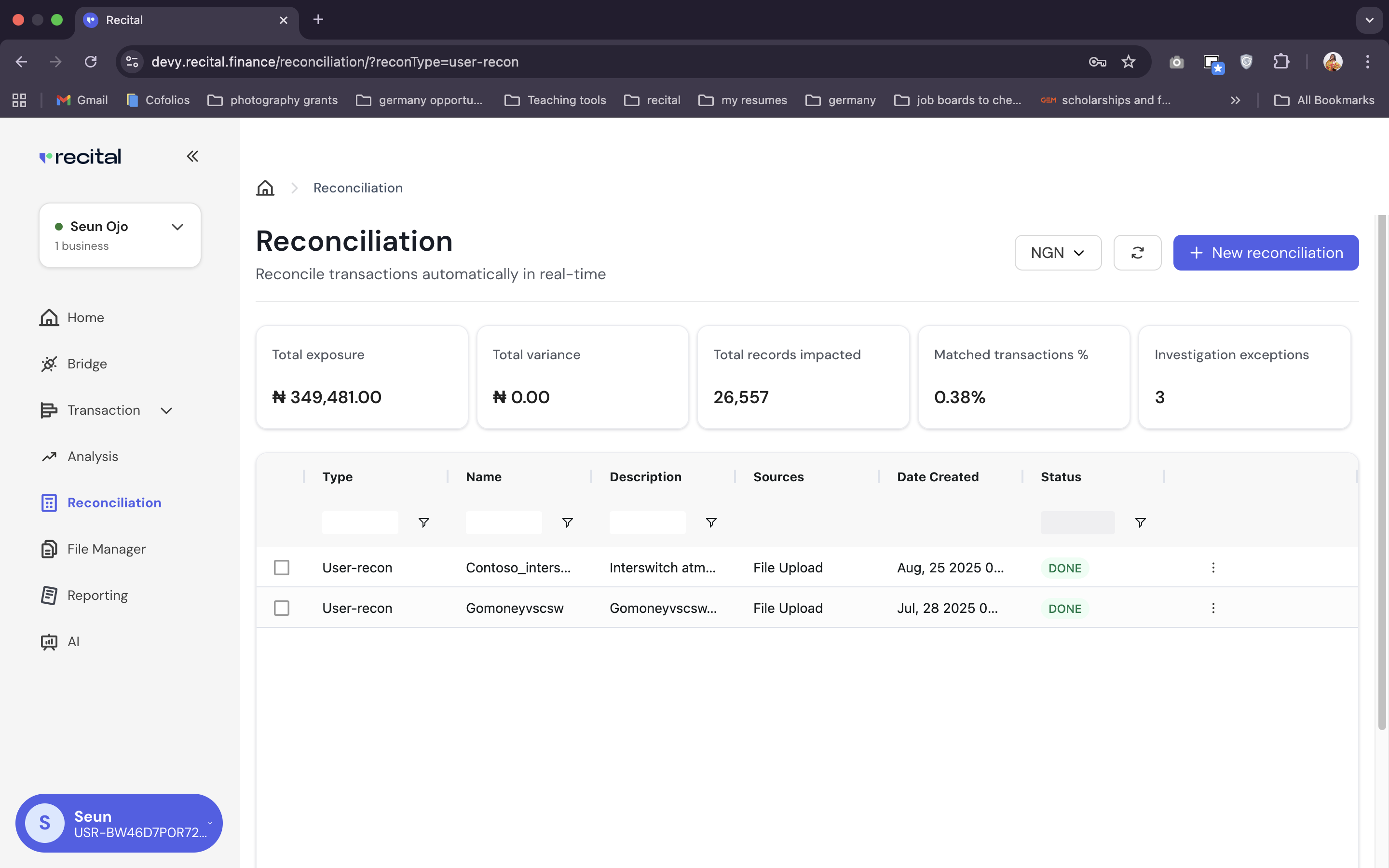 To navigate to the Reconciliation Run Summary data page, do the following:
1. Select your reconciliation flow name on the list.
To navigate to the Reconciliation Run Summary data page, do the following:
1. Select your reconciliation flow name on the list.
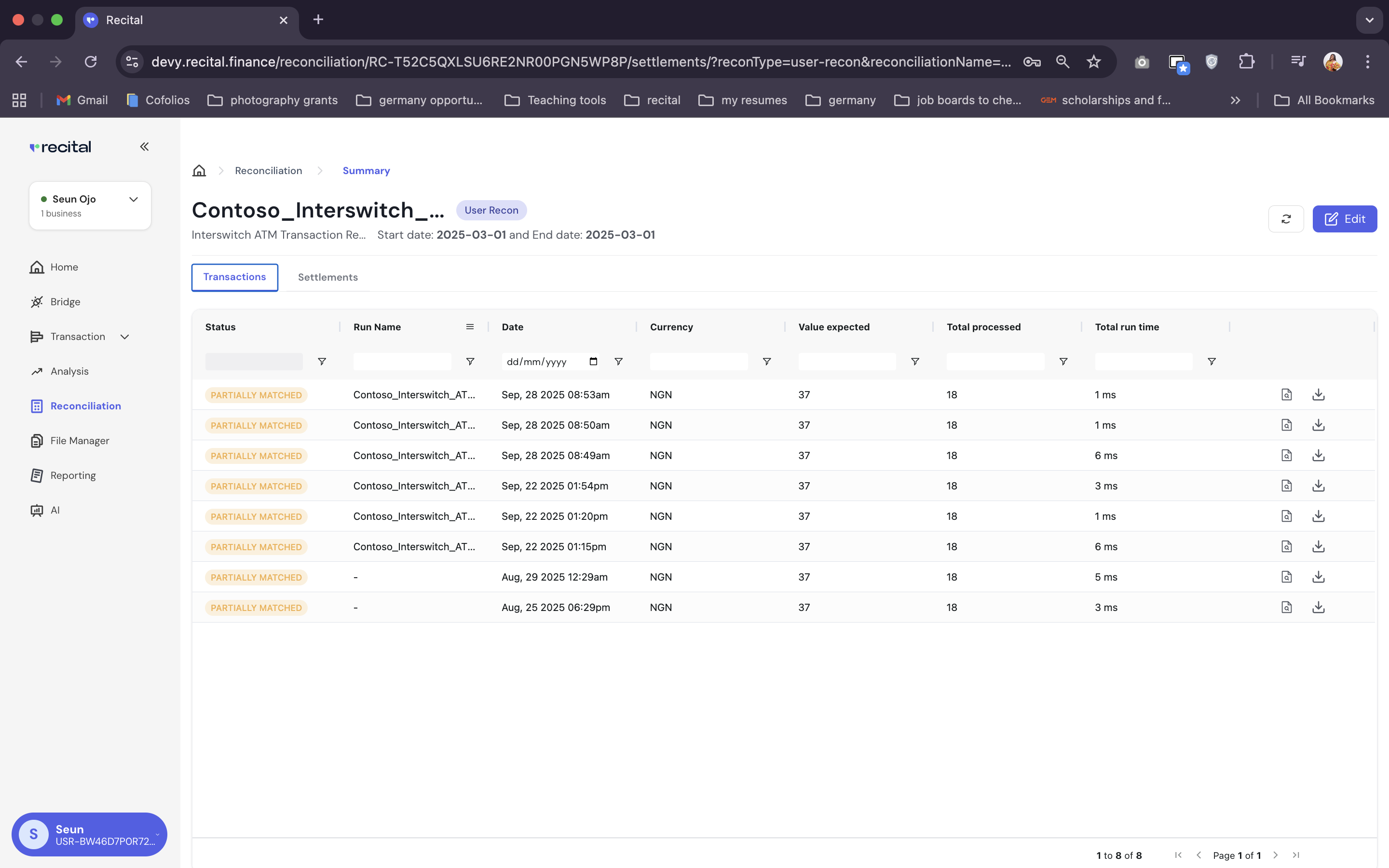 2. On the reconciliation run list page, select the corresponding run or last run to see the associate reconcilation outcome data
3. On the Reconciliation Outcome summary page, you can view indepth data about the outcome of the reconciliation run.
* You can switch between File tabs,
2. On the reconciliation run list page, select the corresponding run or last run to see the associate reconcilation outcome data
3. On the Reconciliation Outcome summary page, you can view indepth data about the outcome of the reconciliation run.
* You can switch between File tabs,
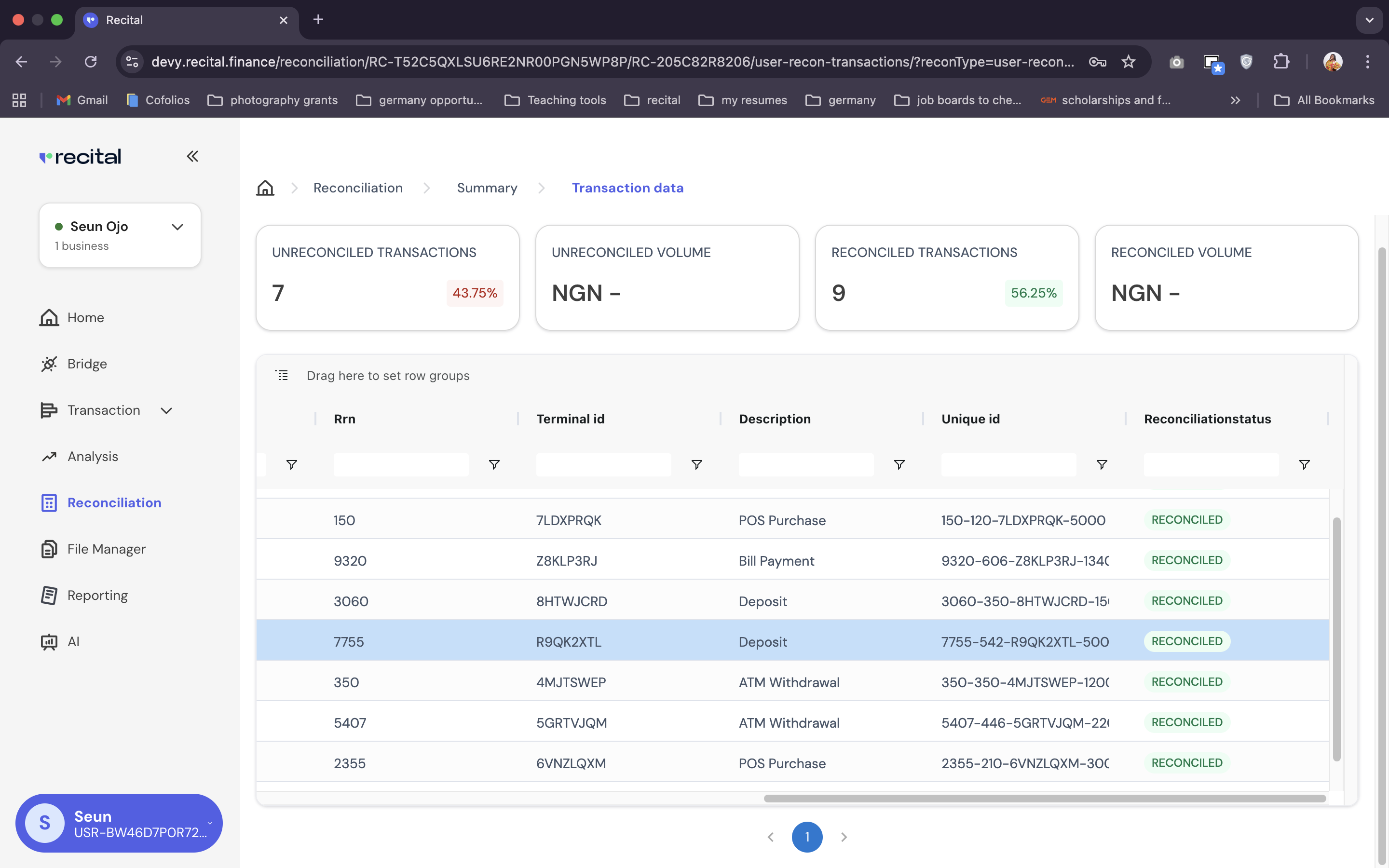
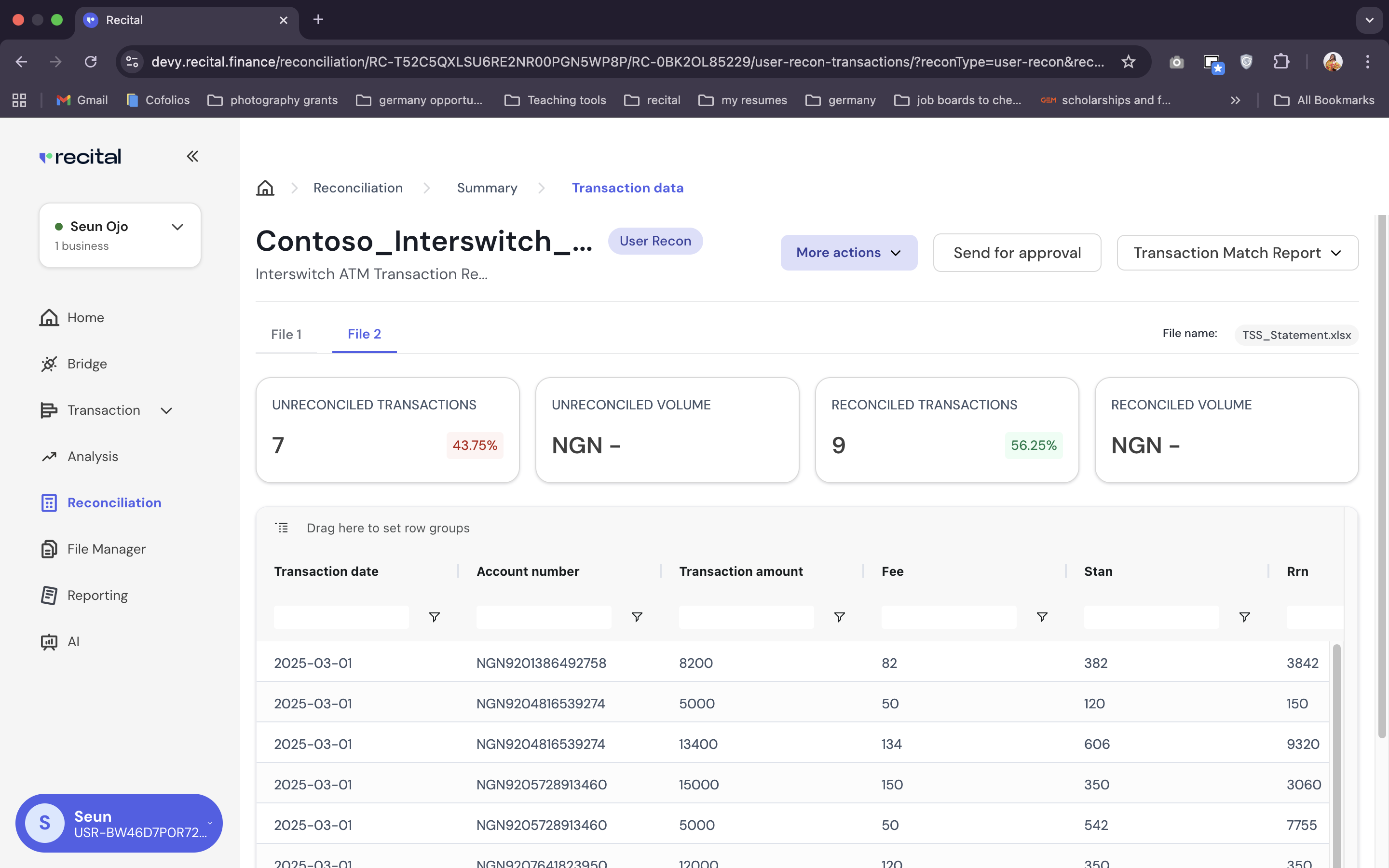 * View the match/un-matched status of each record in a file
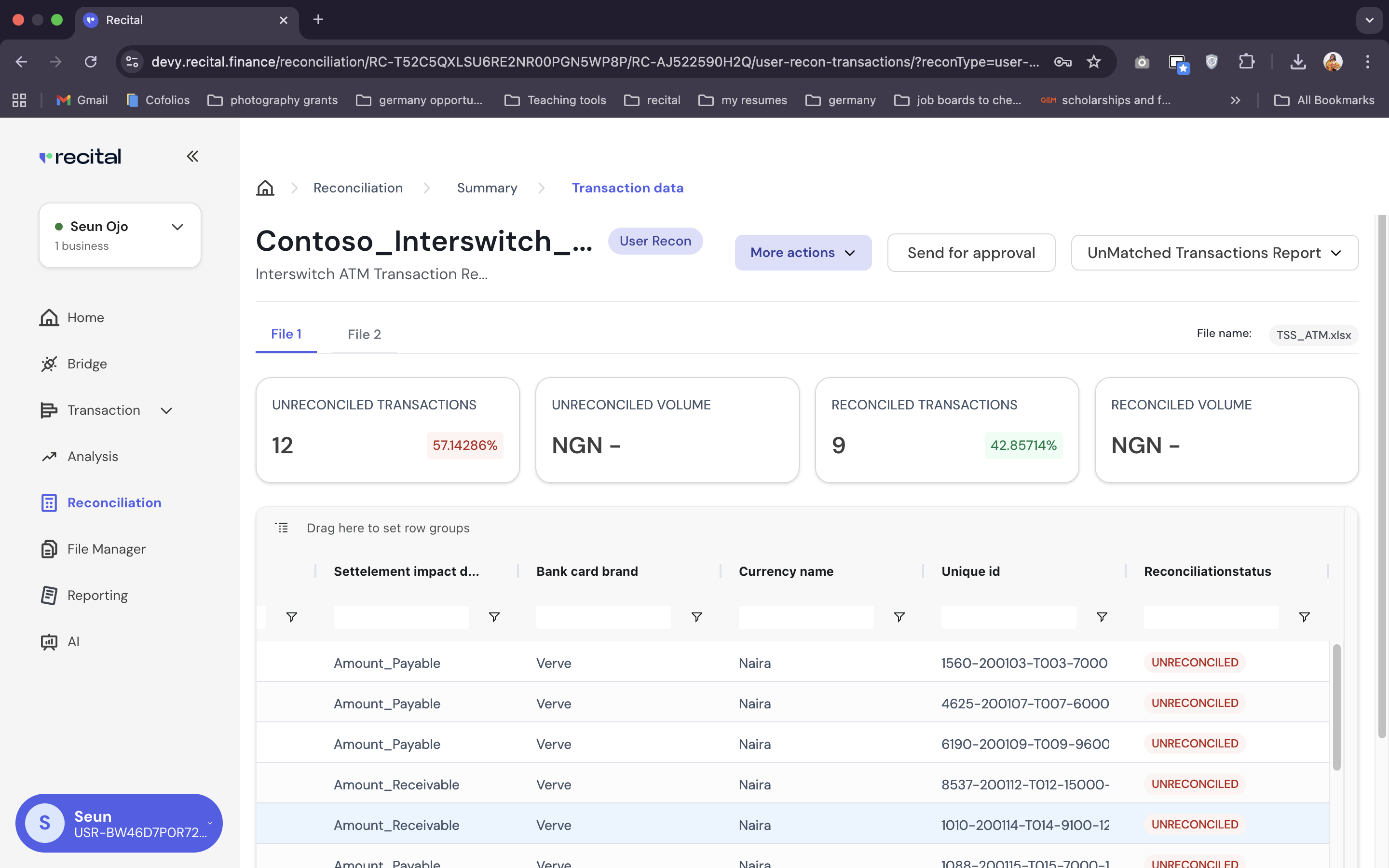 * While on a particular file, you can switch between Transaction Match and Un-Matched report with the top right drop down button.
To download reconciliation reports, do the following:
1. Navigate to the Reconciliation Run List : Reconcilation Page > Select Reonciliation Flow > Reconciliation Runs List Page
2. Click download button beside the corresponding run
* While on a particular file, you can switch between Transaction Match and Un-Matched report with the top right drop down button.
To download reconciliation reports, do the following:
1. Navigate to the Reconciliation Run List : Reconcilation Page > Select Reonciliation Flow > Reconciliation Runs List Page
2. Click download button beside the corresponding run
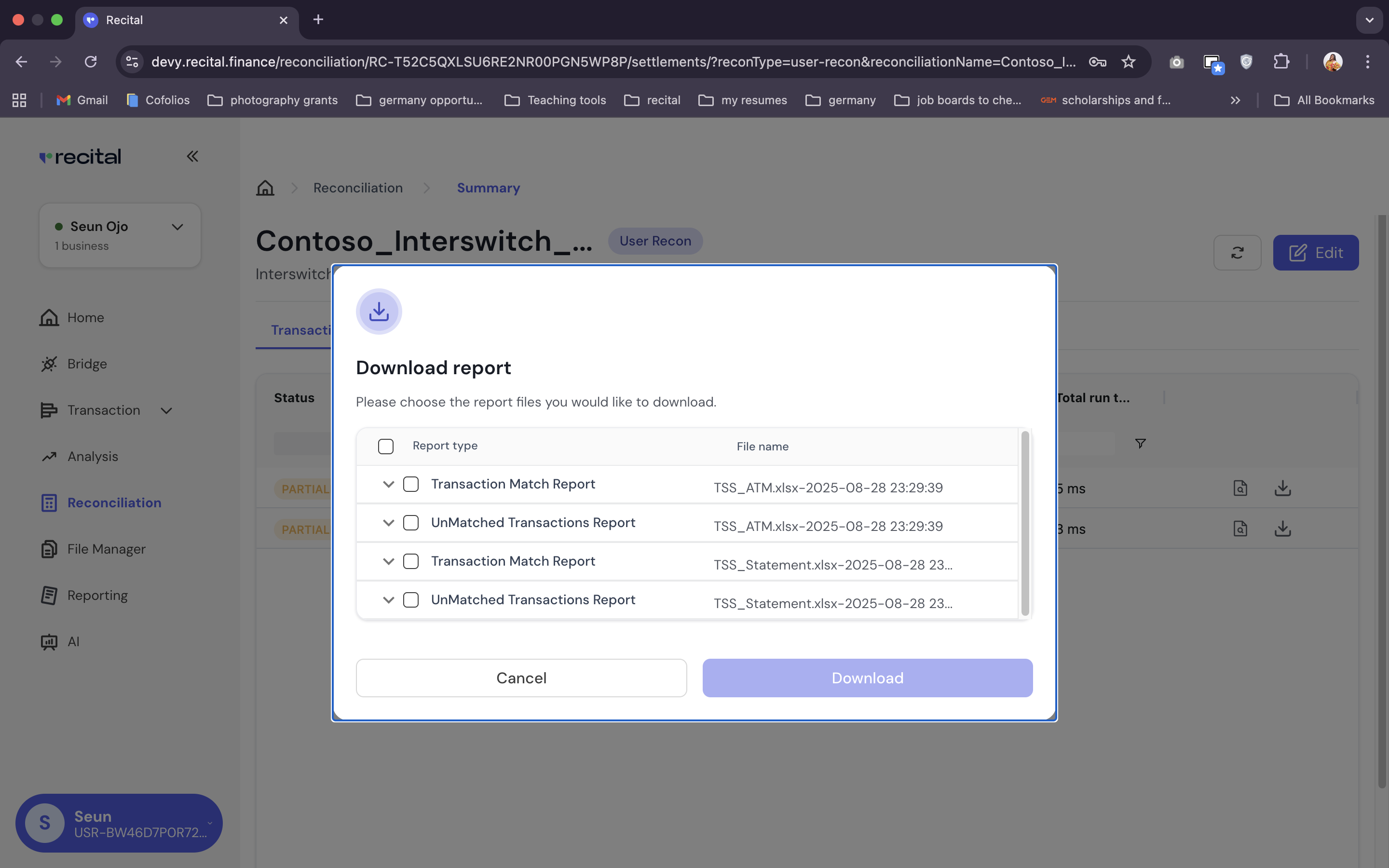 For the reconciliation reports, you get one file, with 4 sheets: #2 sheets for each files reconciled and unreconciled items
#### Sample Scenario 2: Settlement Reconciliation
Let's assume we want to use Recital to perform **settlement reconciliation** between **reconcilled transaction data** from the Sample scenario 1 above and a **settlement file**.
**Reconcilled TSS\_Statement.xlsx - Output Data from Sample Scenario 1**
| Transaction Date | Account Number | Transaction\_Amount | Fee | STAN | RRN | Terminal ID | Description | Status |
| ---------------- | ---------------- | ------------------: | --: | ---- | ---- | ----------- | -------------- | ------------- |
| 2025-03-01 | NGN9201386492758 | 8,200 | 82 | 382 | 3842 | 3PSYQLFK | POS Purchase | RECONCILLED |
| 2025-03-01 | NGN9201386493380 | 16,000 | 160 | 574 | 8537 | W5MHTVZQ | POS Purchase | UNRECONCILLED |
| 2025-03-01 | NGN9203958716402 | 7,500 | 75 | 400 | 1560 | 9KQBRYHT | Funds Transfer | UNRECONCILLED |
| 2025-03-01 | NGN9203958716402 | 9,500 | 95 | 478 | 6190 | 0ZMLKQDP | POS Purchase | UNRECONCILLED |
| 2025-03-01 | NGN9203958716402 | 1,450 | 72 | 670 | 900 | V4JS9WPK | POS Purchase | UNRECONCILLED |
| 2025-03-01 | NGN9204816539274 | 5,000 | 50 | 120 | 150 | 7LDXPRQK | POS Purchase | RECONCILLED |
| 2025-03-01 | NGN9204816539274 | 6,400 | 64 | 414 | 4625 | 1BNXHTZP | Bill Payment | RECONCILLED |
| 2025-03-01 | NGN9204816539274 | 13,400 | 134 | 606 | 9320 | Z8KLP3RJ | Bill Payment | UNRECONCILLED |
| 2025-03-01 | NGN9205728913460 | 15,000 | 150 | 350 | 3060 | 8HTWJCRD | Deposit | RECONCILLED |
| 2025-03-01 | NGN9205728913460 | 5,000 | 50 | 542 | 7755 | R9QK2XTL | Deposit | RECONCILLED |
| 2025-03-01 | NGN9207641823950 | 12,000 | 120 | 350 | 350 | 4MJTSWEP | ATM Withdrawal | RECONCILLED |
| 2025-03-01 | NGN9207641823950 | 22,000 | 220 | 446 | 5407 | 5GRTVJQM | ATM Withdrawal | UNRECONCILLED |
| 2025-03-01 | NGN9207641823950 | 8,700 | 89 | 638 | 1000 | H2QTXNMF | ATM Withdrawal | RECONCILLED |
| 2025-03-01 | NGN9208162345791 | 3,000 | 30 | 210 | 2355 | 6VNZLQXM | POS Purchase | RECONCILLED |
| 2025-03-01 | NGN9208162345791 | 7,800 | 78 | 510 | 6972 | 2XJFWNHT | Funds Transfer | RECONCILLED |
| 2025-03-01 | NGN9208162345799 | 6,245 | 43 | 222 | 1234 | 2XJZZZHT | Funds Transfer | UNRECONCILLED |
**Settlement Data from an External Source**
| Settlement Category | Account Type | Total Amount | Total Fees |
| :------------------ | :---------------- | -----------: | ---------: |
| POS Purchase | AMOUNT RECEIVABLE | 43,150 | 0 |
| Funds Transfer | AMOUNT RECEIVABLE | 21,545 | 0 |
| Bill Payment | AMOUNT RECEIVABLE | 19,800 | 0 |
| ATM Withdrawal | AMOUNT RECEIVABLE | 42,700 | 0 |
| POS Purchase | AMOUNT PAYABLE | 0 | 0 |
| Funds Transfer | AMOUNT PAYABLE | 0 | 0 |
| Bill Payment | AMOUNT PAYABLE | 0 | 0 |
| ATM Withdrawal | AMOUNT PAYABLE | 0 | 0 |
| **SUM TOTAL** | | 127,195 | 0 |
| **GRAND TOTAL** | | 127,195 | 0 |
#### Handling Sample Scenario 2
Creating a new user reconciliation to handle the settlement reconciliation is easy and straight forward.
1. Use the left menu on Recital to navigate to the Reconciliation page
2. Select the reconcliation name you want to work on from the flow list
To set up a Settlement Reconciiliation run,
* Switch to the Settlement Tab on the Reconciliation runs list
* Select "Run Settelement"
For the reconciliation reports, you get one file, with 4 sheets: #2 sheets for each files reconciled and unreconciled items
#### Sample Scenario 2: Settlement Reconciliation
Let's assume we want to use Recital to perform **settlement reconciliation** between **reconcilled transaction data** from the Sample scenario 1 above and a **settlement file**.
**Reconcilled TSS\_Statement.xlsx - Output Data from Sample Scenario 1**
| Transaction Date | Account Number | Transaction\_Amount | Fee | STAN | RRN | Terminal ID | Description | Status |
| ---------------- | ---------------- | ------------------: | --: | ---- | ---- | ----------- | -------------- | ------------- |
| 2025-03-01 | NGN9201386492758 | 8,200 | 82 | 382 | 3842 | 3PSYQLFK | POS Purchase | RECONCILLED |
| 2025-03-01 | NGN9201386493380 | 16,000 | 160 | 574 | 8537 | W5MHTVZQ | POS Purchase | UNRECONCILLED |
| 2025-03-01 | NGN9203958716402 | 7,500 | 75 | 400 | 1560 | 9KQBRYHT | Funds Transfer | UNRECONCILLED |
| 2025-03-01 | NGN9203958716402 | 9,500 | 95 | 478 | 6190 | 0ZMLKQDP | POS Purchase | UNRECONCILLED |
| 2025-03-01 | NGN9203958716402 | 1,450 | 72 | 670 | 900 | V4JS9WPK | POS Purchase | UNRECONCILLED |
| 2025-03-01 | NGN9204816539274 | 5,000 | 50 | 120 | 150 | 7LDXPRQK | POS Purchase | RECONCILLED |
| 2025-03-01 | NGN9204816539274 | 6,400 | 64 | 414 | 4625 | 1BNXHTZP | Bill Payment | RECONCILLED |
| 2025-03-01 | NGN9204816539274 | 13,400 | 134 | 606 | 9320 | Z8KLP3RJ | Bill Payment | UNRECONCILLED |
| 2025-03-01 | NGN9205728913460 | 15,000 | 150 | 350 | 3060 | 8HTWJCRD | Deposit | RECONCILLED |
| 2025-03-01 | NGN9205728913460 | 5,000 | 50 | 542 | 7755 | R9QK2XTL | Deposit | RECONCILLED |
| 2025-03-01 | NGN9207641823950 | 12,000 | 120 | 350 | 350 | 4MJTSWEP | ATM Withdrawal | RECONCILLED |
| 2025-03-01 | NGN9207641823950 | 22,000 | 220 | 446 | 5407 | 5GRTVJQM | ATM Withdrawal | UNRECONCILLED |
| 2025-03-01 | NGN9207641823950 | 8,700 | 89 | 638 | 1000 | H2QTXNMF | ATM Withdrawal | RECONCILLED |
| 2025-03-01 | NGN9208162345791 | 3,000 | 30 | 210 | 2355 | 6VNZLQXM | POS Purchase | RECONCILLED |
| 2025-03-01 | NGN9208162345791 | 7,800 | 78 | 510 | 6972 | 2XJFWNHT | Funds Transfer | RECONCILLED |
| 2025-03-01 | NGN9208162345799 | 6,245 | 43 | 222 | 1234 | 2XJZZZHT | Funds Transfer | UNRECONCILLED |
**Settlement Data from an External Source**
| Settlement Category | Account Type | Total Amount | Total Fees |
| :------------------ | :---------------- | -----------: | ---------: |
| POS Purchase | AMOUNT RECEIVABLE | 43,150 | 0 |
| Funds Transfer | AMOUNT RECEIVABLE | 21,545 | 0 |
| Bill Payment | AMOUNT RECEIVABLE | 19,800 | 0 |
| ATM Withdrawal | AMOUNT RECEIVABLE | 42,700 | 0 |
| POS Purchase | AMOUNT PAYABLE | 0 | 0 |
| Funds Transfer | AMOUNT PAYABLE | 0 | 0 |
| Bill Payment | AMOUNT PAYABLE | 0 | 0 |
| ATM Withdrawal | AMOUNT PAYABLE | 0 | 0 |
| **SUM TOTAL** | | 127,195 | 0 |
| **GRAND TOTAL** | | 127,195 | 0 |
#### Handling Sample Scenario 2
Creating a new user reconciliation to handle the settlement reconciliation is easy and straight forward.
1. Use the left menu on Recital to navigate to the Reconciliation page
2. Select the reconcliation name you want to work on from the flow list
To set up a Settlement Reconciiliation run,
* Switch to the Settlement Tab on the Reconciliation runs list
* Select "Run Settelement"
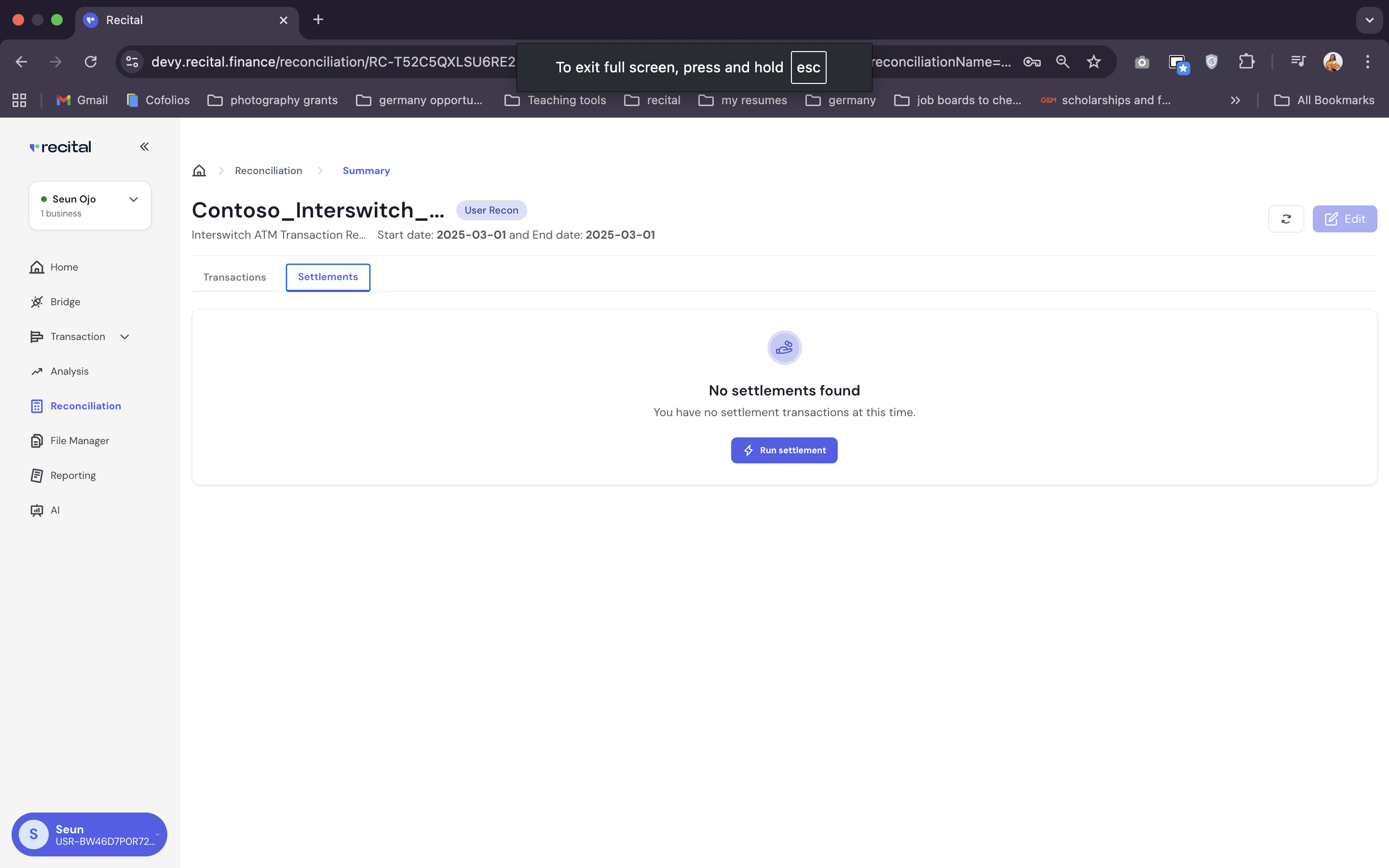 On the run settlement pop-up menu,
* Select the reconcileed transaction run that you want to run the settlement reconciliation against
* Select the transaction file that has all the transactions: TSS\_Statement.xlsx in this case
* Specify the type of settlement file you are uploading – “Interswitch Computation Report” in this case. Recital recognizes the format of different types of settlement files from various providers/switches.
* Specify the file format - xlsx, and select the settelemnt file to be uploaded
* Click on “Upload Files”
To match the transaction file to the settlement file, we need to select the correct column to use for grouping.
On the Settlement Reconciliation page,
1. Switch to the **Grouping** tab
2. Select the “description” column on TSS\_Statement since it contains the different types of transaction, and “settlement category” on the Settlement file.
3.Click on “Save Group”, so that you can re-use the group logic later.
On the run settlement pop-up menu,
* Select the reconcileed transaction run that you want to run the settlement reconciliation against
* Select the transaction file that has all the transactions: TSS\_Statement.xlsx in this case
* Specify the type of settlement file you are uploading – “Interswitch Computation Report” in this case. Recital recognizes the format of different types of settlement files from various providers/switches.
* Specify the file format - xlsx, and select the settelemnt file to be uploaded
* Click on “Upload Files”
To match the transaction file to the settlement file, we need to select the correct column to use for grouping.
On the Settlement Reconciliation page,
1. Switch to the **Grouping** tab
2. Select the “description” column on TSS\_Statement since it contains the different types of transaction, and “settlement category” on the Settlement file.
3.Click on “Save Group”, so that you can re-use the group logic later.
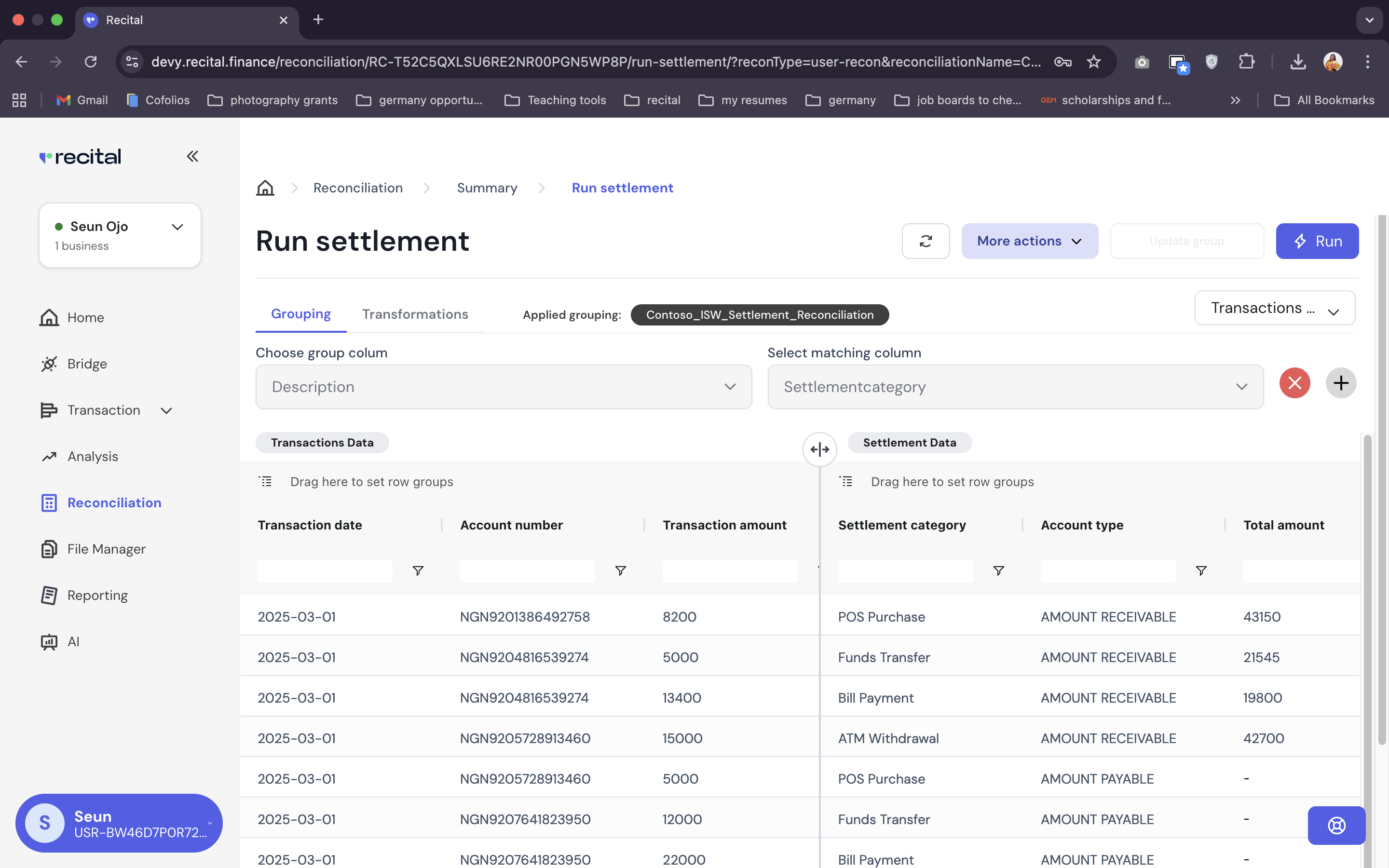 To accurately parse and group transactions in the transaction file, we need to specify the amount and date columns.
On the Settlement Reconciliation page,
1. Switch to the **Transformation** tab
2. Click on More Actions Drop Down on the top menu and select **transform columns**
3. Select the date column in the transaction file, select “Date” as the Data Type, and select a date format. You can use “MDY”
4. Select the amount column in the transaction file – Transaction Amount for TSS\_Statement. Check the **Expected** box
5. Save the transformation rule
6. Click on Transform.
To accurately parse and group transactions in the transaction file, we need to specify the amount and date columns.
On the Settlement Reconciliation page,
1. Switch to the **Transformation** tab
2. Click on More Actions Drop Down on the top menu and select **transform columns**
3. Select the date column in the transaction file, select “Date” as the Data Type, and select a date format. You can use “MDY”
4. Select the amount column in the transaction file – Transaction Amount for TSS\_Statement. Check the **Expected** box
5. Save the transformation rule
6. Click on Transform.
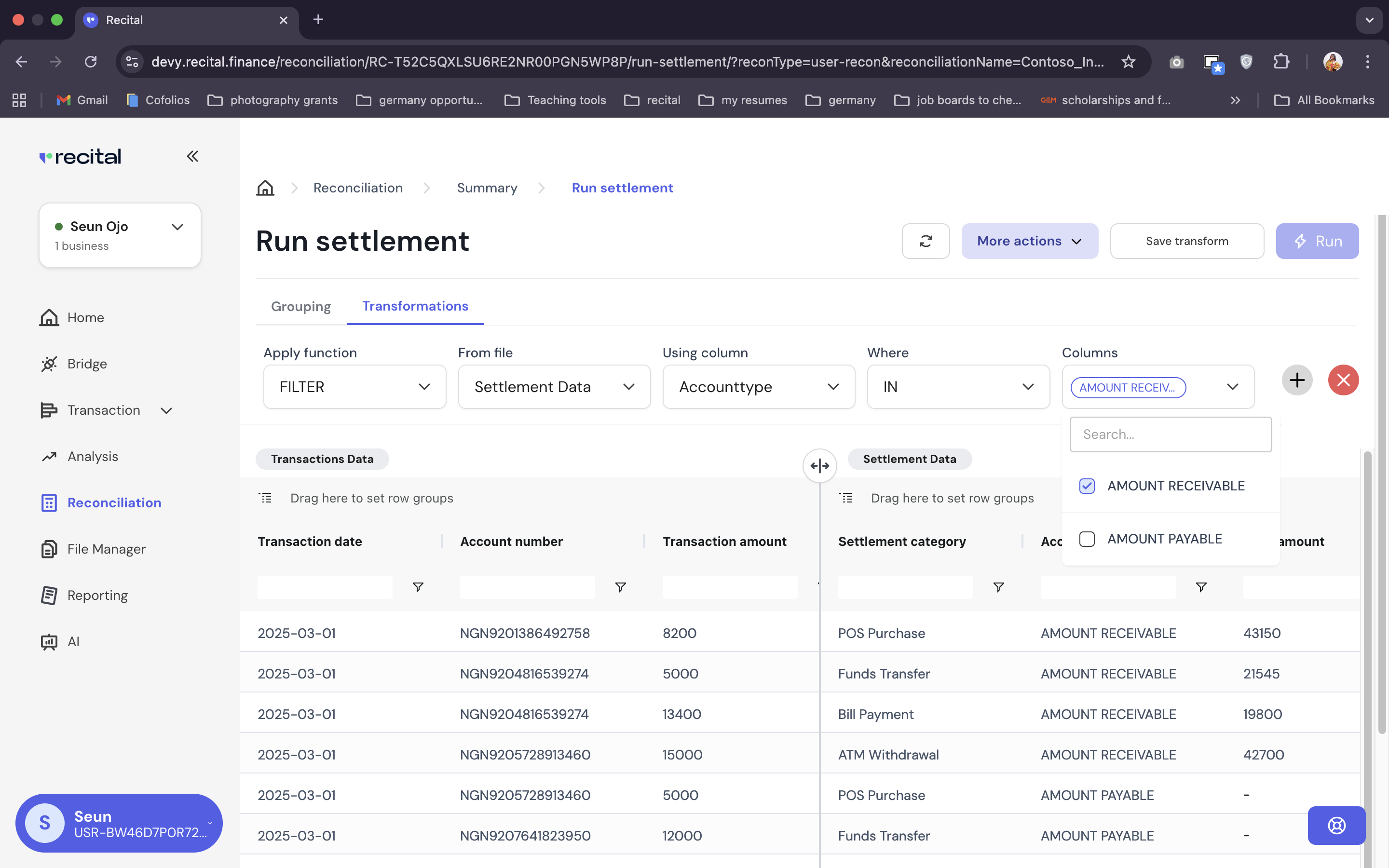 Click on Run Settlement.
After running a settlement, users are redirected to the Settlement Reconciliation runs list page
Select the last settlement run you just completed to see the outcome data once you see "completed" on the grid.
The run outcome data page shows how each of transaction categories was reconcilled between the transaction and settlement files. E.g. We can see the **POS transaction** was partially reconcilled, and that of the 43,150 total amount in the settlement file, 16,200 was matched and 26,950 was un-matched to the transaction file.
Click on Run Settlement.
After running a settlement, users are redirected to the Settlement Reconciliation runs list page
Select the last settlement run you just completed to see the outcome data once you see "completed" on the grid.
The run outcome data page shows how each of transaction categories was reconcilled between the transaction and settlement files. E.g. We can see the **POS transaction** was partially reconcilled, and that of the 43,150 total amount in the settlement file, 16,200 was matched and 26,950 was un-matched to the transaction file.
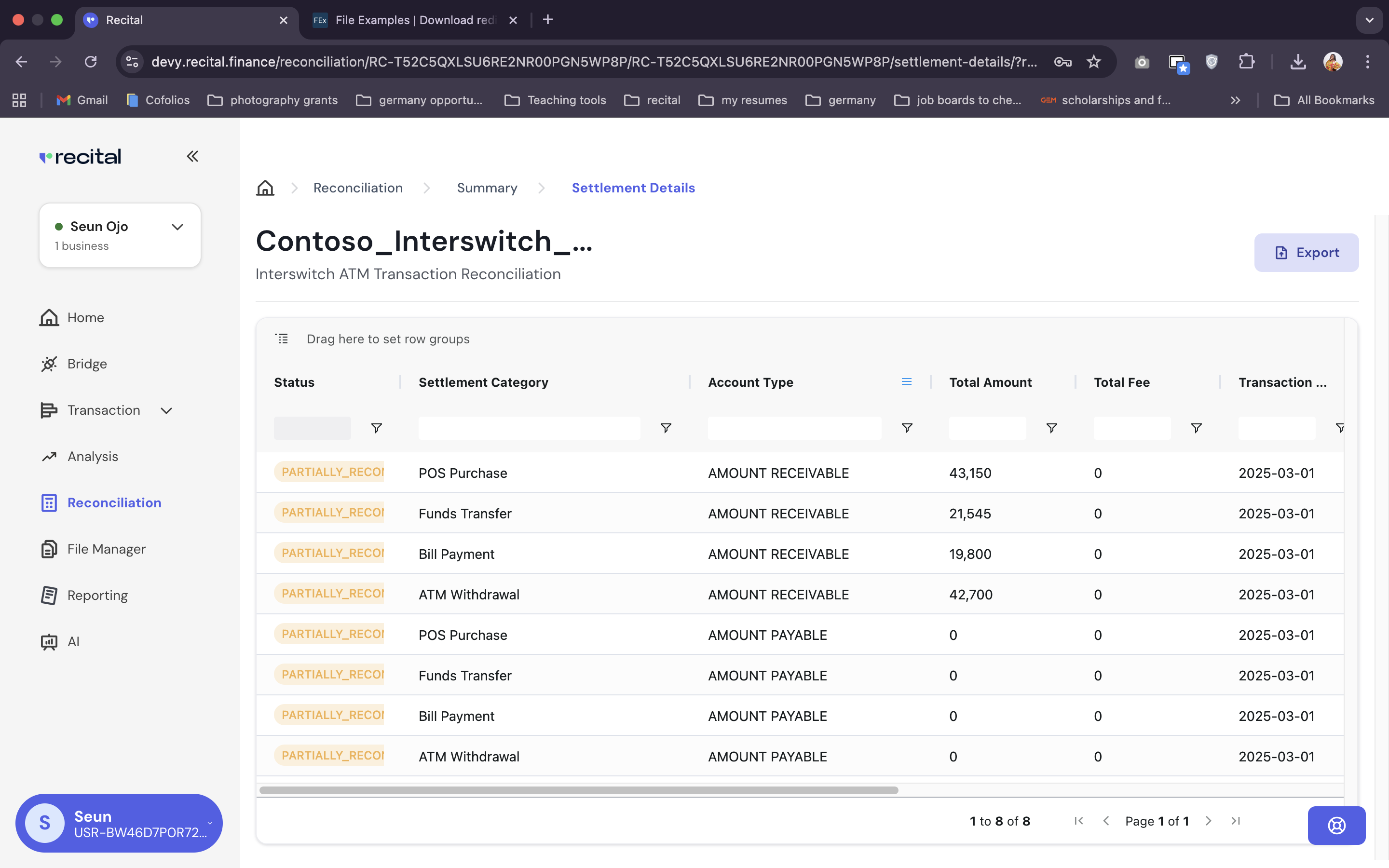
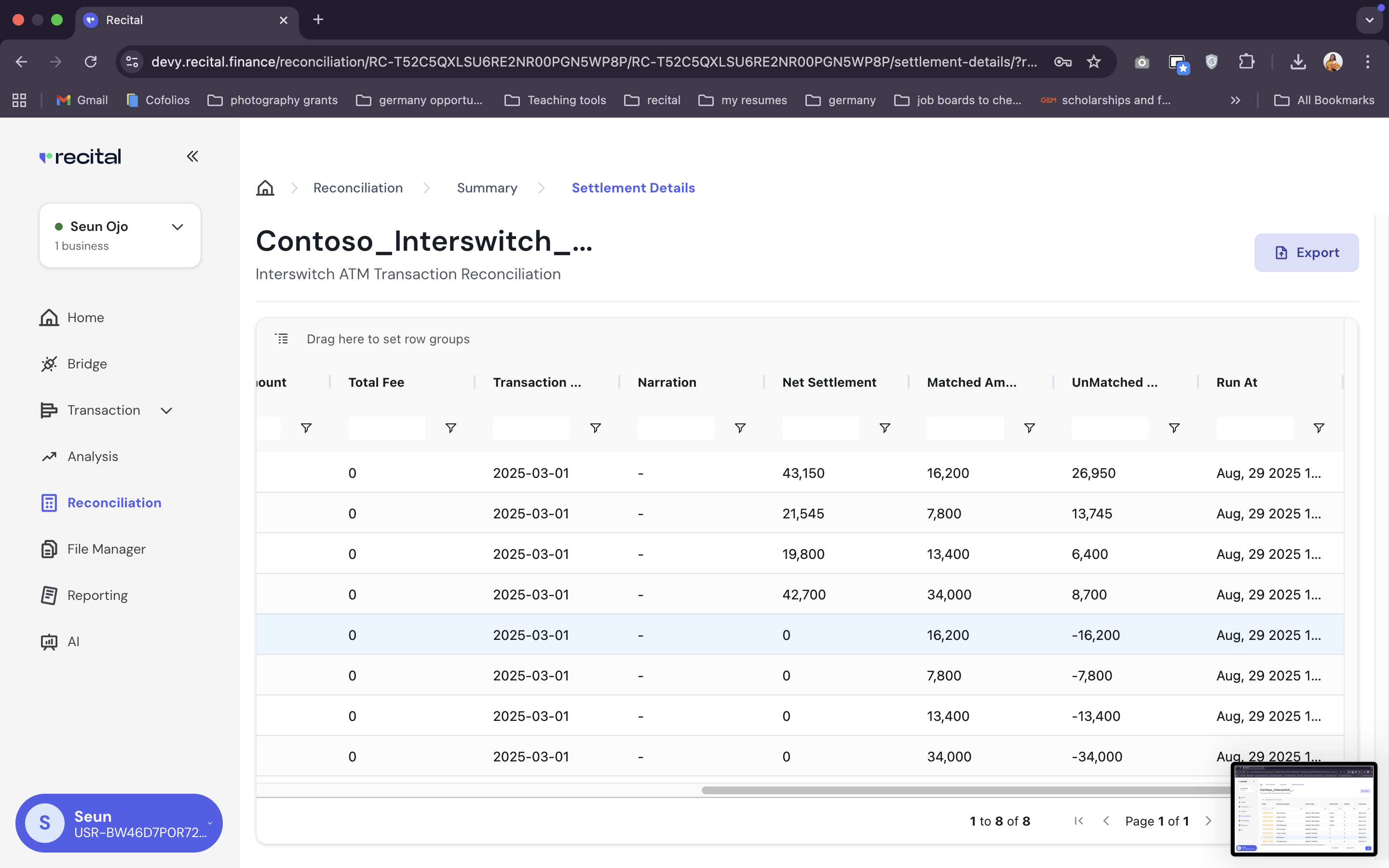 Click on the Export button on the run uutcome data page to export the result of your settlement reconciliation