> ## Documentation Index
> Fetch the complete documentation index at: https://guide.recital.finance/llms.txt
> Use this file to discover all available pages before exploring further.
# Connections
> Quickly connect to 5000+ financial data providers
Bridge supports thousands of out-of-the-box connections, while also offering an API-first design for custom integrations.
#### Bridge Connnection Flow
Connecting to a new data provider on Recital typicall follows this flow:
1. Click Add Provider on the Bridge Home Page
2. Select or find the provider on supported Providers list. To find your Provider, you can
* Scroll down so that list reveals more Providers
* You can search for the Provider with the search input field on the right
* You can filter the Provider category using the category selector on the top left of the provider
3. Enter the authentication credentials or other connection configuration to connect to the data provider
4. Accept Recital's terms and conditions
#### Provider Connection
Connecting to your financial data sources is a straight forward, self-service process:
Use the left menu on Recital to navigate to the Bridge page
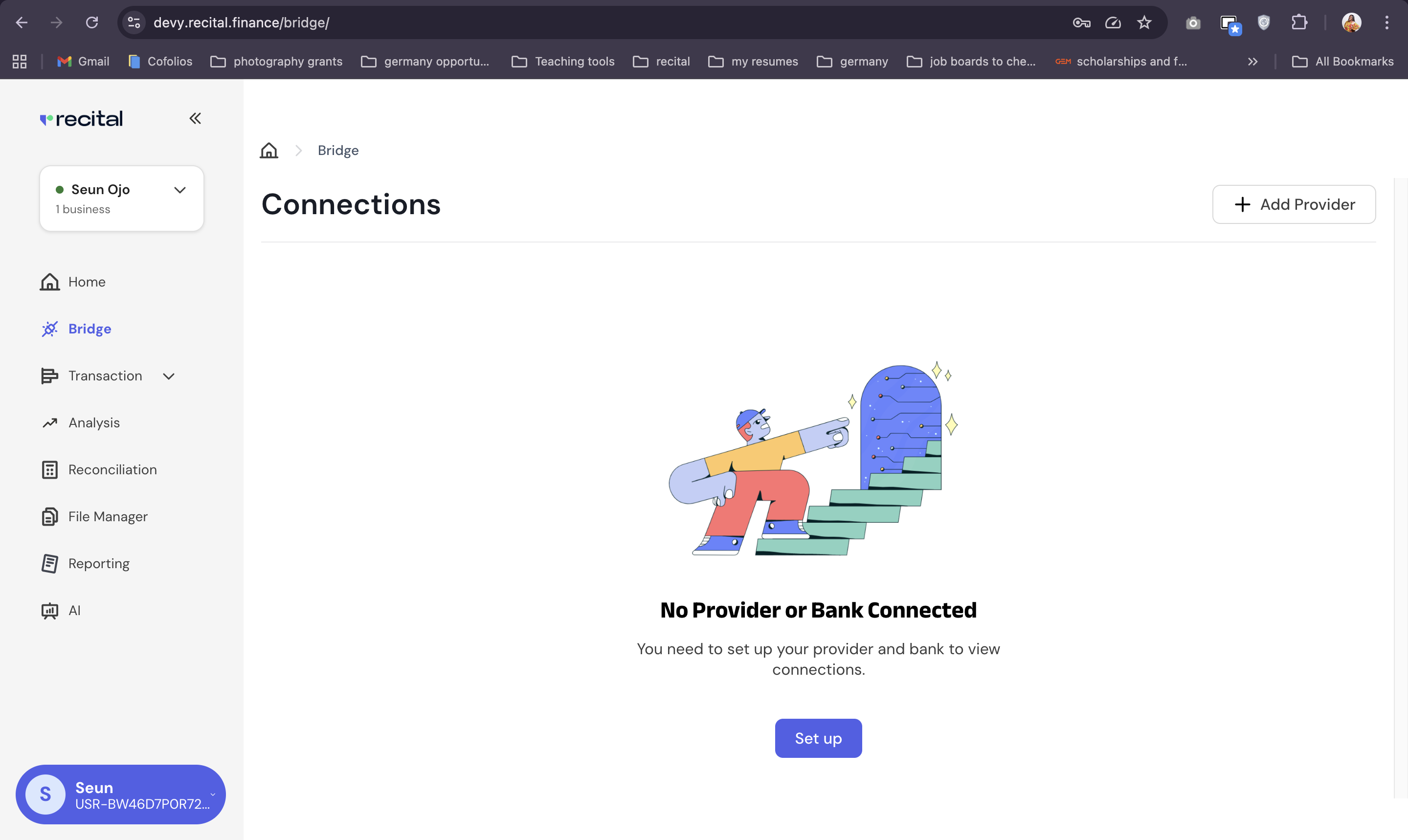 1. On the Bridge page, click on "Add Provider" button.
2. Select the PSP you want to connect to from the provider list.
1. On the Bridge page, click on "Add Provider" button.
2. Select the PSP you want to connect to from the provider list.
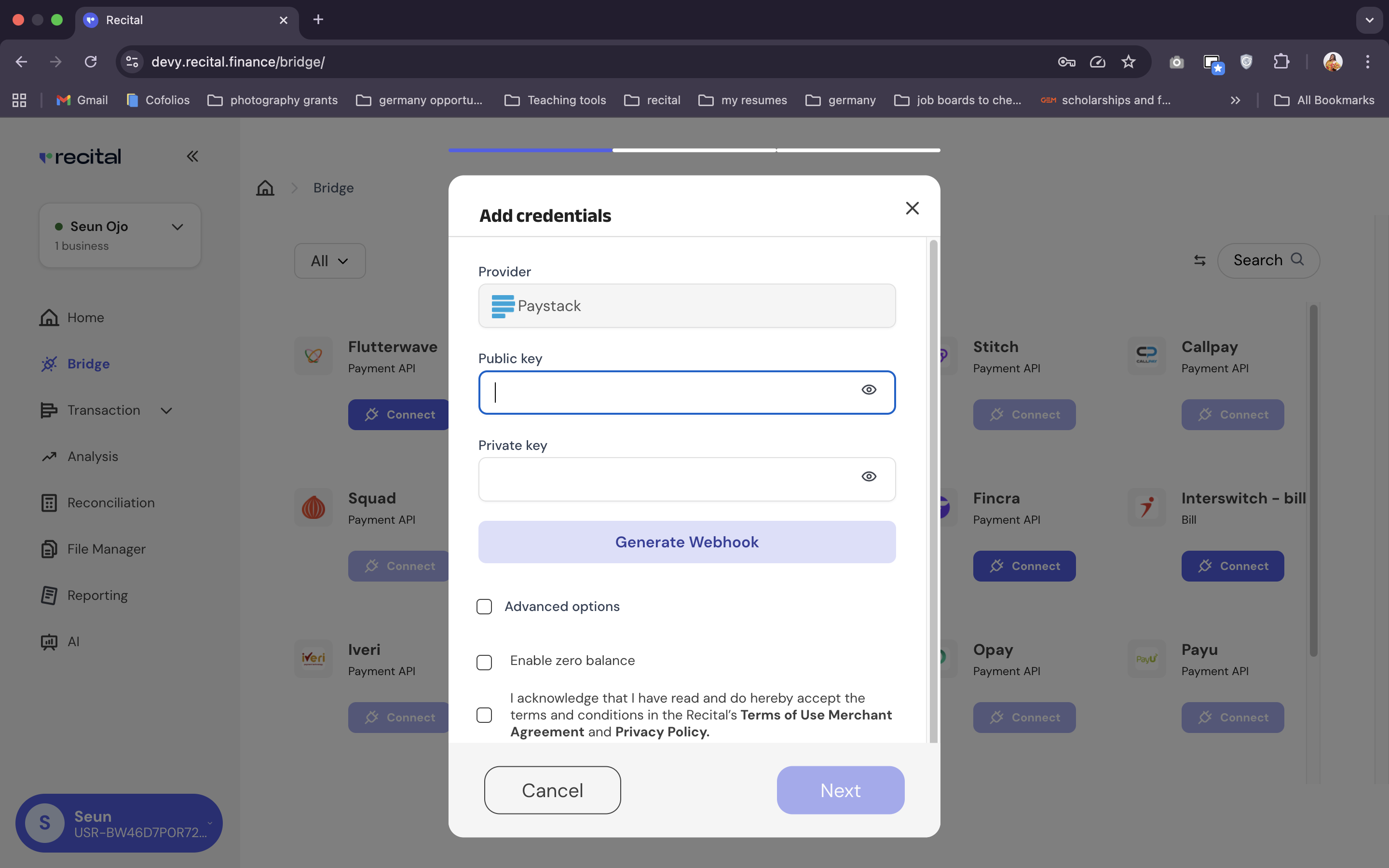
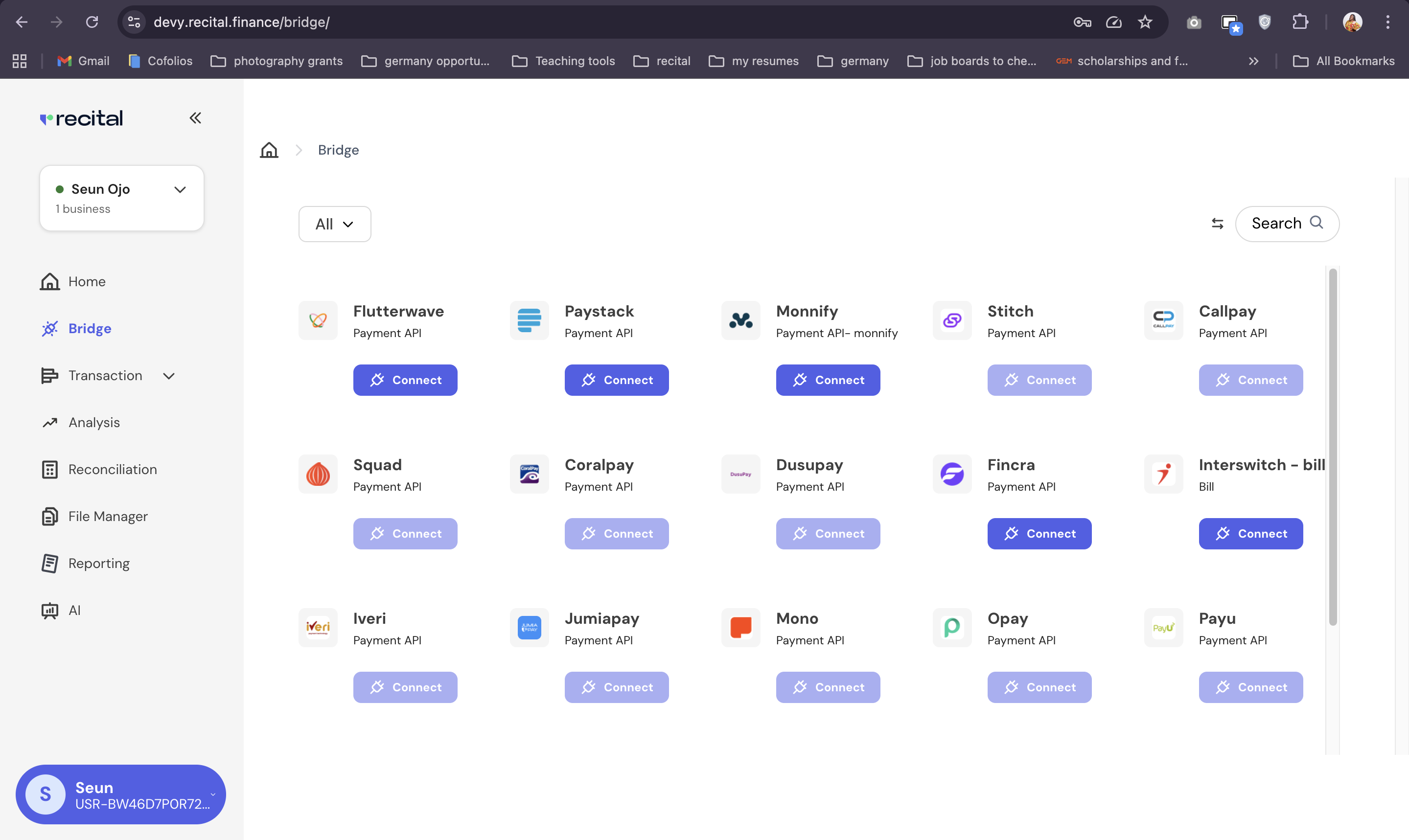 A pop-up modal will appear, prompting you to provide the necessary authentication credentials (e.g., API keys, account numbers, or login details) for the provider.
1. Add your provider issued private and public authentication credientails
2. Accept Recital's terms and condition for usage
3. Click "Next" to connect the provider
Connected providers show up on the Bridge Home page.
A pop-up modal will appear, prompting you to provide the necessary authentication credentials (e.g., API keys, account numbers, or login details) for the provider.
1. Add your provider issued private and public authentication credientails
2. Accept Recital's terms and condition for usage
3. Click "Next" to connect the provider
Connected providers show up on the Bridge Home page.
 If you are unsure about your provider's authentication credentials, contact your IT/ Engineering/Business teams for assistance.
You can multiple PSPs to your account. Just repeat the last three steps to add other PSP providers
Financial data flows seamlessly in and becomes immediately available across Balances, Transaction, Reports and Reconciliation on your account.
Use the left menu on Recital to navigate to the Bridge page
1. On the Bridge page, click on "Add Provider" button.
2. Use the category filter to select Bank or the Search input field to enter the name of your bank
3. Select the Bank you want to connect to from the list of supported providers by click on "Connect".
A pop-up modal from one of our Open Banking partners will appear, prompting you to provide the necessary authentication credentials to connect to your bank account.
1. Enter your bank's authentication credientials on the pop-up
2. Follow other instructions to complete the bank provider connection
The connected bank provider will show up on the Bridge Home page.
If you are unsure about your provider's authentication credentials, contact your IT/ Engineering/Business teams for assistance.
You can multiple banks to your account. Just repeat the last three steps to add other banks.
Financial data from bank flows in seamlessly becomes immediately available across Balances, Transaction, Reports and Reconciliation on your account.
### **Recital Forwarding Email**
Recital forwarding emails are smart, auto-generated email addresses assigned to businesses on Recital. These emails allow Recital to automatically capture and process transaction alerts sent by your bank, enabling seamless, real-time transaction recording within the Recital Automated Transactions module.
### **Why Use a Recital Forwarding Email?**
Recital forwarding emails offer a powerful alternative to traditional bank integrations. Here's why it's a better choice for many businesses:
* **High Success Rate:** Enjoy up to 99% transaction capture success.
* **No Bank Login Required:** Unlike auto-bank connections, there’s no need to log in to your bank account or grant data access.
* **Greater Bank Coverage:** Works even with banks not supported by direct integrations.
* **AI-Powered Parsing:** Our system uses AI to analyze transactional emails (debits/credits) and structure the data cleanly within Recital.
### Bank Connection via email forwarding Setup
Do the following:
Use the left menu on Recital dashboard to navigate to the Bridge page.
1. Use the Arrow beside the search input field on the top right to change your connector to **Email Forwarder**,
2. Then search for the bank you wish to connect
Provide the following information, for accurate account data parsing:
* **Alias** (friendly name for the account)
* **Account Name**
* **Account Number**
* **Business Email**
* **Subject Markers** (used to help filter relevant emails)
1. Click **Next** to generate your unique Recital forwarding email (e.g., `xyz@connect.recital.finance`).
2. Copy & Save the Email
You have two options for enabling transaction capture with your recital forwarding email:
### **Method 1: Submit to Your Bank**
* Add your Recital forwarding email (e.g., `xyz@connect.recital.finance`) as a **notification email** on your bank platform or submit it to your account manager.
* Ensure your bank adds it as an **authorized recipient** for transaction alerts.
* This setup ensures your bank sends transaction alerts directly to Recital in real-time.
***
### ✅ **Method 2: Set Up Email Forwarding From Your Email Inbox**
If your bank sends alerts to your personal/business email, you can configure a **forwarding rule** so those alerts are automatically forwarded to your Recital email.
Supported providers include:
* Gmail
* Outlook
* Zoho Mail
* Yahoo
* Amazon WorkMail
### Helpful Guides
Use the links below to set up email forwarding for your email provider:
* [Automatically forward bank alerts in Google Gmail to Recital accounting system transactions.](https://support.google.com/mail/answer/10957?hl=en\&sjid=12694956116572065480-EU#zippy=%2Cturn-automatic-forwarding-on-or-off%2Conly-forward-certain-kinds-of-messages)
* [Automatically forward bank alerts in Microsoft Outlook to Recital accounting system transactions.](https://support.microsoft.com/en-us/office/use-rules-to-automatically-forward-messages-45aa9664-4911-4f96-9663-ece42816d746)
* [Automatically forward bank alerts in ZohoMail to Recital accounting system transactions.](https://www.zoho.com/mail/help/email-forwarding.html)
* [Automatically forward bank alerts in YahooMail to Recital accounting system transactions.](https://help.yahoo.com/kb/SLN29133.html)
* [Automatically forward bank alerts in Amazon Workmail to Recital accounting system transactions.](https://docs.aws.amazon.com/workmail/latest/userguide/email-rules.html)
#### Example Use Case
Imagine a Fintech operating across multiple African markets. With Bridge:
* Bank balances from **Bank A (Nigeria)** sync daily.
* Settlement files from **PSP B (Kenya)** import automatically.
* ERP entries in **SAP** are updated after reconciliation runs.
| Source | Connection | Data Synced |
| :---------- | :--------------- | :-------------------------------- |
| Bank A | Direct bank feed | Real-time balances + transactions |
| PSP B | API Integration | Settlement files |
| ERP C (SAP) | ERP connector | Reconciled ledger entries |
Outcome: All systems stay synchronized without manual effort, ensuring a reliable single source of truth.
If you are unsure about your provider's authentication credentials, contact your IT/ Engineering/Business teams for assistance.
You can multiple PSPs to your account. Just repeat the last three steps to add other PSP providers
Financial data flows seamlessly in and becomes immediately available across Balances, Transaction, Reports and Reconciliation on your account.
Use the left menu on Recital to navigate to the Bridge page
1. On the Bridge page, click on "Add Provider" button.
2. Use the category filter to select Bank or the Search input field to enter the name of your bank
3. Select the Bank you want to connect to from the list of supported providers by click on "Connect".
A pop-up modal from one of our Open Banking partners will appear, prompting you to provide the necessary authentication credentials to connect to your bank account.
1. Enter your bank's authentication credientials on the pop-up
2. Follow other instructions to complete the bank provider connection
The connected bank provider will show up on the Bridge Home page.
If you are unsure about your provider's authentication credentials, contact your IT/ Engineering/Business teams for assistance.
You can multiple banks to your account. Just repeat the last three steps to add other banks.
Financial data from bank flows in seamlessly becomes immediately available across Balances, Transaction, Reports and Reconciliation on your account.
### **Recital Forwarding Email**
Recital forwarding emails are smart, auto-generated email addresses assigned to businesses on Recital. These emails allow Recital to automatically capture and process transaction alerts sent by your bank, enabling seamless, real-time transaction recording within the Recital Automated Transactions module.
### **Why Use a Recital Forwarding Email?**
Recital forwarding emails offer a powerful alternative to traditional bank integrations. Here's why it's a better choice for many businesses:
* **High Success Rate:** Enjoy up to 99% transaction capture success.
* **No Bank Login Required:** Unlike auto-bank connections, there’s no need to log in to your bank account or grant data access.
* **Greater Bank Coverage:** Works even with banks not supported by direct integrations.
* **AI-Powered Parsing:** Our system uses AI to analyze transactional emails (debits/credits) and structure the data cleanly within Recital.
### Bank Connection via email forwarding Setup
Do the following:
Use the left menu on Recital dashboard to navigate to the Bridge page.
1. Use the Arrow beside the search input field on the top right to change your connector to **Email Forwarder**,
2. Then search for the bank you wish to connect
Provide the following information, for accurate account data parsing:
* **Alias** (friendly name for the account)
* **Account Name**
* **Account Number**
* **Business Email**
* **Subject Markers** (used to help filter relevant emails)
1. Click **Next** to generate your unique Recital forwarding email (e.g., `xyz@connect.recital.finance`).
2. Copy & Save the Email
You have two options for enabling transaction capture with your recital forwarding email:
### **Method 1: Submit to Your Bank**
* Add your Recital forwarding email (e.g., `xyz@connect.recital.finance`) as a **notification email** on your bank platform or submit it to your account manager.
* Ensure your bank adds it as an **authorized recipient** for transaction alerts.
* This setup ensures your bank sends transaction alerts directly to Recital in real-time.
***
### ✅ **Method 2: Set Up Email Forwarding From Your Email Inbox**
If your bank sends alerts to your personal/business email, you can configure a **forwarding rule** so those alerts are automatically forwarded to your Recital email.
Supported providers include:
* Gmail
* Outlook
* Zoho Mail
* Yahoo
* Amazon WorkMail
### Helpful Guides
Use the links below to set up email forwarding for your email provider:
* [Automatically forward bank alerts in Google Gmail to Recital accounting system transactions.](https://support.google.com/mail/answer/10957?hl=en\&sjid=12694956116572065480-EU#zippy=%2Cturn-automatic-forwarding-on-or-off%2Conly-forward-certain-kinds-of-messages)
* [Automatically forward bank alerts in Microsoft Outlook to Recital accounting system transactions.](https://support.microsoft.com/en-us/office/use-rules-to-automatically-forward-messages-45aa9664-4911-4f96-9663-ece42816d746)
* [Automatically forward bank alerts in ZohoMail to Recital accounting system transactions.](https://www.zoho.com/mail/help/email-forwarding.html)
* [Automatically forward bank alerts in YahooMail to Recital accounting system transactions.](https://help.yahoo.com/kb/SLN29133.html)
* [Automatically forward bank alerts in Amazon Workmail to Recital accounting system transactions.](https://docs.aws.amazon.com/workmail/latest/userguide/email-rules.html)
#### Example Use Case
Imagine a Fintech operating across multiple African markets. With Bridge:
* Bank balances from **Bank A (Nigeria)** sync daily.
* Settlement files from **PSP B (Kenya)** import automatically.
* ERP entries in **SAP** are updated after reconciliation runs.
| Source | Connection | Data Synced |
| :---------- | :--------------- | :-------------------------------- |
| Bank A | Direct bank feed | Real-time balances + transactions |
| PSP B | API Integration | Settlement files |
| ERP C (SAP) | ERP connector | Reconciled ledger entries |
Outcome: All systems stay synchronized without manual effort, ensuring a reliable single source of truth.